F5 Distributed Cloud Source | Edit on
F5 Distributed Cloud: Code, Secure, Repeat
Introduction
Welcome to the F5 Distributed Cloud – Code. Secure. Repeat. lab.
This lab is designed to feel less like a traditional step-by-step workshop and more like a day in the life of a modern DevSecOps team. You’ll move fast, break things (on purpose), and see how security can be built into the workflow instead of bolted on at the end.
You’ll start by onboarding into a fully browser-based development environment—no installs, no local dependencies, and no “works on my laptop” moments. From there, you’ll experience how AI-assisted development (vibe coding) can dramatically accelerate delivery, while also introducing real security risks that teams face every day.
As the lab progresses, you’ll see how those risks are addressed using CI/CD-driven security controls, policy-as-code, and runtime protection with F5 Distributed Cloud. Security decisions won’t rely on manual reviews or heroics—instead, they’ll be enforced automatically through the pipeline and continuously validated in production-like conditions.
By the end of the lab, you’ll have walked through the full lifecycle:
Writing code fast with AI
Catching issues early with Static Application Security Testing (SAST)
Enforcing guardrails using DevSecOps and policy as code
Protecting live applications with WAAP
Validating security posture using Dynamic Application Security Testing (DAST) through Web App Scanning
This lab isn’t about memorizing steps—it’s about understanding why modern teams build security the way they do, and how platforms like F5 Distributed Cloud help make speed and security work together.
Let’s get started.
Note
If you’ve already joined the UDF lab environment and your deployment status shows all green, you may proceed directly to Module 0. If you have not yet joined the UDF lab environment, please complete the steps outlined in the Course/Lab Invitation and Accessing UDF sections first.
Course/Lab Invitation
Access to the lab environment is provided via an invitation email sent to the registration address you submitted. Please check your inbox and spam folder. If you did not receive an invitation, contact a member of the lab team for assistance.
Accessing UDF (F5 Unified Demo Framework)
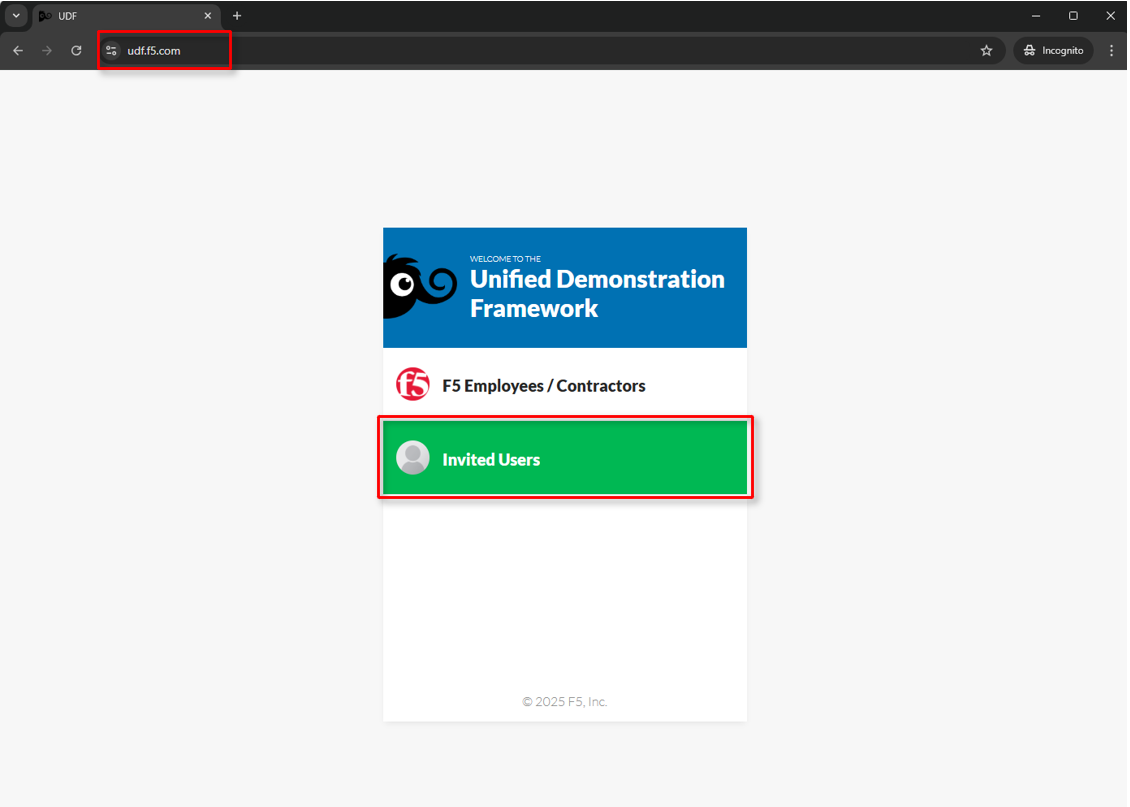
The following will guide attendees through the initial Lab environment access within F5 UDF. Following the instructions from the Course/Lab invitation above, attendees will be prompted to login at https://udf.f5.com Note Note The steps for new UDF Users or the steps for resetting UDF User account passwords are not shown. Please contact a member of the lab team if further assistance is needed. |
|
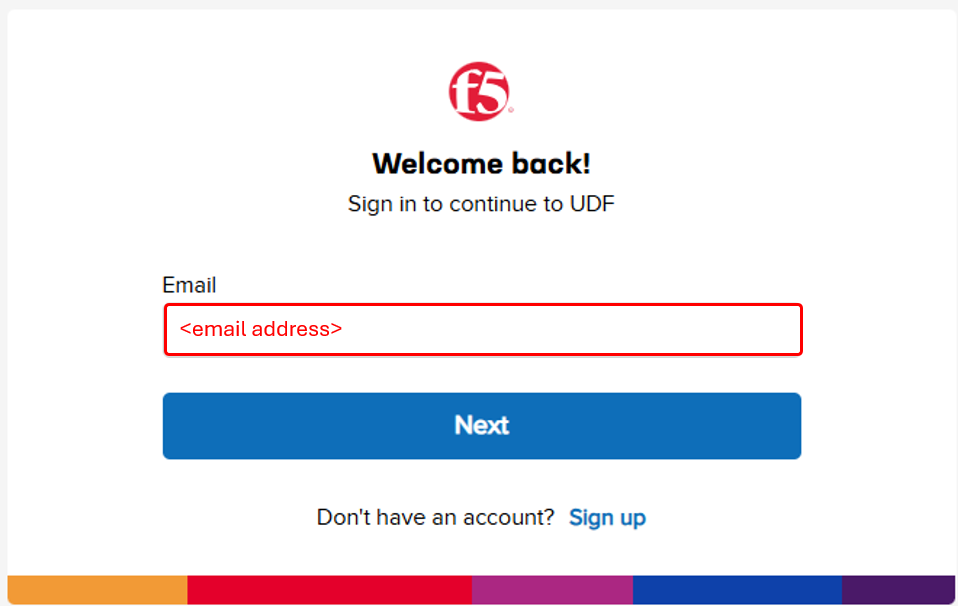
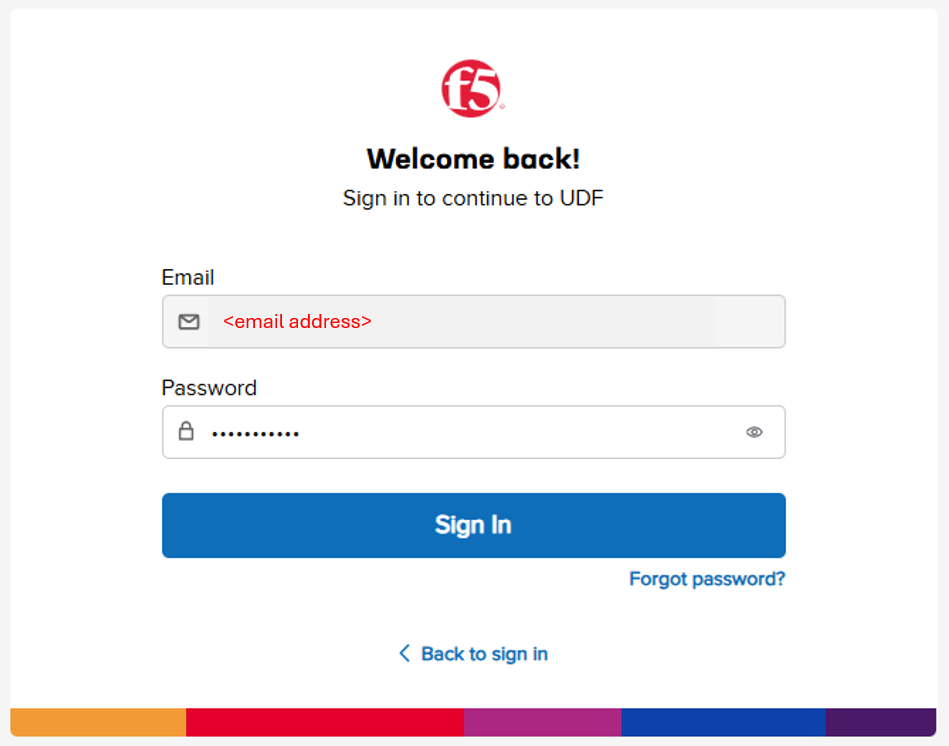
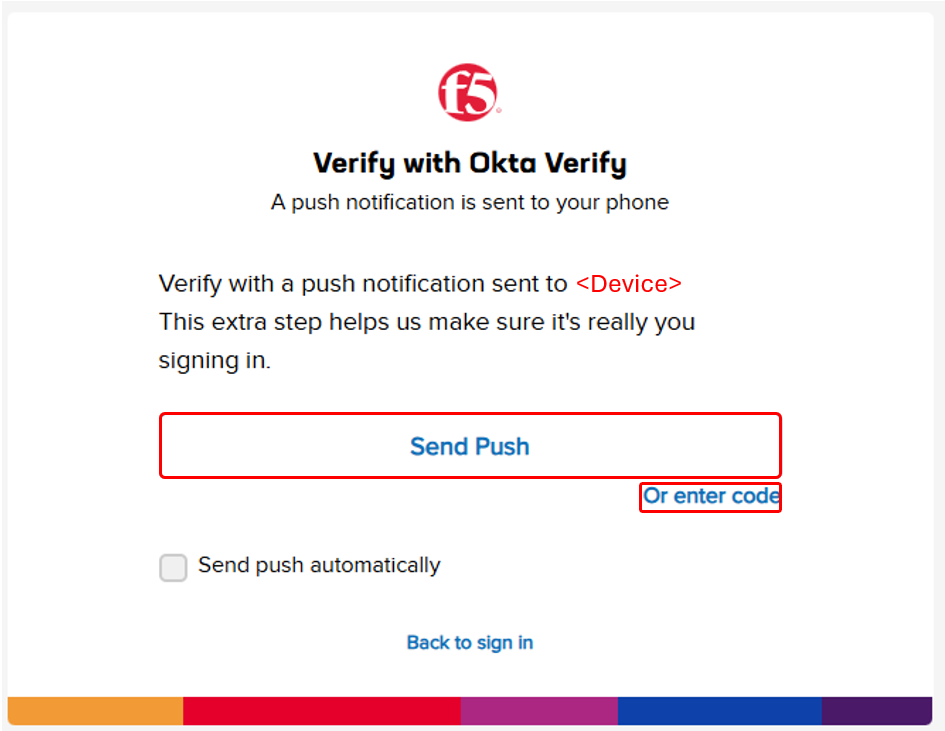
Attendees will be prompted to enter their UDF account, password and complete MFA as shown. MFA must be completed by either selecting Send Push or Enter Code. Note MFA process will vary based on the MFA integration selected for the UDF Account. OKTA Verify is shown. |
|
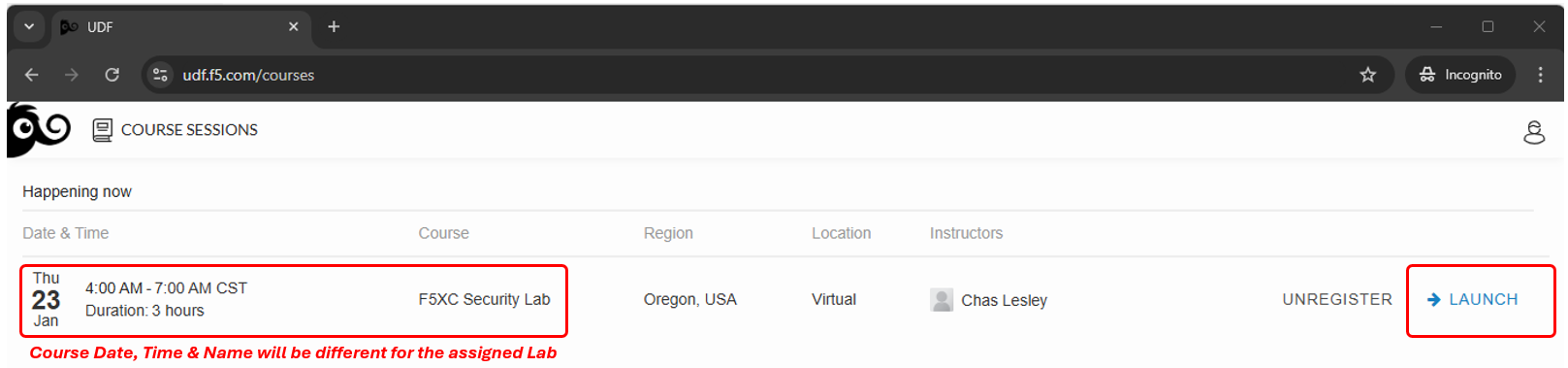
Attendees will then be presented their scheduled course sessions. Locate the course/lab with the appropriate Date, Time and Name and then click Launch. |
|
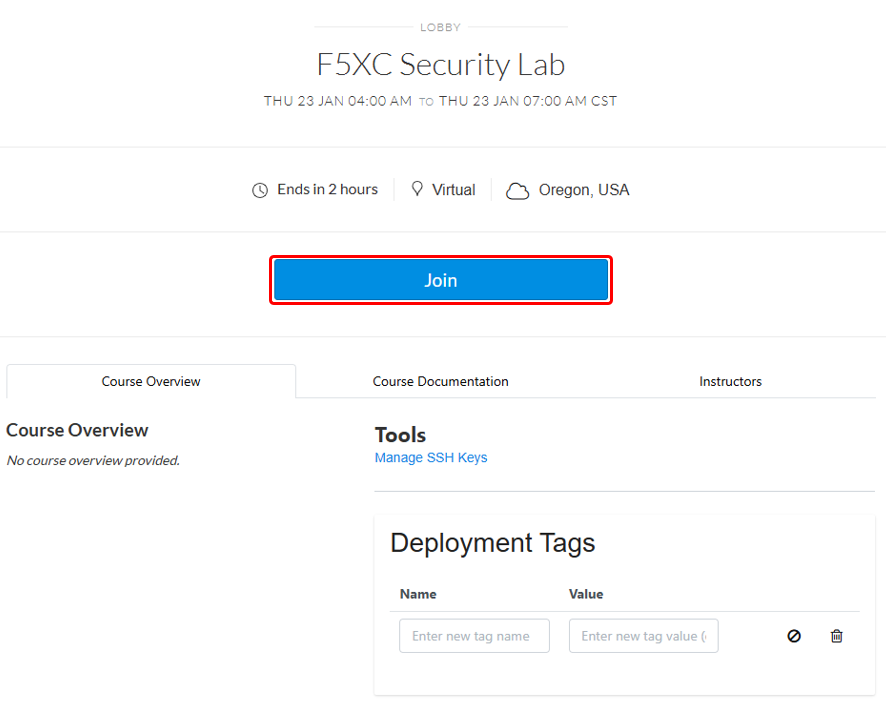
Once redirected to the selected Course/Lab, click the Join button. |
|
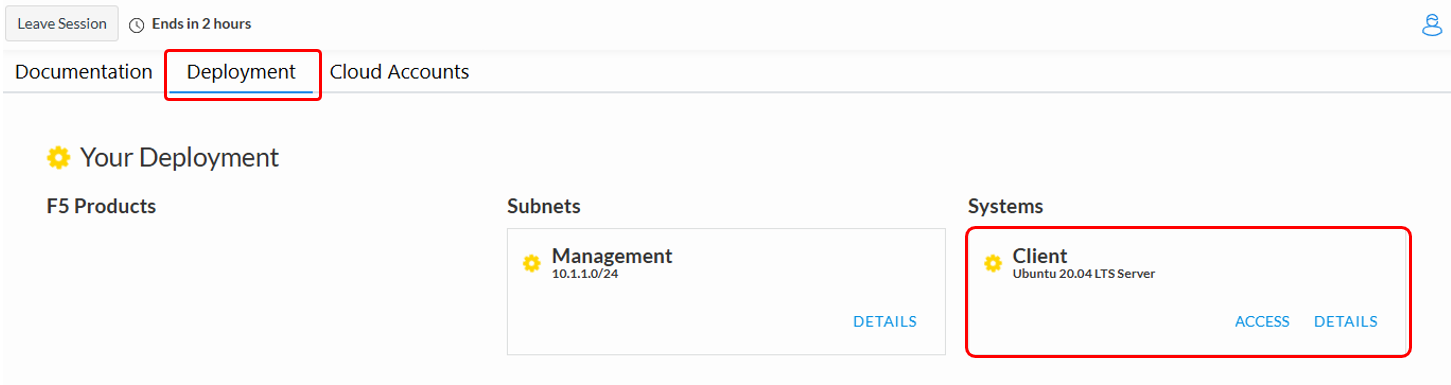
The Lab environment window will now be displayed. Click on the Documentation tab in the horizontal navigation links. Locate and observe the state of Client system. In approximately 5-7 minutes the associated yellow gear starting icon will change to a green arrow (running) icon and attendees will proceed to the next section of steps. Note Your specific lab environment may vary from the graphics shown below. The **Client** will, however, be consistent. |
|
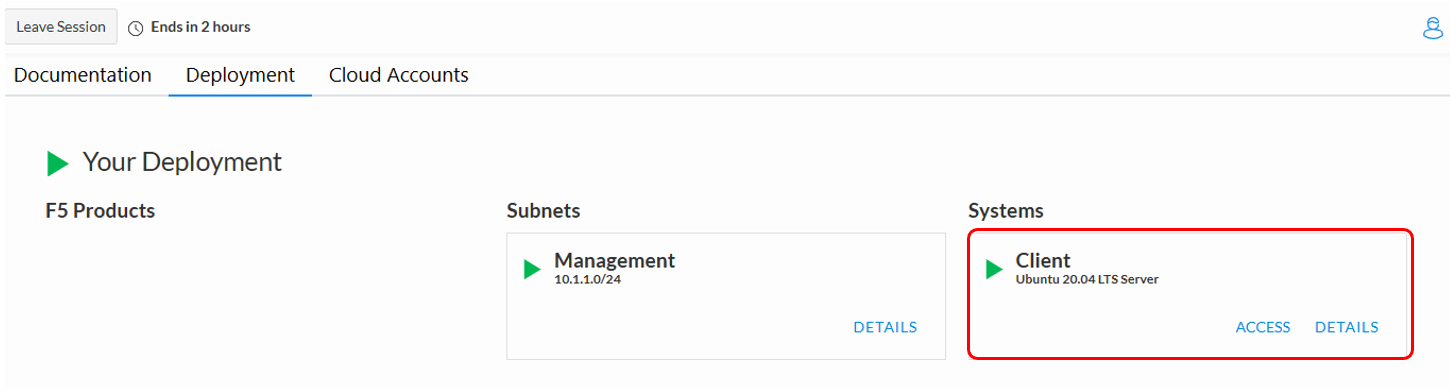
Beginning of Lab: You are now ready to begin the lab. Enjoy! Ask questions as needed. |
|