F5 Distributed Cloud > F5 Distributed Cloud: Code, Secure, Repeat > Module 1 – Vibe Coding a Simple Web App Source | Edit on
Task 1 – Understanding Vibe Coding with Cline Extension
This task introduces AI-assisted “Vibe Coding”—how it works, why it’s powerful, and where it can go wrong. You will not write production-perfect code here. Instead, you’ll learn how AI accelerates development and why guardrails and review still matter.
This mindset carries through the entire lab.
Understanding VS Code, Cline, and Gemini Interaction
Cline is the AI coding assistant inside VS Code for this lab. It connects VS Code to the Gemini model and helps you generate code, files, and application logic by describing what you want, not by writing every line yourself.
This style is commonly referred to as vibe coding—fast, creative, and intentionally imperfect.
How the Interaction Works
The basic loop looks like this:
You write a prompt in Cline.
Cline sends it to Gemini.
Gemini proposes code and actions.
Cline applies those changes directly in VS Code.
You review, save, clean up, and move on.
New Files Being Created
Cline may create new files and folders automatically.
This is expected behavior.
Don’t freak out 🙂
Always skim new files before deleting or modifying anything.
Command Execution
Cline may run or suggest commands (installing packages, running the app, etc.).
Cline opens and uses its own VS Code terminal, identifiable by the Cline application icon.
This is separate from terminals you open manually.
You can always see exactly what command is being executed.
Treat it like a helpful teammate typing for you—but you’re still in control.
Automated Testing with Pytest
Cline may automatically run pytest to validate the code it generates.
If tests fail, Cline will attempt to modify the code and re-run the tests.
This loop can repeat multiple times until the tests pass.
If the same failure occurs five times, Cline stops and exits the process.
Save File Prompts
VS Code will frequently prompt you to save files.
This happens often during AI-generated changes.
Save early and save often.
Unsaved files lead to confusion later.
Clean Up as You Go
Keep your workspace tidy as you work:
Close files once you’re done reviewing them.
Fewer open tabs = less confusion.
Delete or refactor obvious duplicates early.
Cline Errors
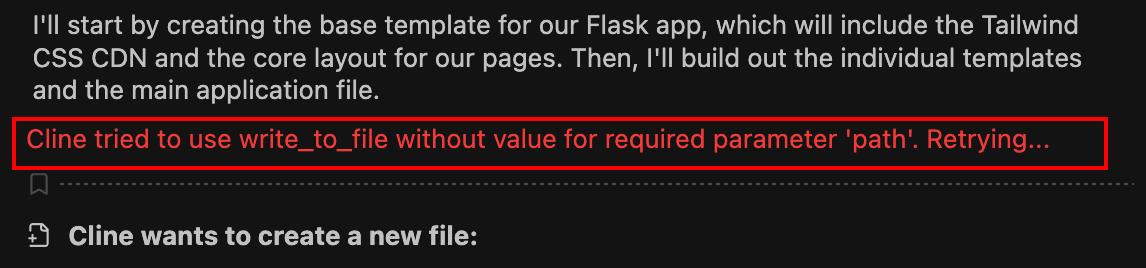
You may occasionally see error messages. In most cases, these can be safely ignored.
Cline runs in a restricted lab environment and may try actions that are not allowed. When that happens, it automatically adjusts and retries using a different approach.
This is normal behavior and partly due to the non-deterministic nature of LLMs.
Cline Stuck on “Thinking”
Occasionally, Cline may appear to get stuck on “thinking” and not complete a task.
This can happen due to:
Model latency
Transient API delays
Large or complex prompts
The non-deterministic nature of generative AI
If this happens (Cline is not responding for more than 1 minute or 2 minutes):
Click Pause on the task.
Wait a few seconds.
Click Resume.
In most cases, Cline will successfully complete the task after resuming.
If it continues to hang:
Cancel the task.
Slightly simplify or rephrase your prompt.
Retry.
This behavior is normal in AI-assisted workflows and does not mean the lab is broken.
Wrap-Up
The key takeaway from this task:
AI accelerates development
AI does not replace review
Speed increases risk without guardrails
Throughout this lab, you’ll see how CI/CD pipelines and runtime security compensate for the weaknesses of vibe coding—without slowing teams down.
You’re still in control. Cline just moves fast.