F5 Distributed Cloud > F5 Distributed Cloud: Code, Secure, Repeat > Module 1 – Vibe Coding a Simple Web App Source | Edit on
Task 2 – Let’s Vibe Code!
In this task, you will use Cline to generate a simple Flask application using AI-assisted “vibe coding.” The goal is not to build a perfect app—it’s to experience the speed, workflow, and tradeoffs of AI-generated code before we secure it in later modules.
Build a Simple Flask Web Application
Open the Cline extension and start a new task.
In VS Code Server, open the Cline chat and initiate a new task.
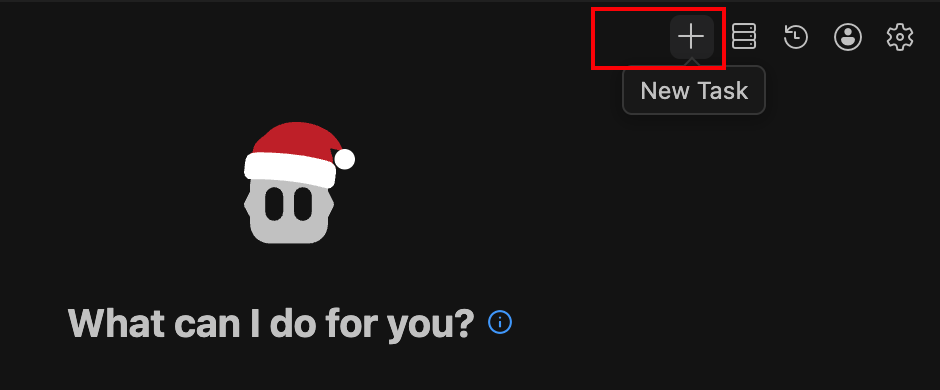
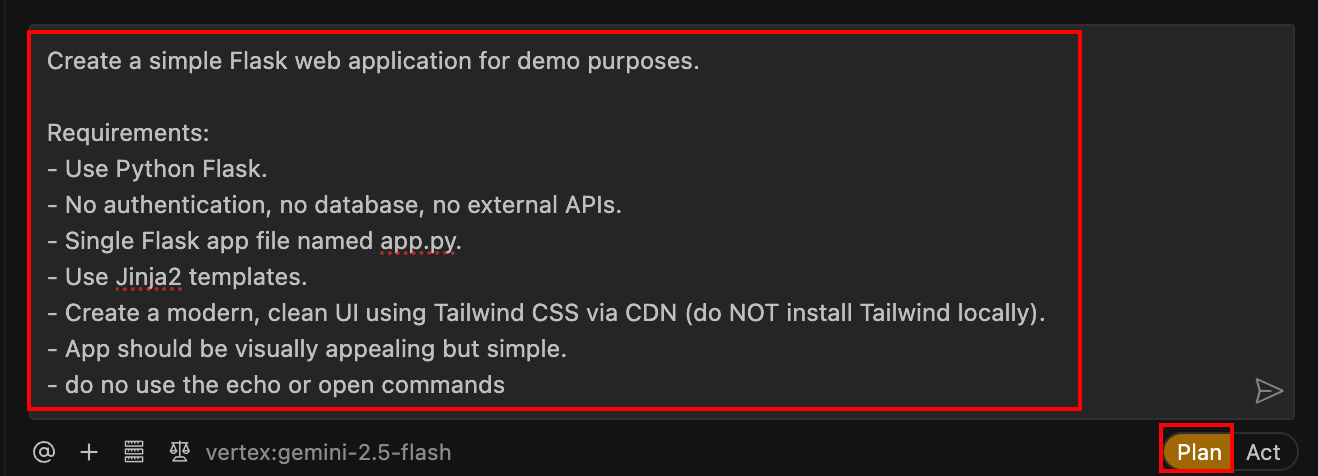
Generate the application request (Plan mode).
Copy and paste the prompt below into the Cline chat window.
Note
Make sure the Cline toggle under the chat window is set to **Plan* mode.*
You are building a LAB-ONLY demo application for AppWorld 2026.

Create a simple Flask web application that demonstrates basic functionality and is intentionally minimal. This app will be used later to showcase security features, so do NOT over-engineer it.

============================================================
IMPORTANT LAB CONSTRAINTS
============================================================
- This is a demo app ONLY.
- Keep the app intentionally simple and readable.
- Do NOT add authentication, databases, ORMs, or advanced logic.
- Do NOT refactor or restructure unless explicitly instructed.
- Use Flask (not FastAPI).
- Use inline HTML templates (Jinja2) stored in a /templates folder.
- Do NOT use echo, open, or shell commands to generate files.

============================================================
FILE WRITE RULES
============================================================
- Assume the workspace root is the current folder.
- When creating or writing files, ALWAYS use explicit relative paths.
- Valid paths for this task are ONLY:
- app.py
- templates/base.html
- templates/index.html
- templates/about.html
- NEVER attempt to write a file without a resolved path value.
- If a path is unclear, infer it from the Deliverables section below.

============================================================
APP REQUIREMENTS
============================================================

1. Flask Application
- Create app.py
- Run on host 0.0.0.0 and port 5000
- Enable debug mode
- Use Flask's render_template

1. Routes
- "/"       → Home page
- "/about"  → About page

1. HTML Structure
- Use a base template with:
- A simple header
- Navigation links: Home | About
- A content block
- Other pages must extend the base template

1. Content
- Home page:
- Title: "AppWorld 2026 Demo App"
- Short description explaining this is a demo application
- About page:
- Explain this app is used for learning CI/CD and security concepts

1. Styling
- Keep CSS minimal
- Use CDN TailwindCSS
- Inline CSS inside the base template is acceptable
- No external CSS frameworks

============================================================
DELIVERABLES
============================================================
Create ONLY the following files:

- app.py
- templates/base.html
- templates/index.html
- templates/about.html

Do NOT create additional files or folders.

============================================================
FINAL CHECK
============================================================
- Ensure all files are syntactically correct
- Ensure Flask runs without errors
- Keep everything simple and readable
Ensure Cline is in Plan mode before you submit the prompt.
Review the AI plan.
Cline will respond with a plan describing which files it intends to create and how.
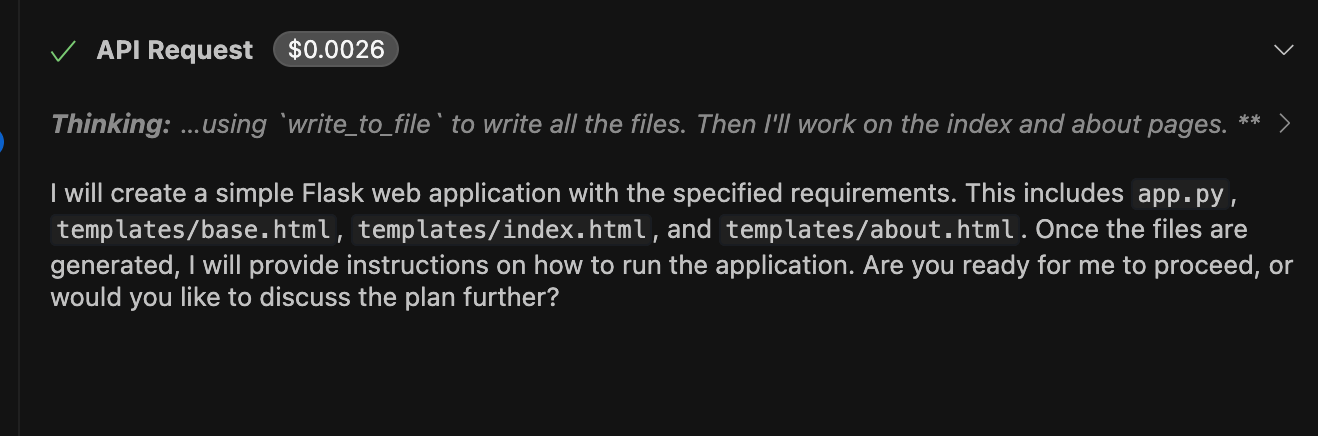
What to notice:
No files are created yet.
This is your chance to sanity-check the approach.
Generate the code (Act mode).
Switch the Cline toggle to Act mode and approve the plan.
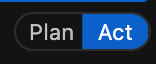
At this point, Cline will start generating the files directly in your workspace.
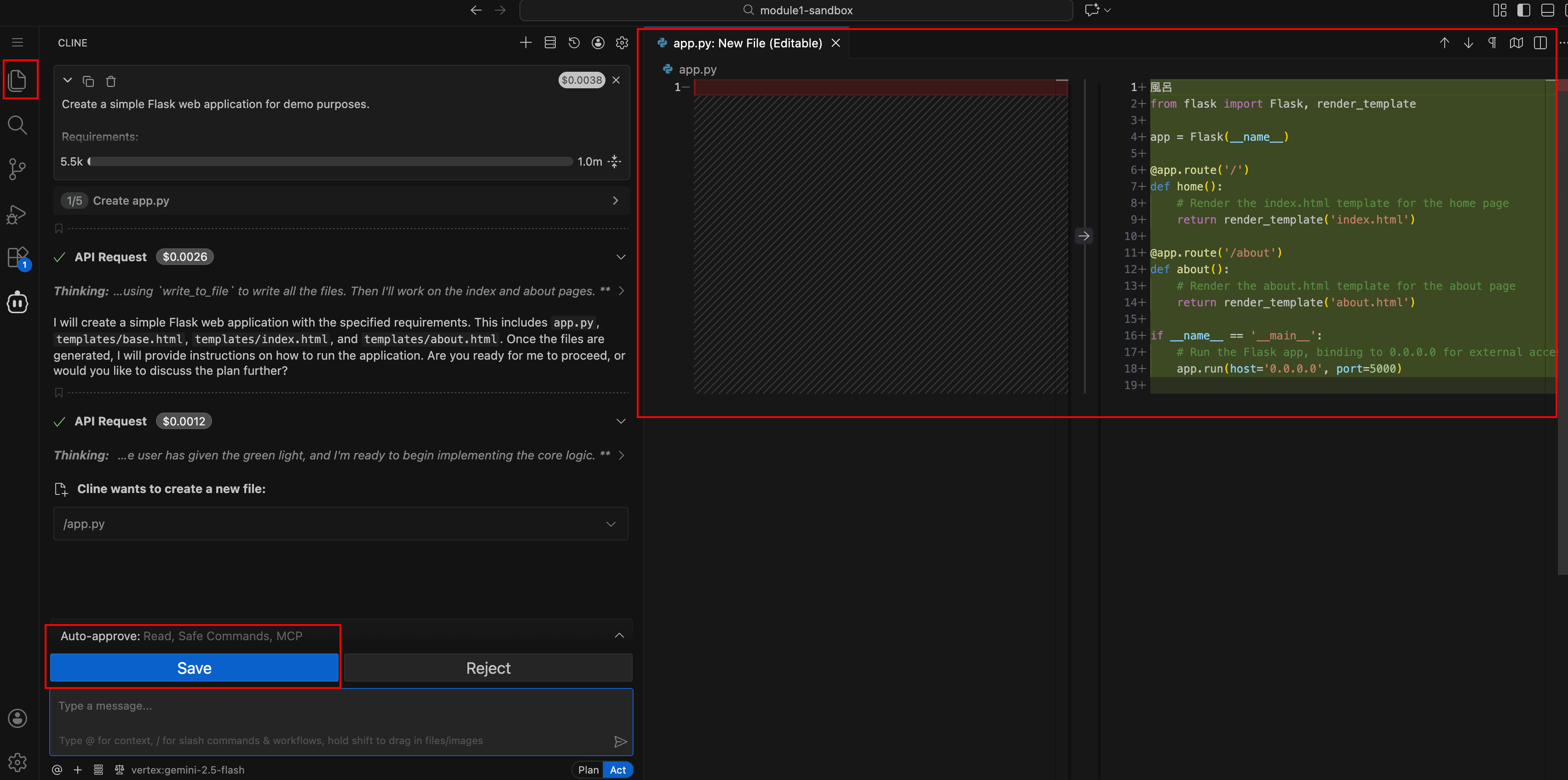
Note
After generating each file, Cline will prompt you to save it before continuing.
What happened behind the scenes:
Gemini generates code for each file.
Cline writes the files directly into your workspace.
VS Code prompts you to save changes as they occur.
Review the generated files.
Inspect the created files, especially
app.py, which defines the/and/aboutroutes.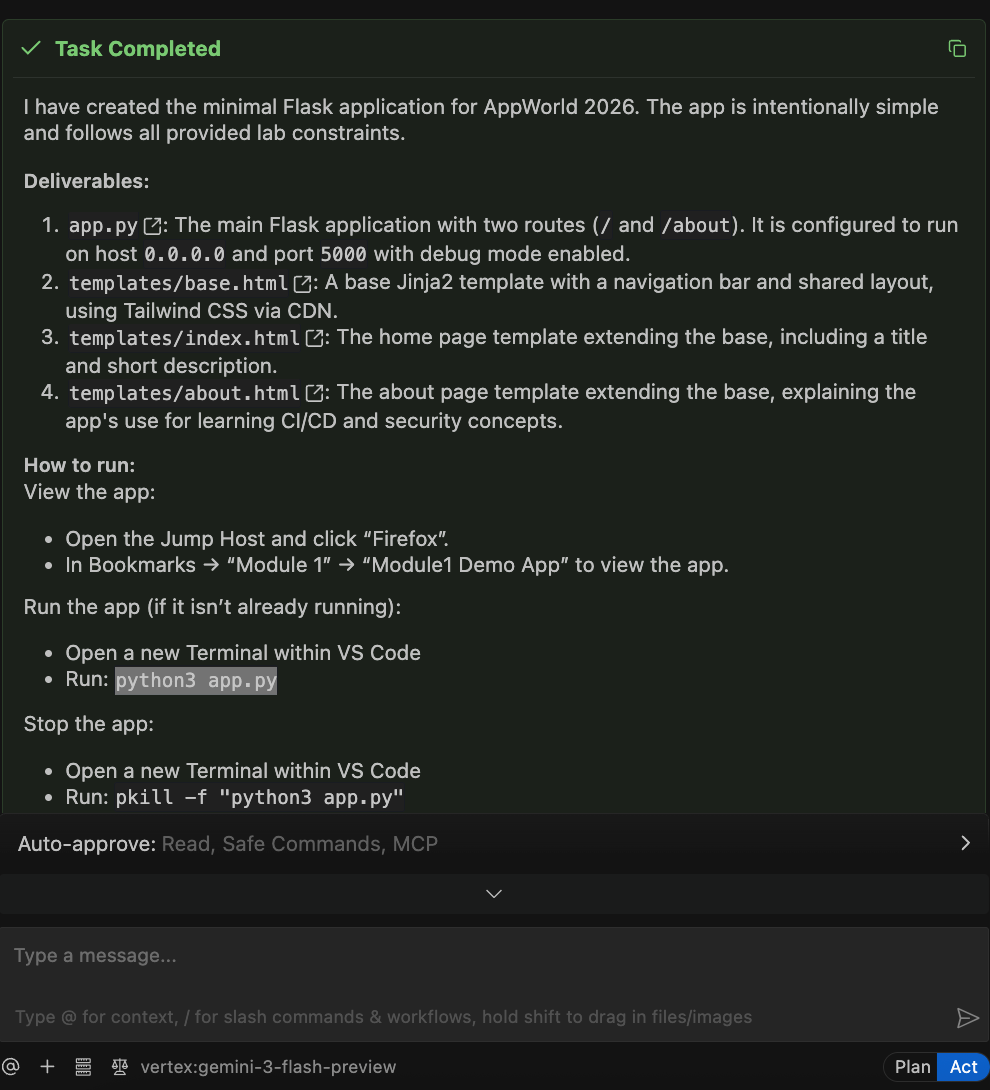
Run and Test the Application
Run the Flask application.
On a new terminal window within VS Code server, start the application using the command below.
python3 app.py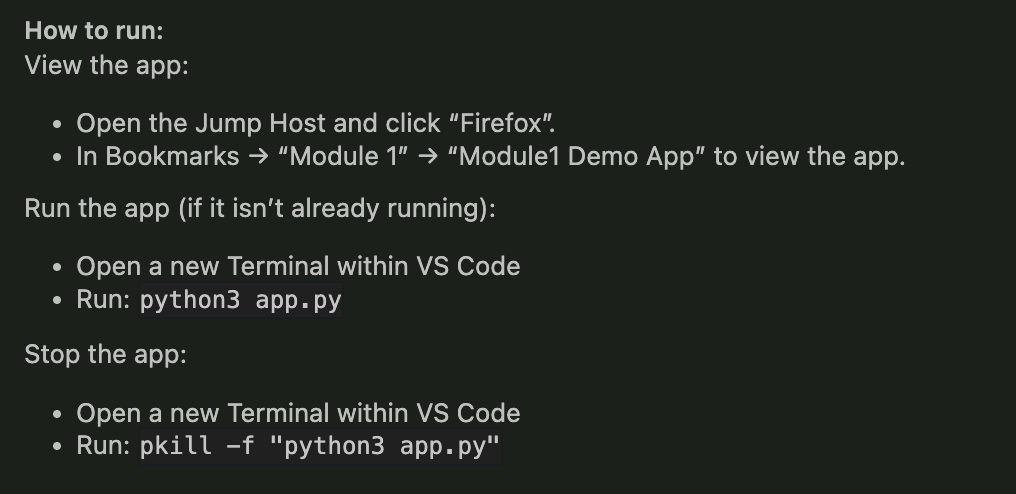
Verify the application is running.
Confirm that the Flask server starts successfully and listens on the specified host and port.

Access the application.
Access the application using the Firefox container running on the Jump Host.
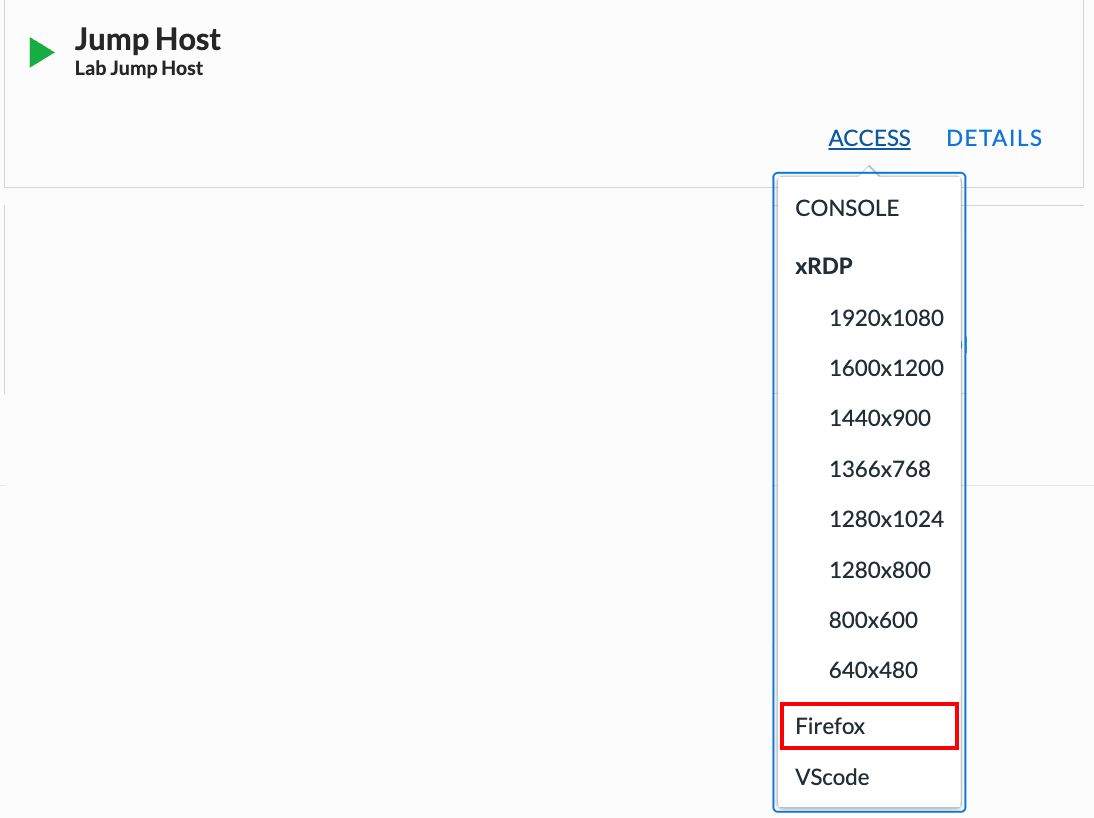
Click on the bookmark folder Module 1 and then Module 1 Demo App link to open the home page.
Note
Flask must be running for the home page to be accessible.
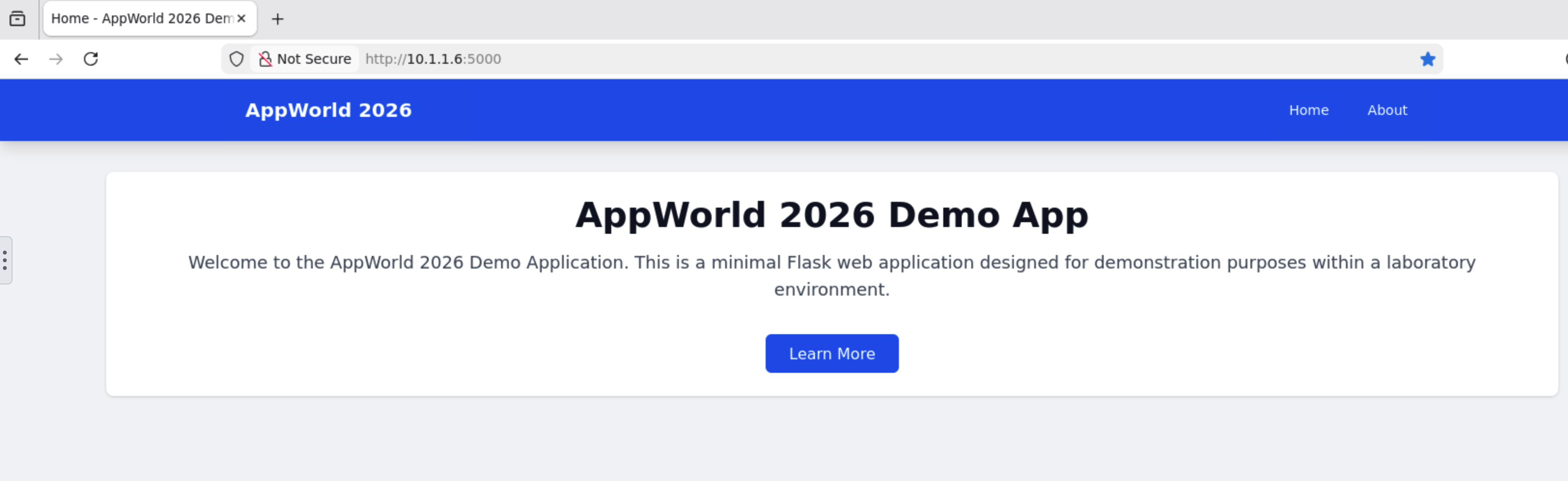
Your application will look similar to this
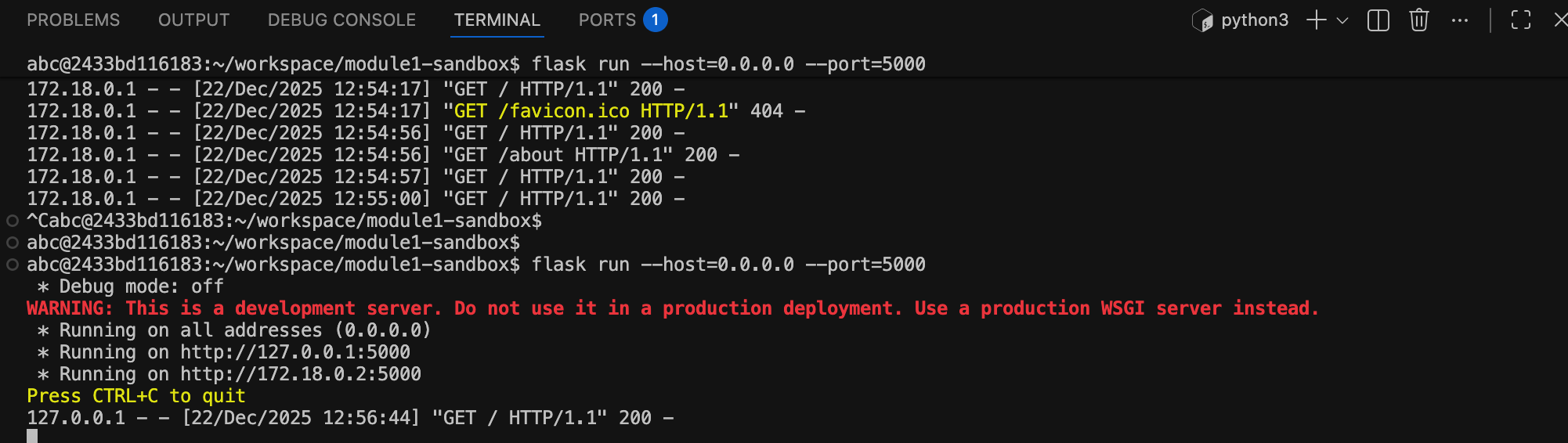
Stop the application and clean up.
Press
Ctrl+Cin the terminal to stop the Flask server. Or on another terminal, you can run the command below.pkill -f "python3 app.py"
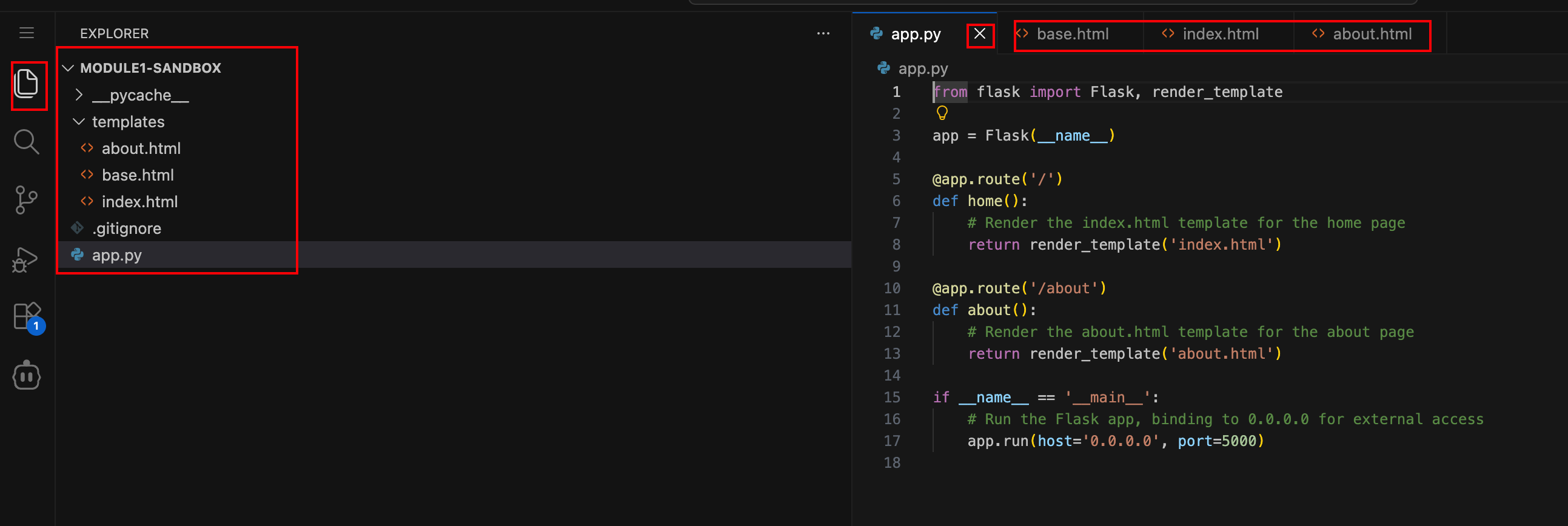
Close the files created by Cline as you no longer need to edit them.
Wrap-Up
You have successfully:
Generated an application using AI-assisted vibe coding
Reviewed and executed AI-generated code
Run the application locally in the lab environment
At this point, the app is fast to build but not secure—and that’s intentional.
In the next modules, you’ll start adding CI/CD guardrails and runtime security, transforming this demo app into a protected workload following the Code. Secure. Repeat. workflow.