F5 Distributed Cloud > F5 Distributed Cloud: Code, Secure, Repeat > Module 2 – CI/CD + Basic Runtime Security Source | Edit on
Task 2 - Explore F5 AI-generated Application & Runtime Security
In this task, you will explore the F5 Distributed Cloud configuration that was deployed by the CI/CD pipeline, then generate traffic and intentionally trigger security events. The goal is to see runtime protection in action, not to break anything.
Explore the Deployed Application
Browse the application normally. Click around the application and load a few pages to generate baseline traffic.
https://<NAMESPACE>-lb.lab-app.f5demos.com
Note
Replace <NAMESPACE> with your F5 Distributed Cloud namespace assigned at the beginning of the lab.
Explore F5 Distributed Cloud Configuration
Review the HTTPS Load Balancer configuration in F5 Distributed Cloud.
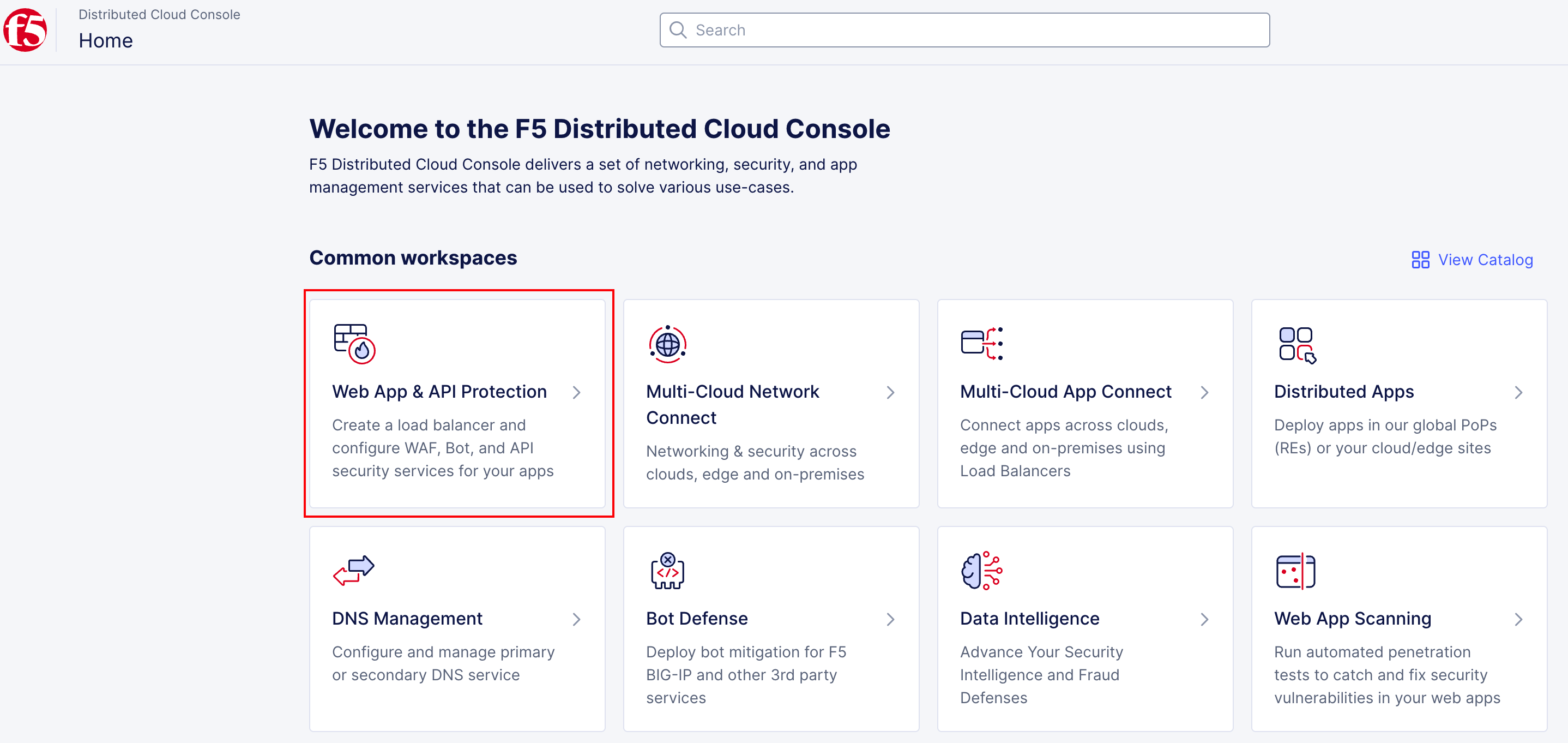
In the F5 Distributed Cloud console, Click on the Web App & API Protection tile.
Note
You can also access the tenant directly at: https://f5-xc-lab-app.console.ves.volterra.io/
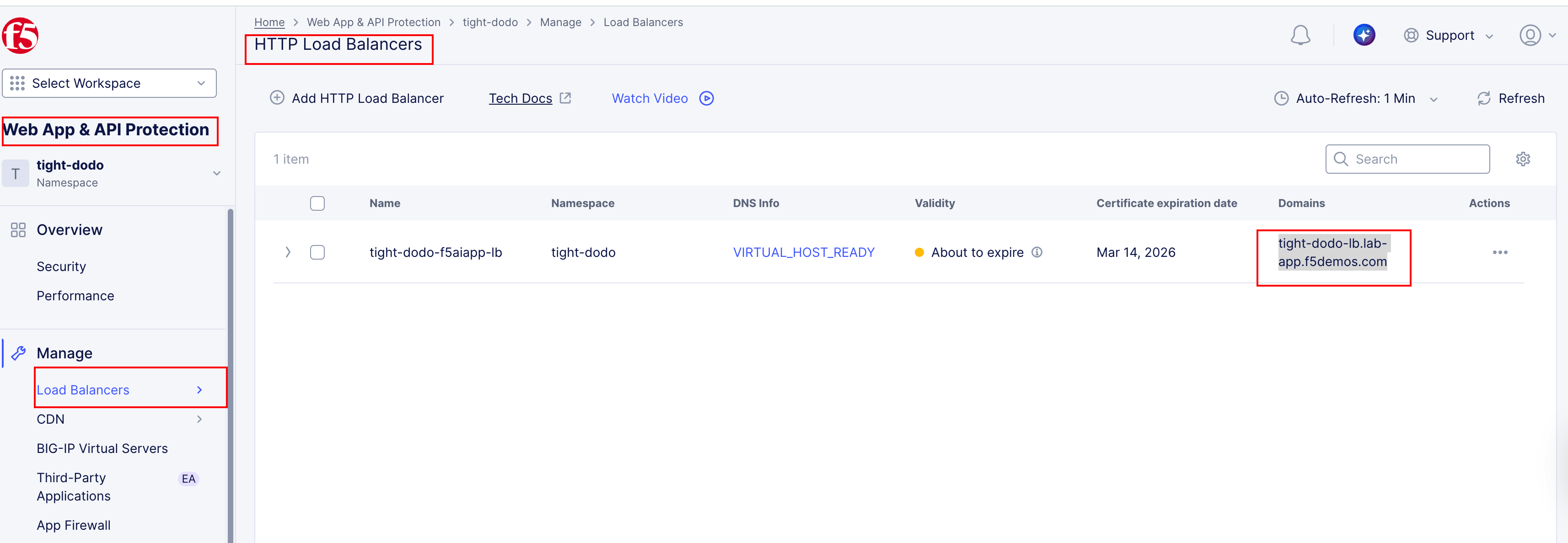
Under the “Manage” section, hover over “Load Balancers” and click “HTTP Load Balancers”. You should see the LB object created for your application
Note
If you want to explore the HTTP LB configuration, click the “…” symbol under the Actions column and click “Manage configuration”.
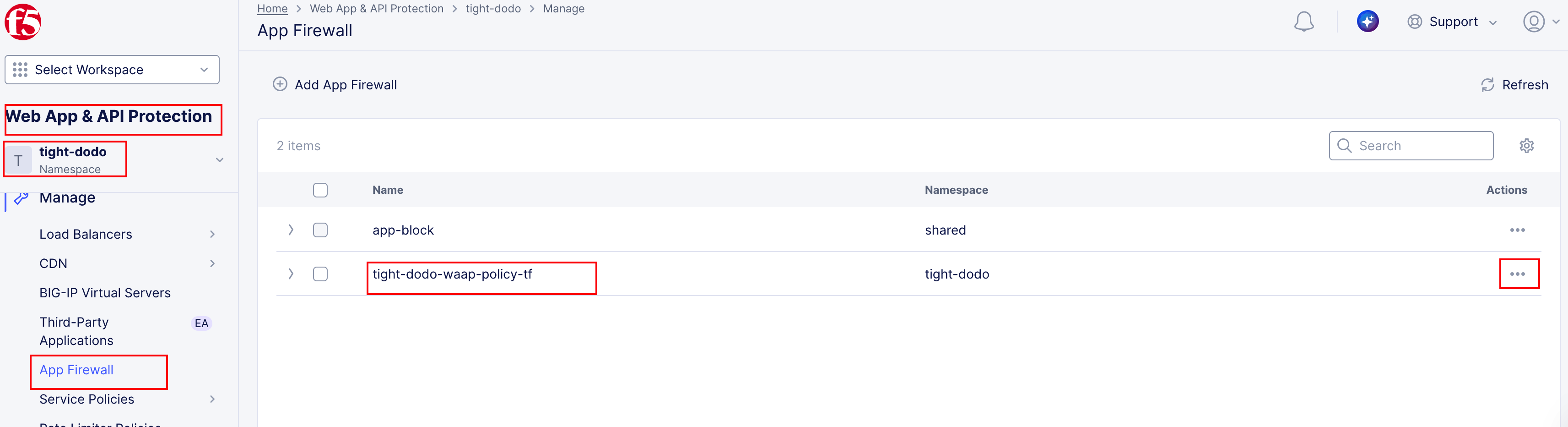
Review the WAF policy attached to the application.
On same Web App & API Protection page. Click on the “App Firewall”
Note
If you want to explore your WAF policy, click the “…” symbol under the Actions column and click “View Configuration”.
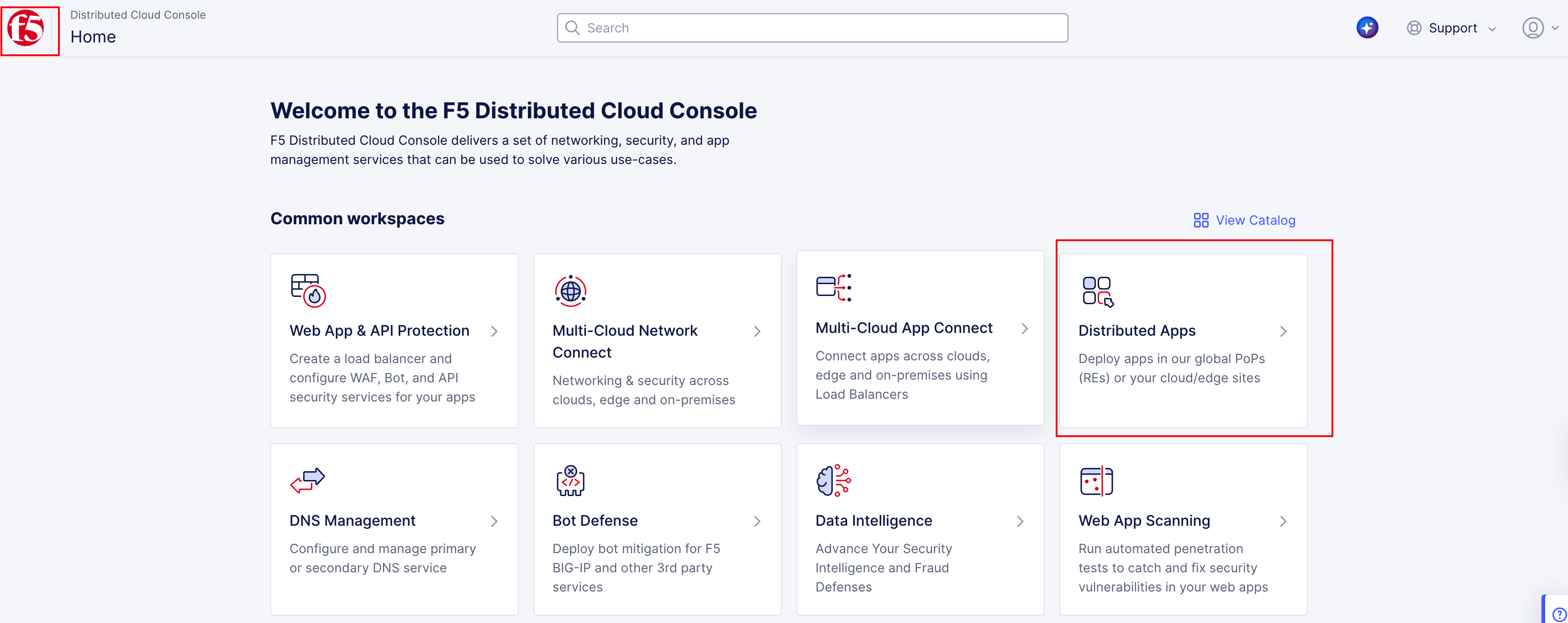
Review the vK8s workload on the Distributed App Section.
To Return to the main F5XC home page, click the F5 logo. Then, Click on the “Distributed App” tile.
Once on the Distributed Apps page, click Virtual K8s and then click on your Virtual K8s instance.
This will take you to the Virtual K8s Dashboard.
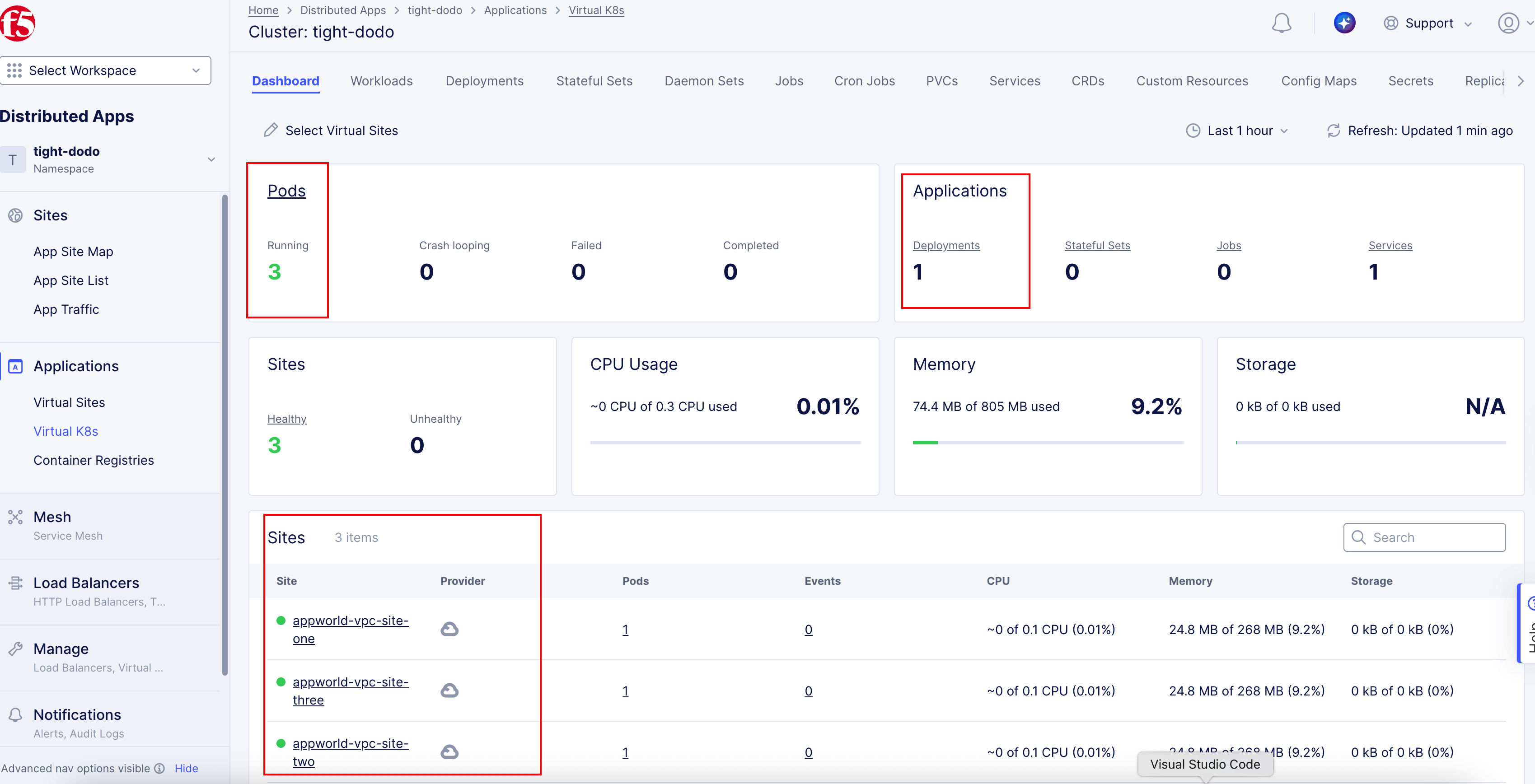
What you’re seeing:
The origin points to a Kubernetes service.
The workload was created automatically by the CI/CD pipeline.
No manual deployment was required.
Generate Attack Traffic
Launch a simple injection attempt using your browser.
Modify the application URL to include a basic script injection pattern:
https://<NAMESPACE>-lb.lab-app.f5demos.com/<script>alert(1)</script>
Try a few additional variations.
Optionally, test other simple patterns such as:
Encoded script tags
Suspicious query parameters
Invalid or unexpected URL paths
Keep the tests lightweight—this lab focuses on visibility, not exploitation.
Review Security Events
Open the security events view in F5 Distributed Cloud.
In the F5 Distributed Cloud console, go back to the Web App & API Protection page (Click on F5 logo).
Once on the Web App & API Protection page, navigate to the Security Events section for your application.
Navigate to:
Web App & API Protection → Overview → Security
Scroll all the way down and click in your load balancer to see events specific to your application.
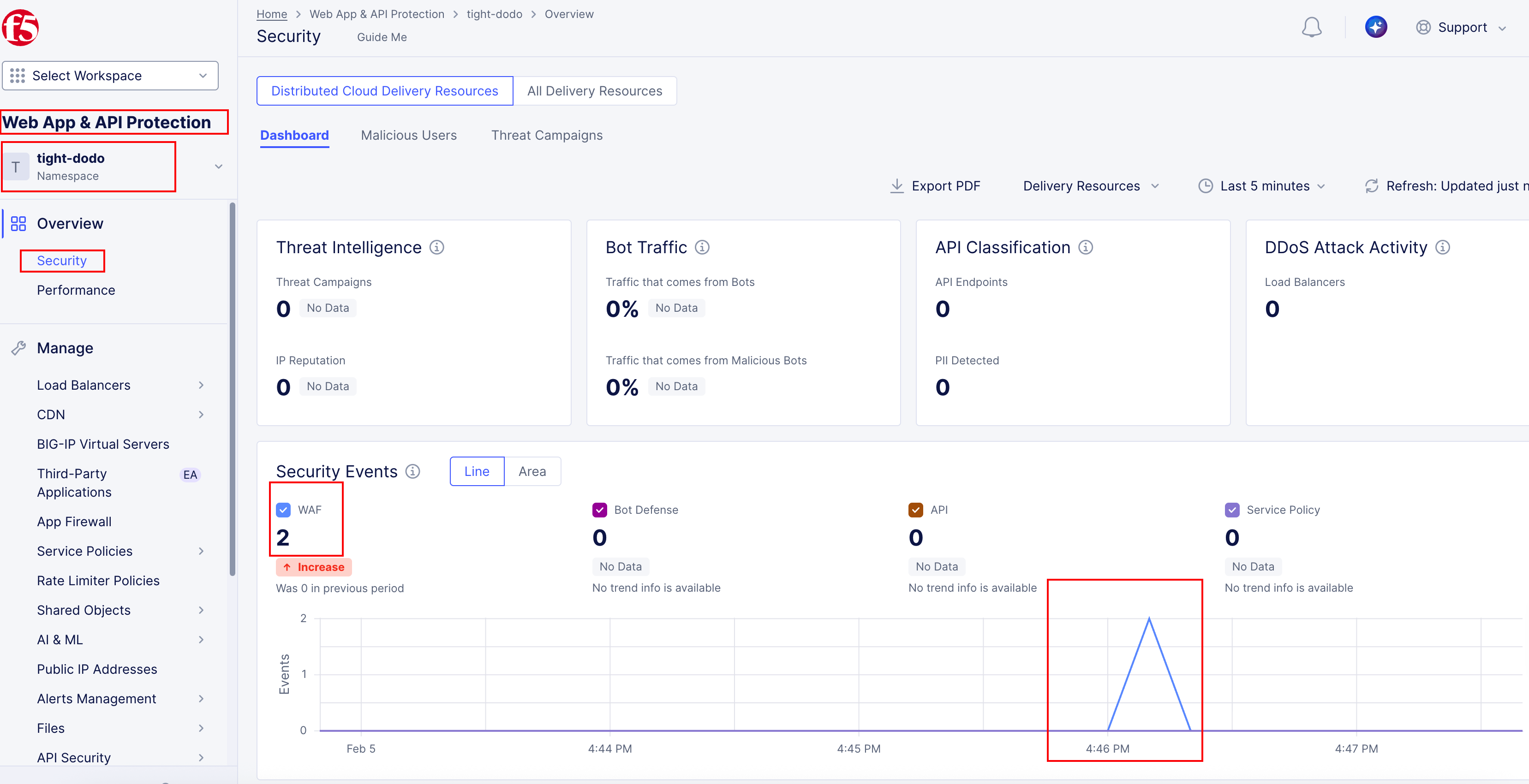
What you should see:
The security dashboard is consolidated view of security events across all load balancers in the namespace.
There are also stats for threat intelligence, bot traffic, and other security metrics.
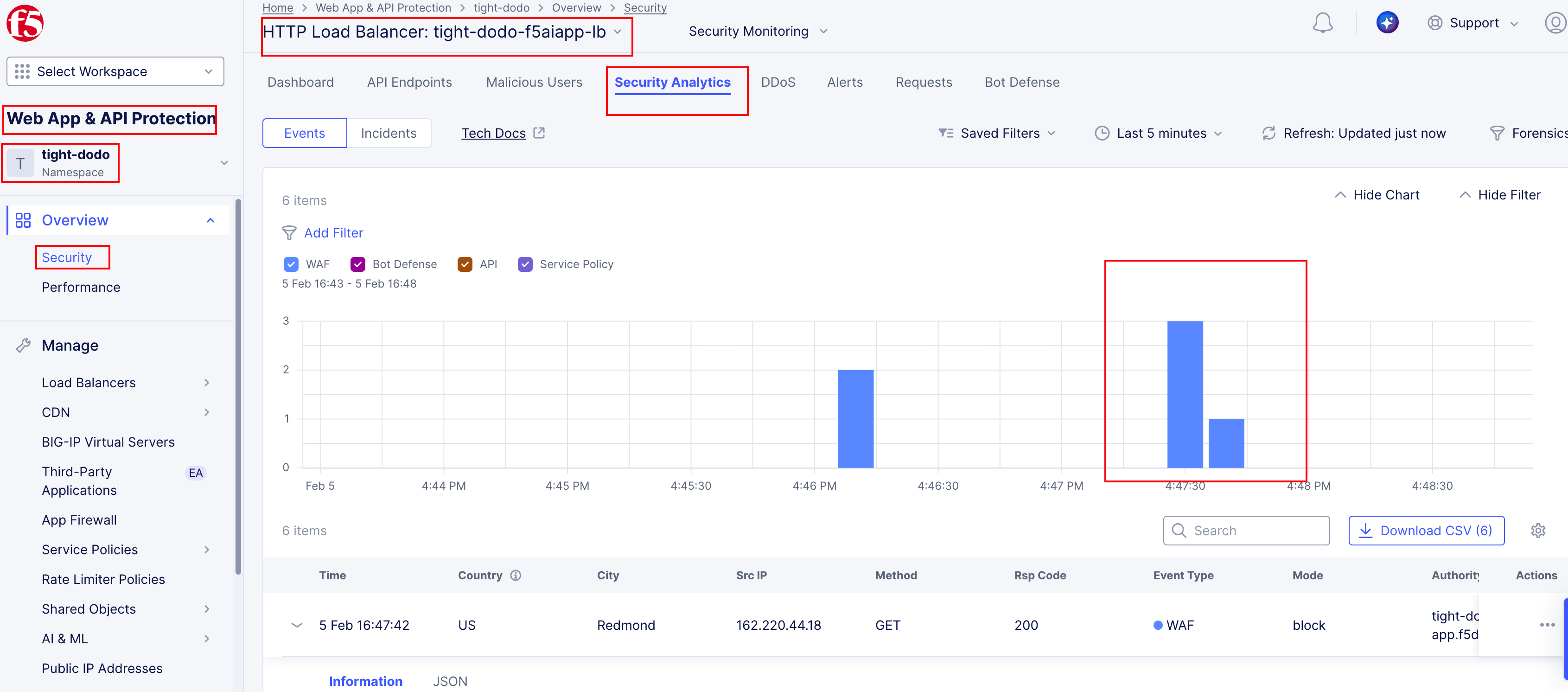
Inspect events specific to your application.
Under “Security Analytics”, review security events related to the attack traffic you generated.
What to look for:
The reason the request was blocked.
Which security control triggered the action.
The level of context provided for each request.
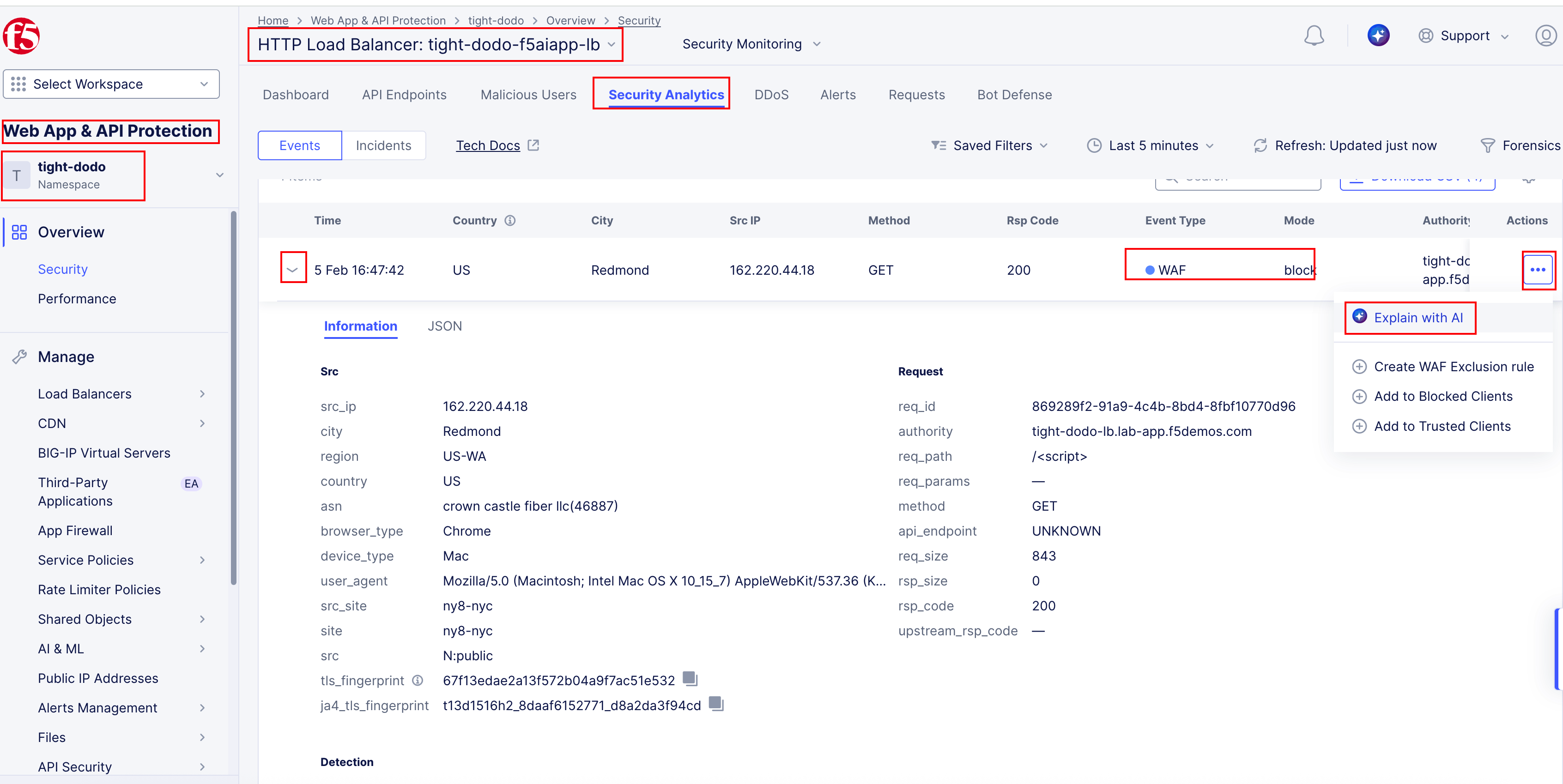
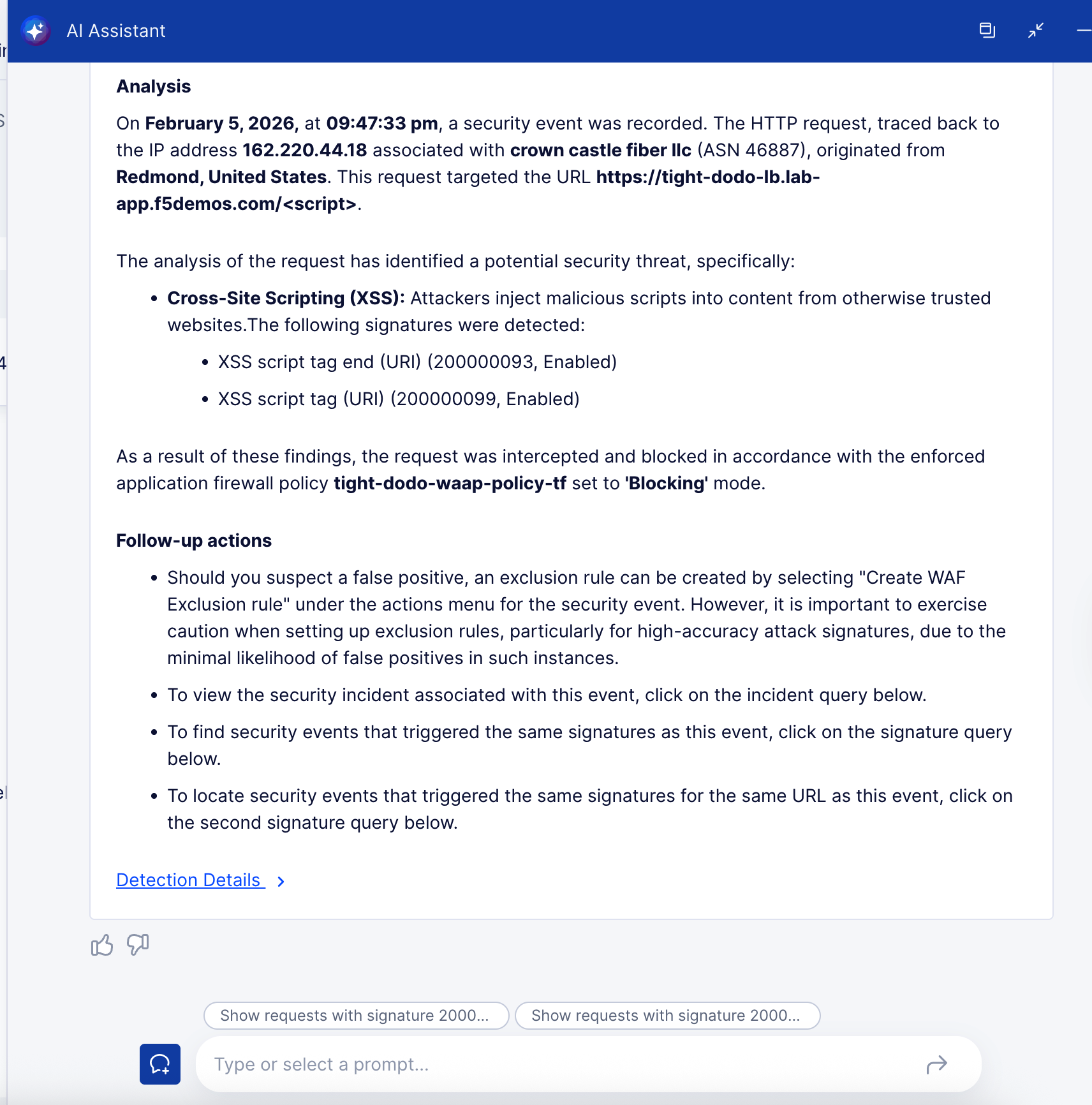
Explore the “Explain with AI” feature to see how AI can enhance event details.
Click on “Explain with AI”.
Wrap-Up
At this point, you have confirmed that:
The application is live and reachable.
Traffic flows through the F5 Distributed Cloud Load Balancer.
WAF actively inspects and blocks malicious requests.
Security events are visible immediately without additional tooling.
AI can enhance security event details for faster investigation.
In the next module, you will expand the application and enable additional security controls—continuing the Code. Secure. Repeat. workflow.