F5 Distributed Cloud > F5 Distributed Cloud: Web Application Security & Scanning Source | Edit on
Lab 2: Reviewing Signature-based Bot Strategies and enabling F5 Distributed Cloud Bot Defense
Objective:
Review the F5 Distributed Cloud (XC) Load Balancer Standard Bot Protection capabilities.
Build policies to protect against credential stuffing attacks.
Narrative:
Following your succssful Web Application Firewall deployment, you have been alerted by your application team that there are concerns about credential stuffing attacks and malicious bots. The application owners are concerned that the credential stuffing could lead to issues with attackers taking over accounts and leading to fraud and loss revenue. Credential stuffing attacks are usually executed by attackers with automation so that the bad actors can quickly identify a vulnerable application and pass many compromised identities. These attackers use bots to launch and orchestrate credential stuffing campaigns with many of these bots designed to be point-and-click tools. With tools like these, attackers can create an army of bots to do their work for them. So your first goal is to identify these malicious bots and block them.
Note
Additional Details: https://www.f5.com/glossary/credential-stuffing-attack
Note
Expected Lab Time: 25 minutes
Lab 2 Summary-Bot Defense: Review the system’s built-in signature-based bot detection capabilities and then enable F5 Distributed Cloud Bot Defense for the application. By doing so, you’ll protect the site from automated threats such as web scrapers, credential stuffing bots, and other malicious automation. The lab demonstrates how the platform distinguishes human traffic from bots and stops unwanted bot activity without manual rule tuning.
Task 1: Reviewing Signature-based Bot protection
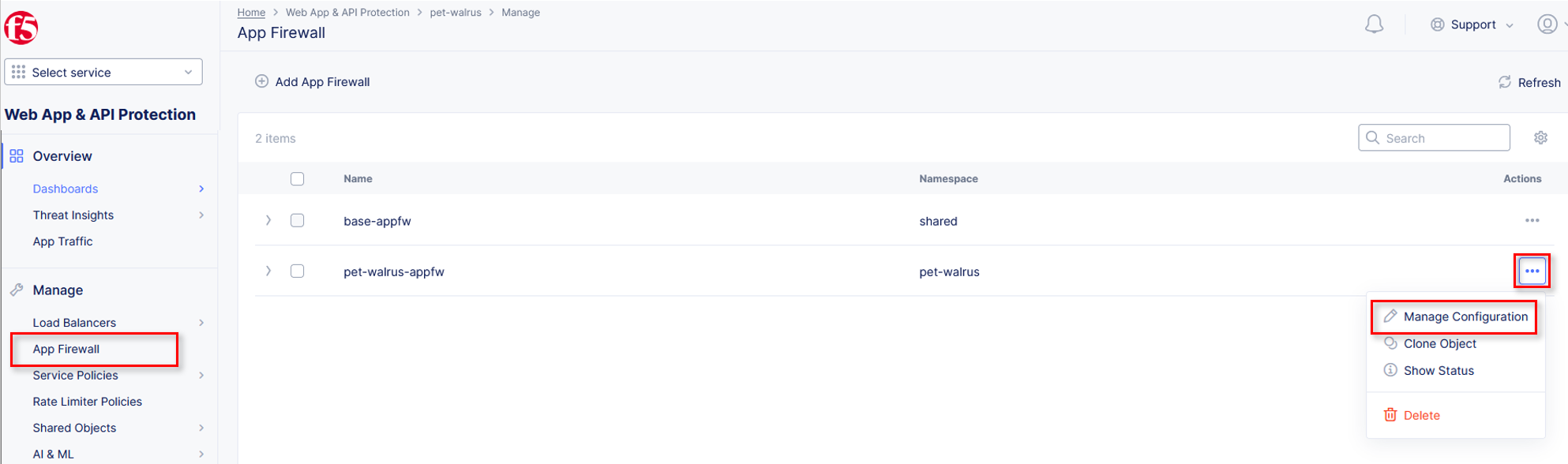
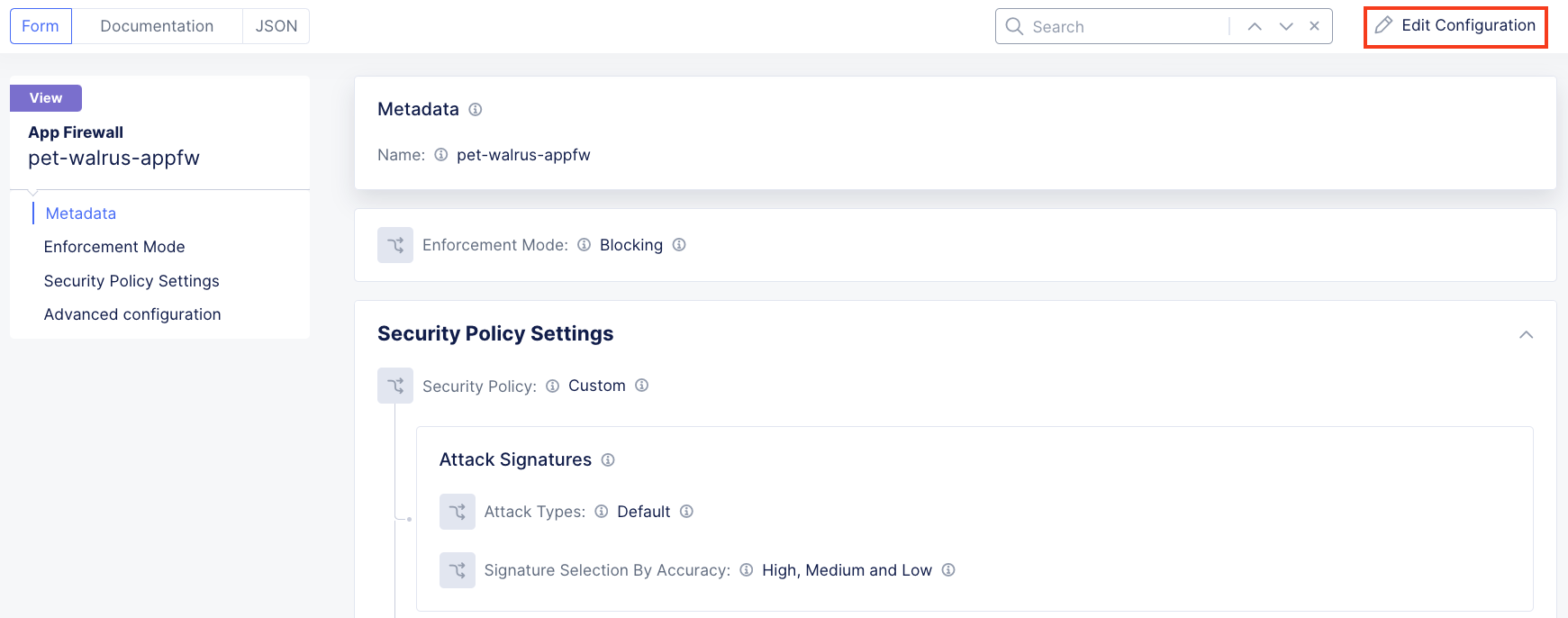
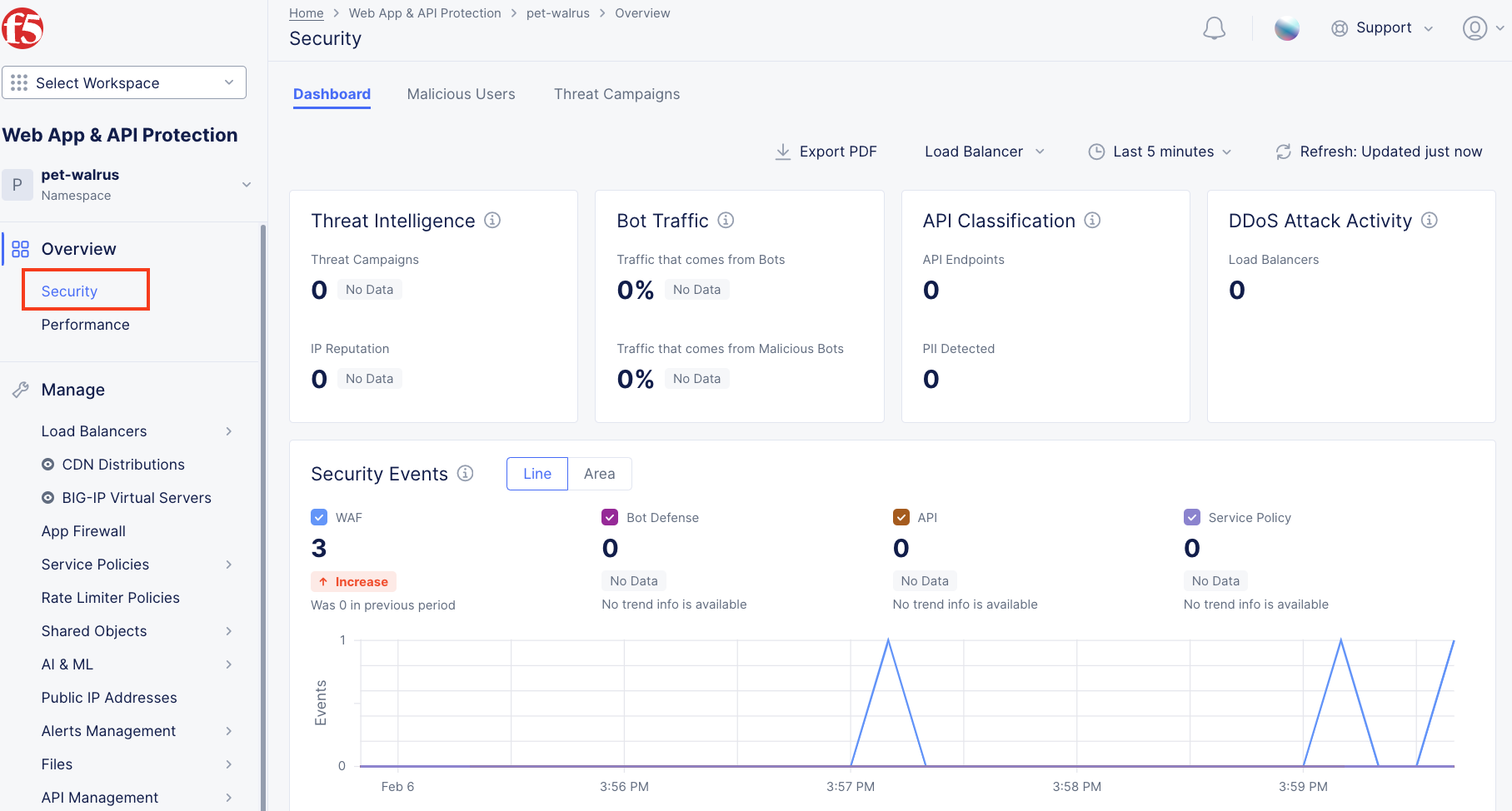
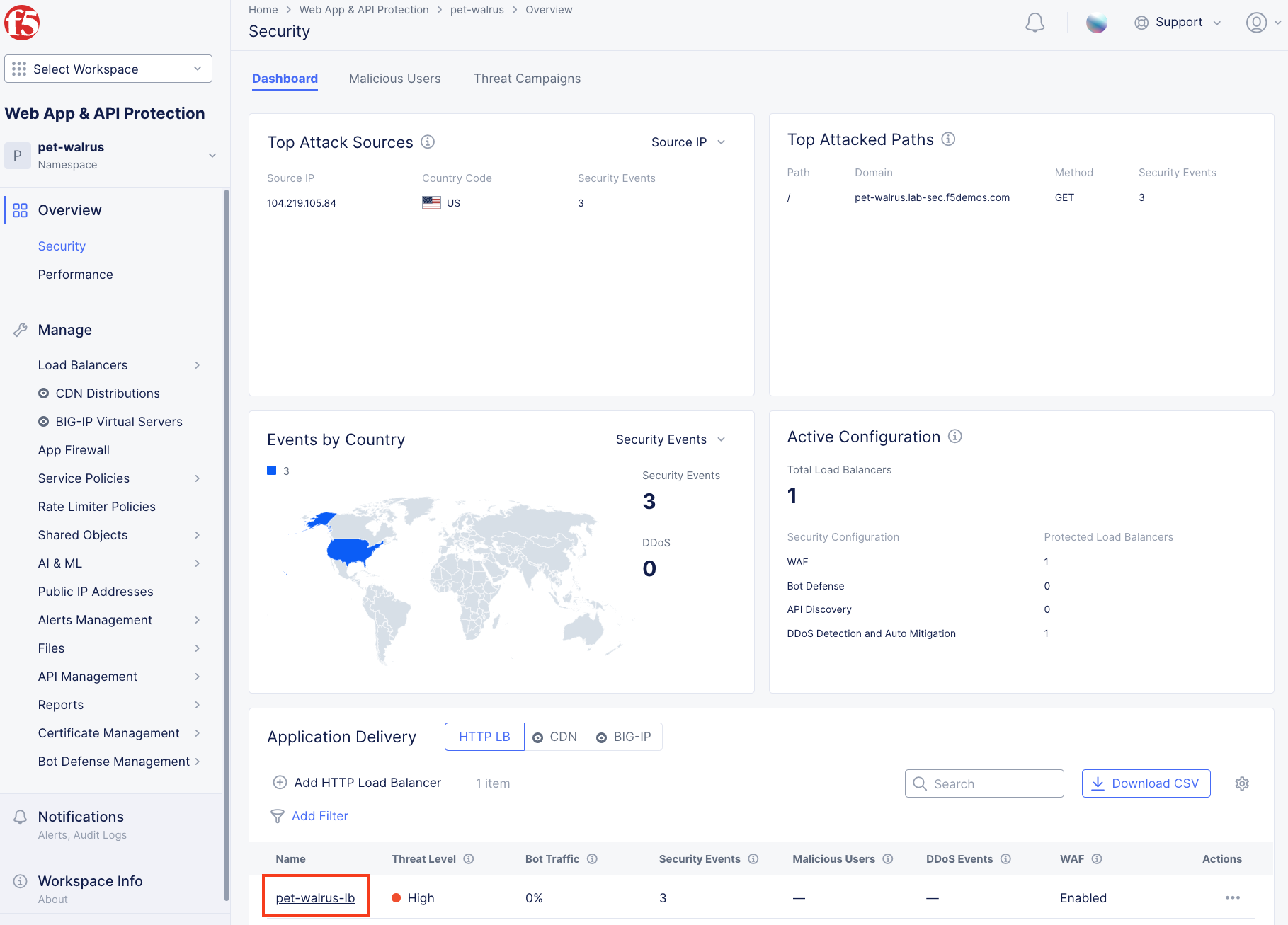
In this task you will review the Bot signature configuration and view logged security events. This lab will begin back in the F5 Distributed Cloud Console.
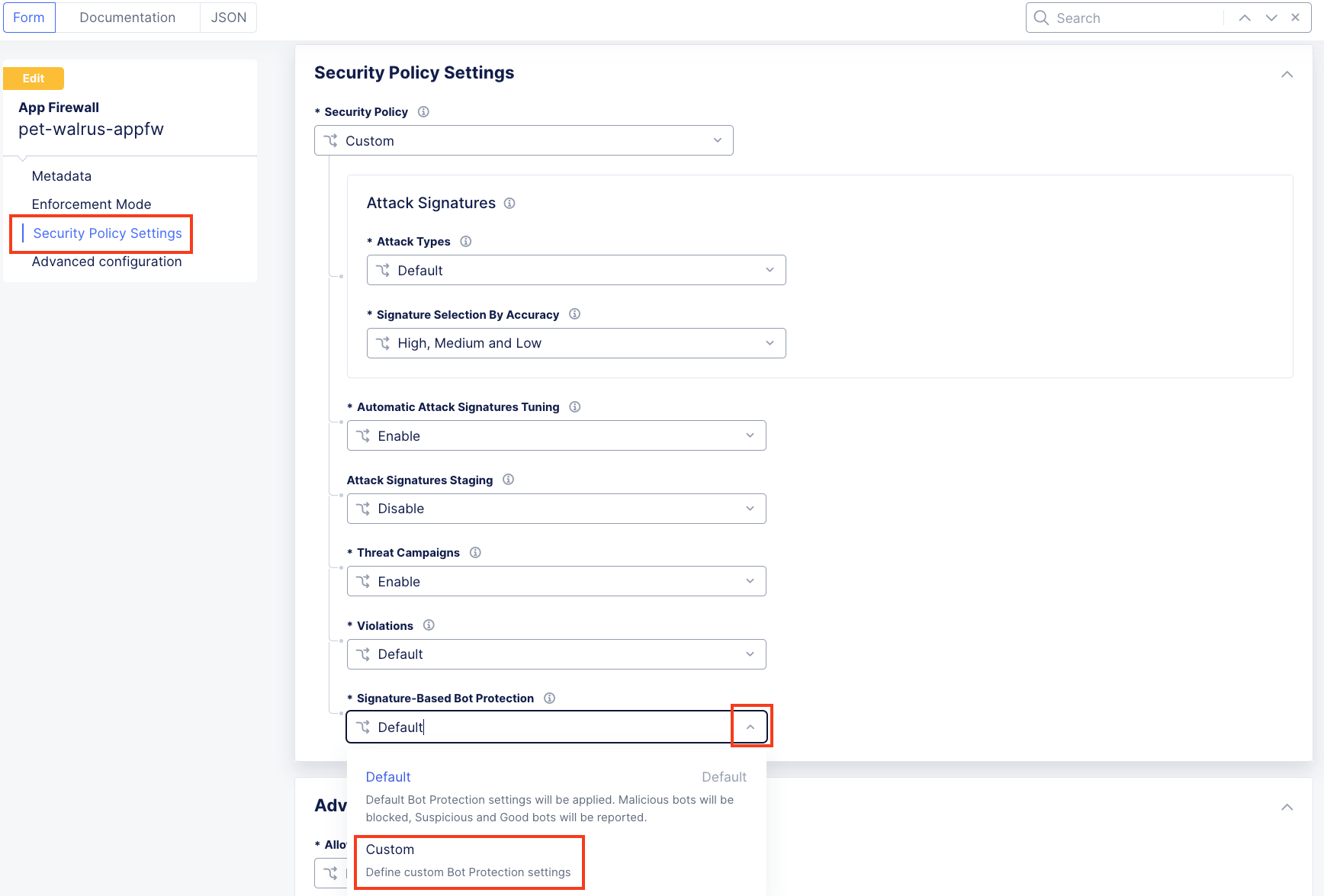
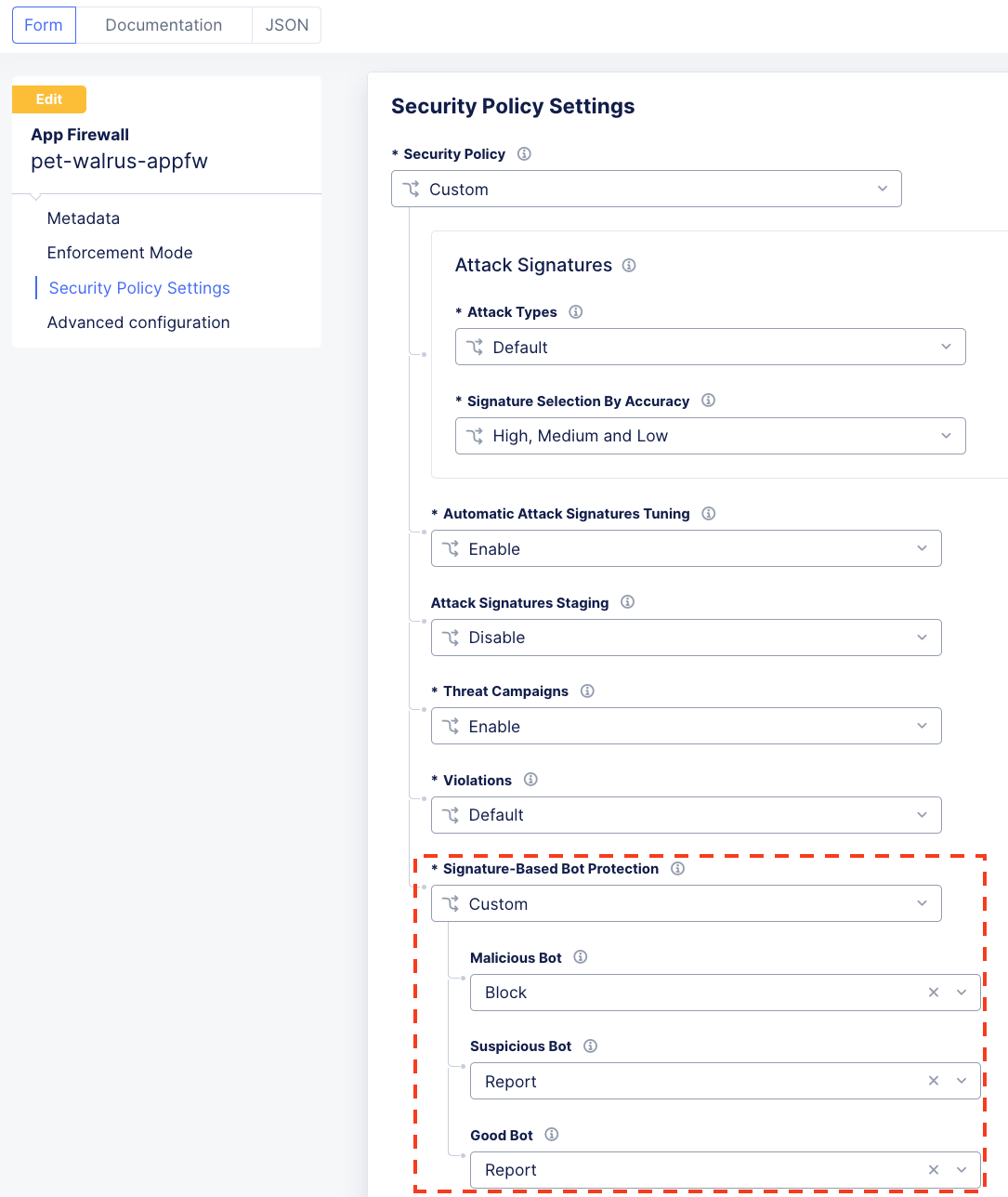
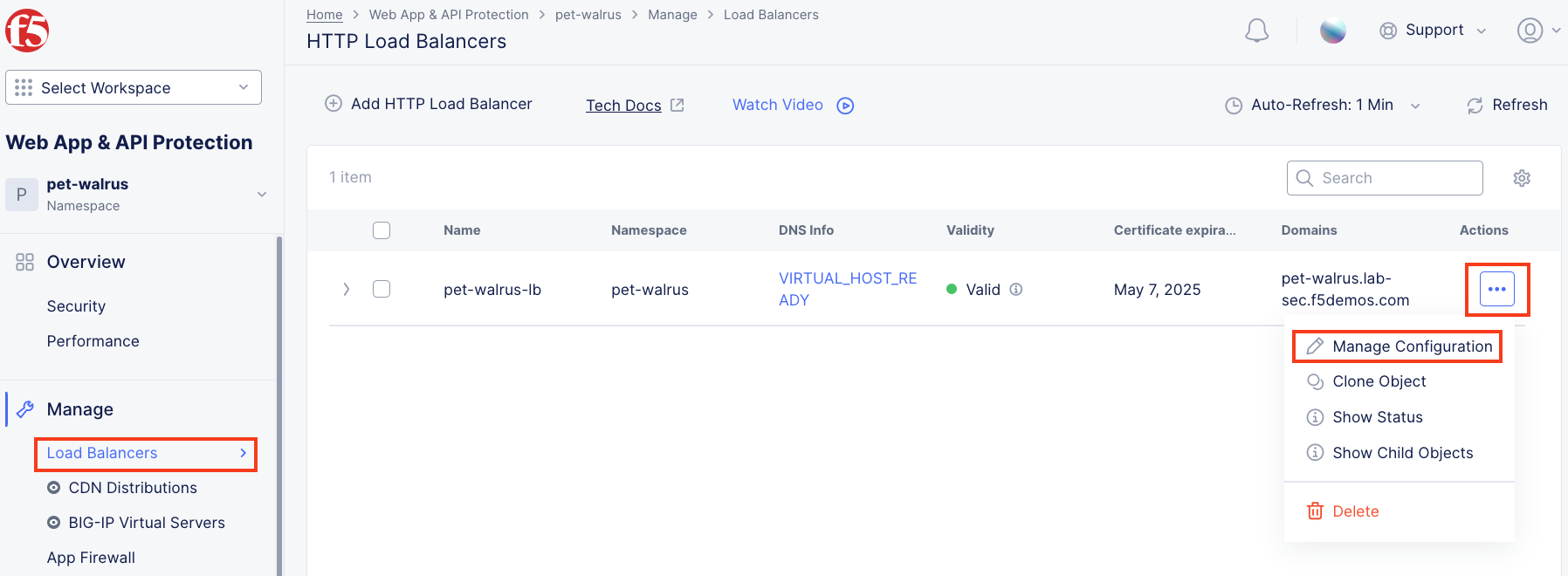
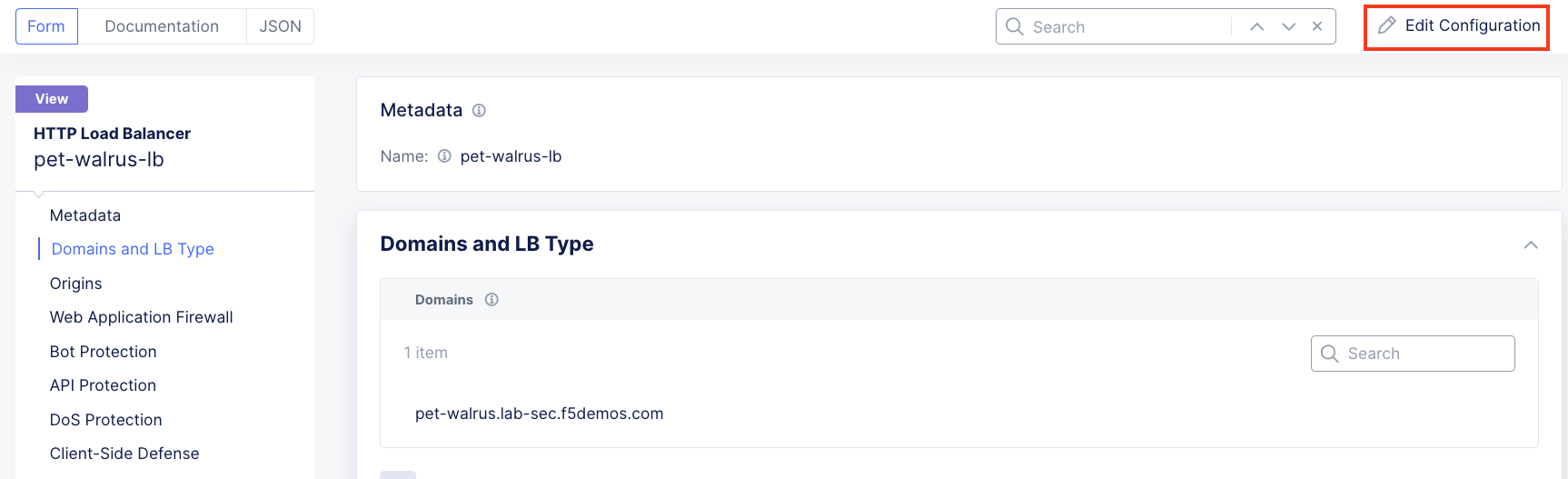
6. In the expanded configuration window, observe the three Bot signature categories: Malicious, Suspicious, and Good. Block, Ignore, and Report which can be reviewed by selecting one of the dropdowns.
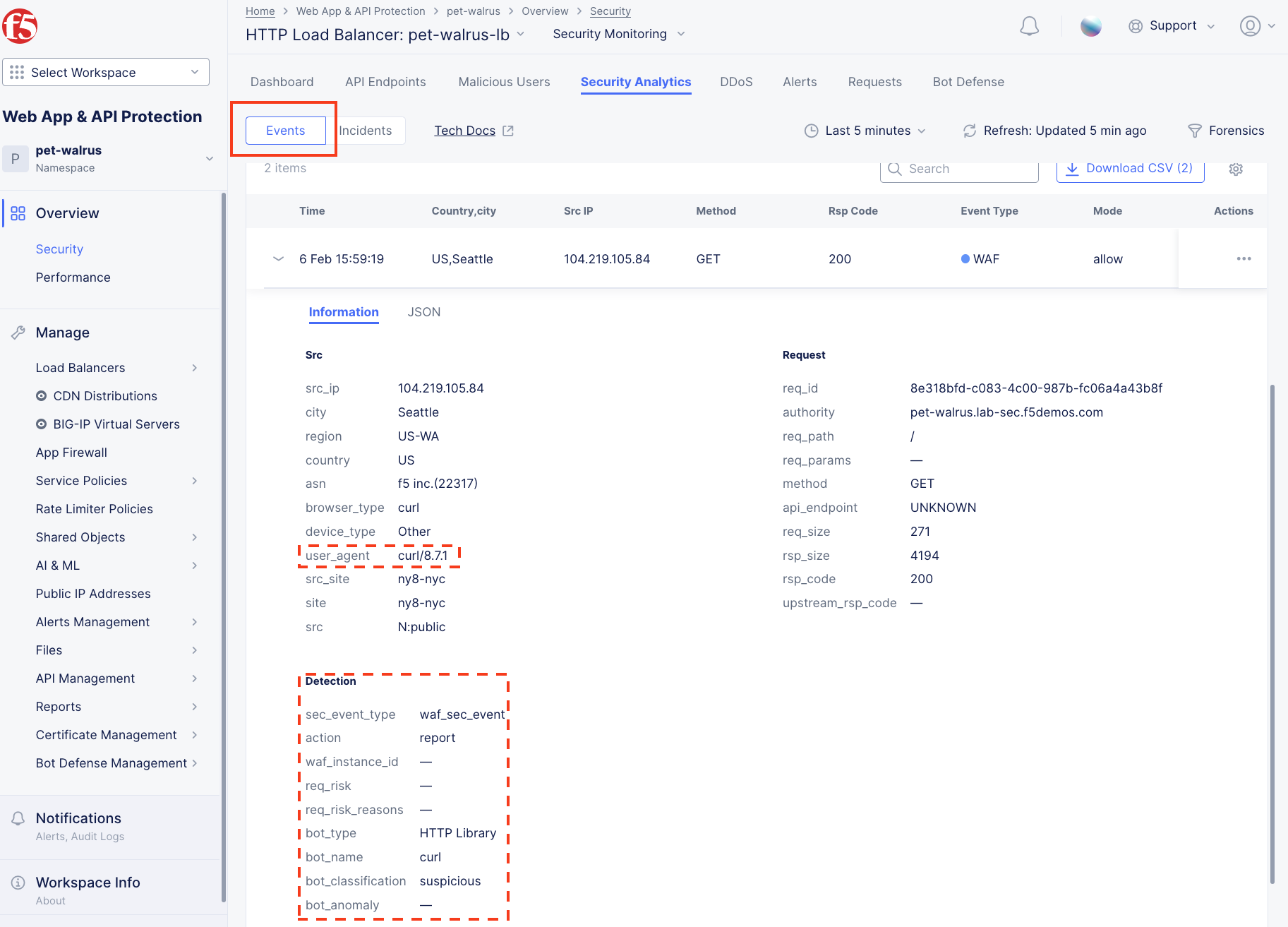
curl -v https://<your-namespace>.lab-sec.f5demos.com
Note curl is installed on Windows10+, and is available on most Linux or MAC platforms.
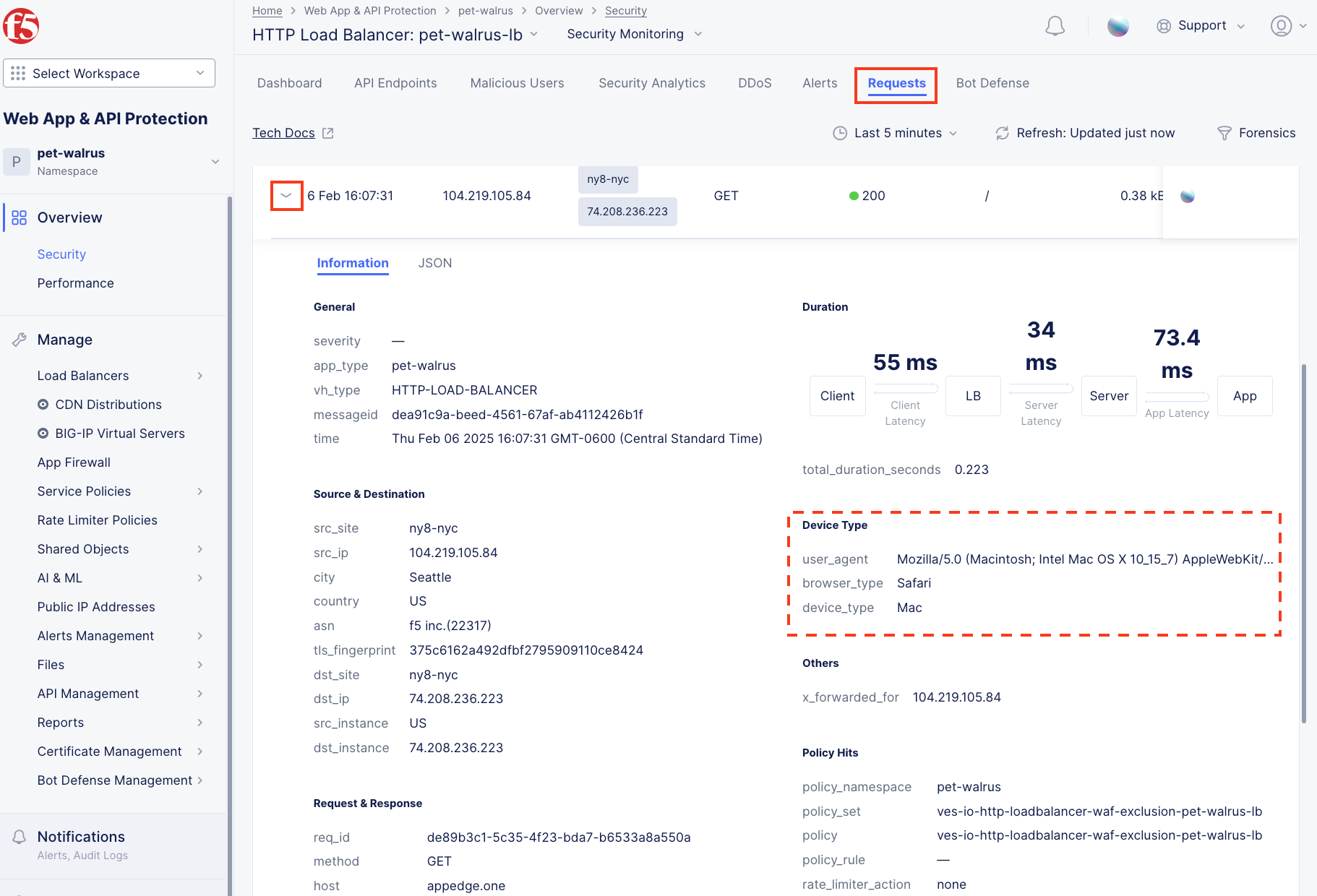
For example, if you repeat the curl request and with a less suspicious user-agent, you will skip signature-based bot detection. For example, if you run the following command: |

curl -v https://<your-namespace>.lab-sec.f5demos.com --user-agent "Mozilla/5.0 (Macintosh; Intel Mac OS X 10_15_7) AppleWebKit/605.1.15 (KHTML, like Gecko) Version/17.2.1 Safari/605.1.15"
This HTTP request will not show up in the Security Analytics however you will find it in Request logging.
|
Now that you are familiar with bot detection capabilities, you can work with the application team to determine if suspicious bots should be blocked or kept in reporting mode. You are now ready to tackle preventing credential stuffing attacks from attacking the login page of the application.
Task 2: Enabling F5 Distributed Cloud Bot Defense
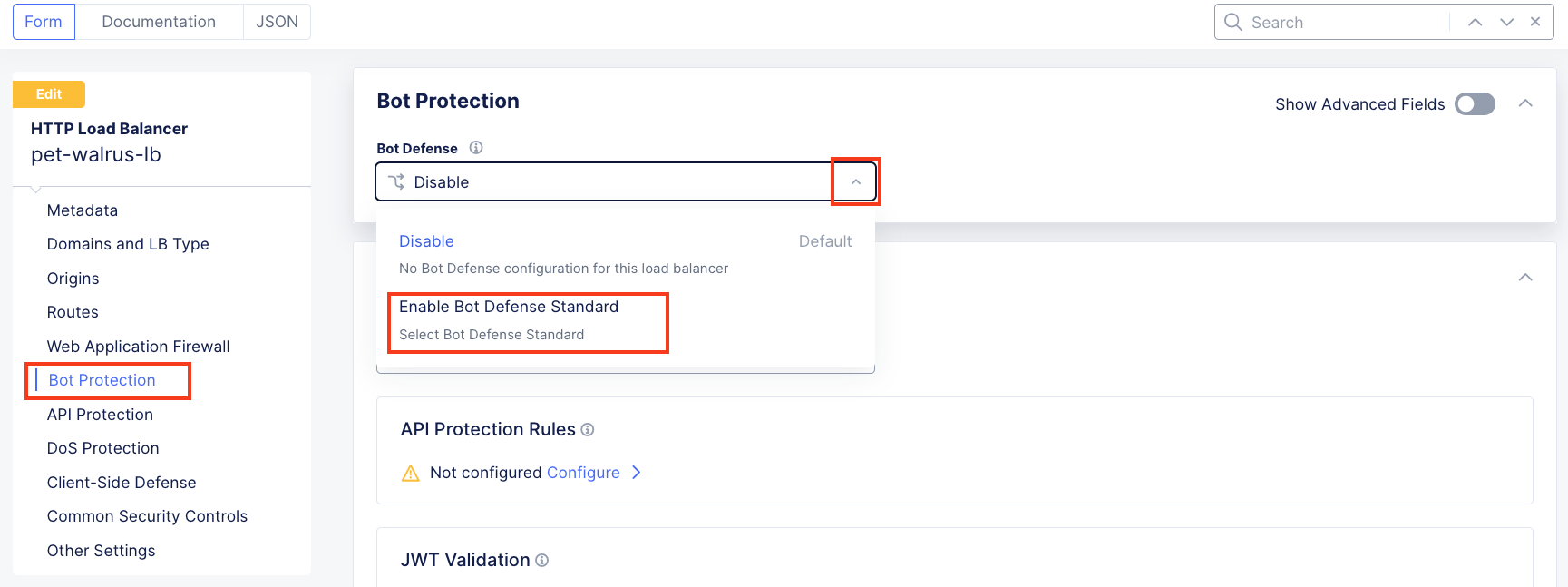
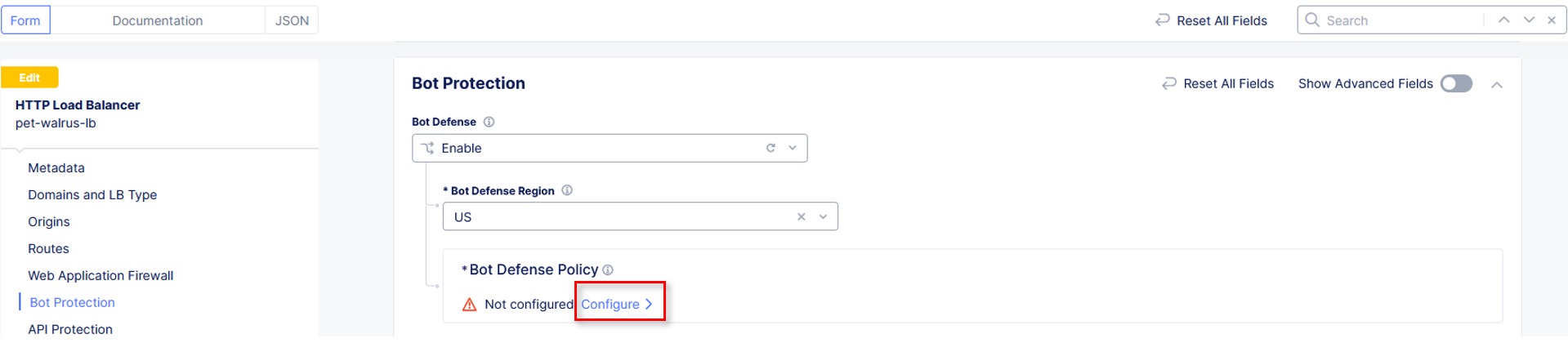
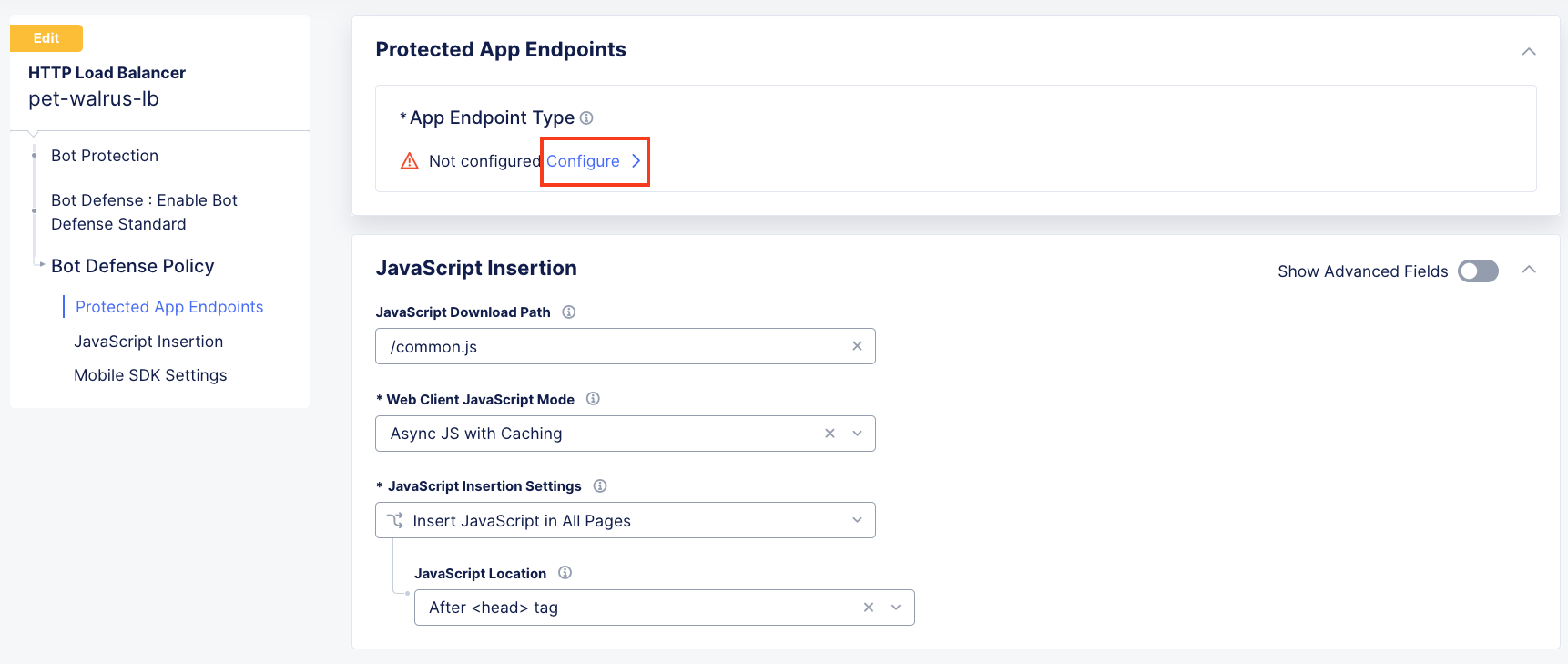
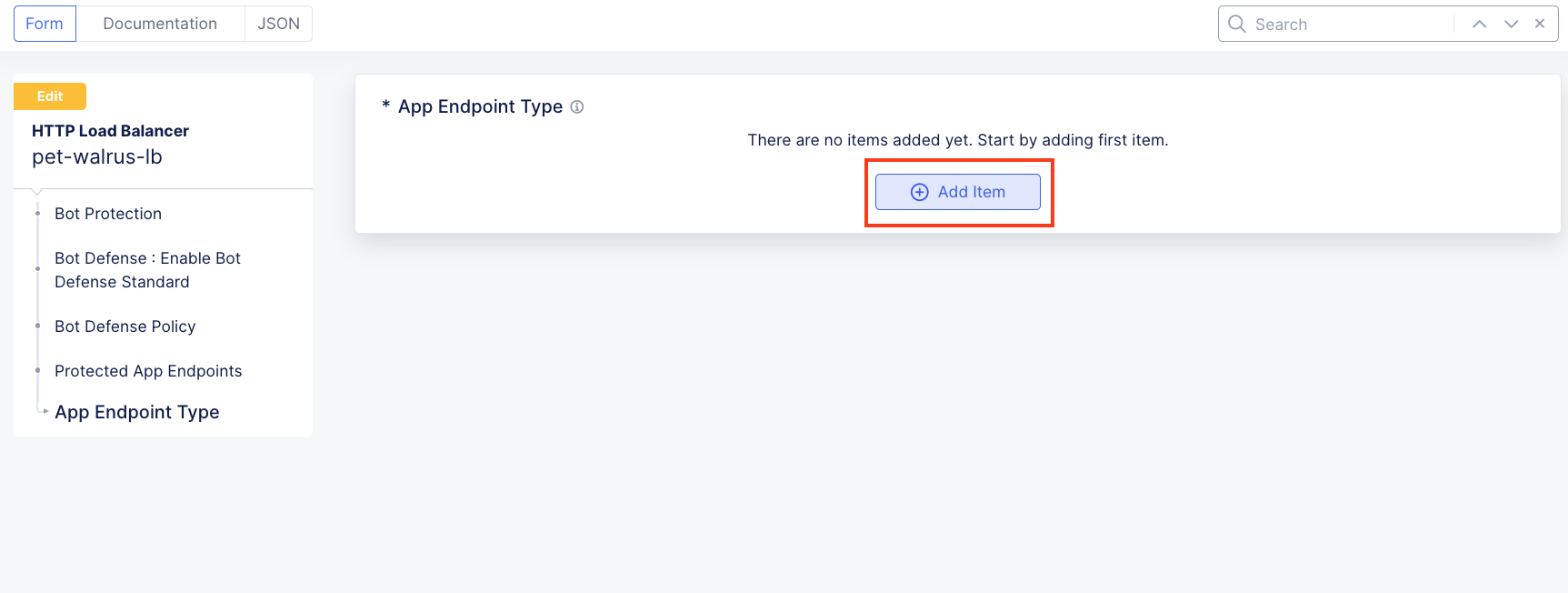
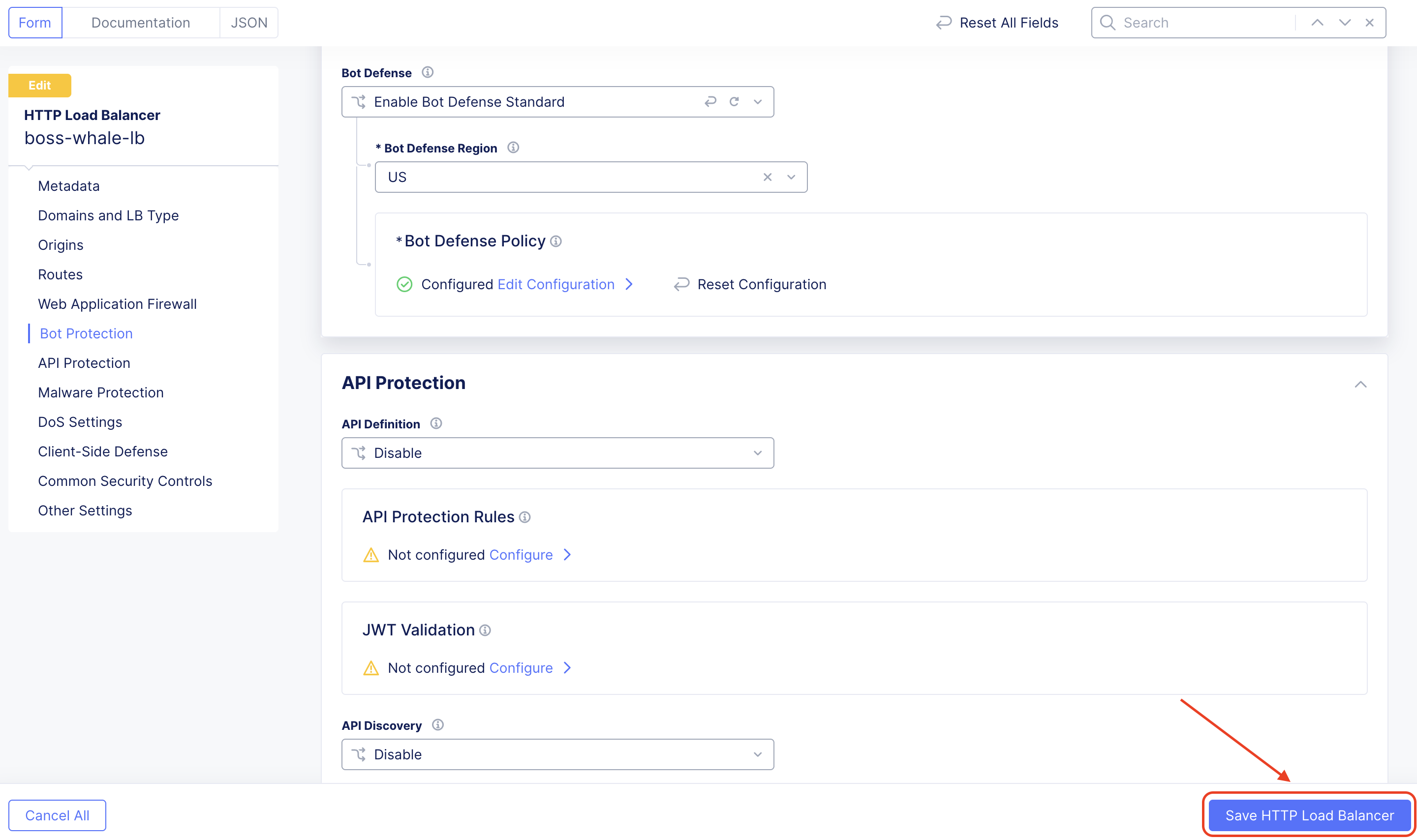
The following steps will enable you to deploy F5 Distributed Cloud Bot Defense and understand its implementation.
Warning Make sure to logoff using the menu on the right of the web application you just accessed. |
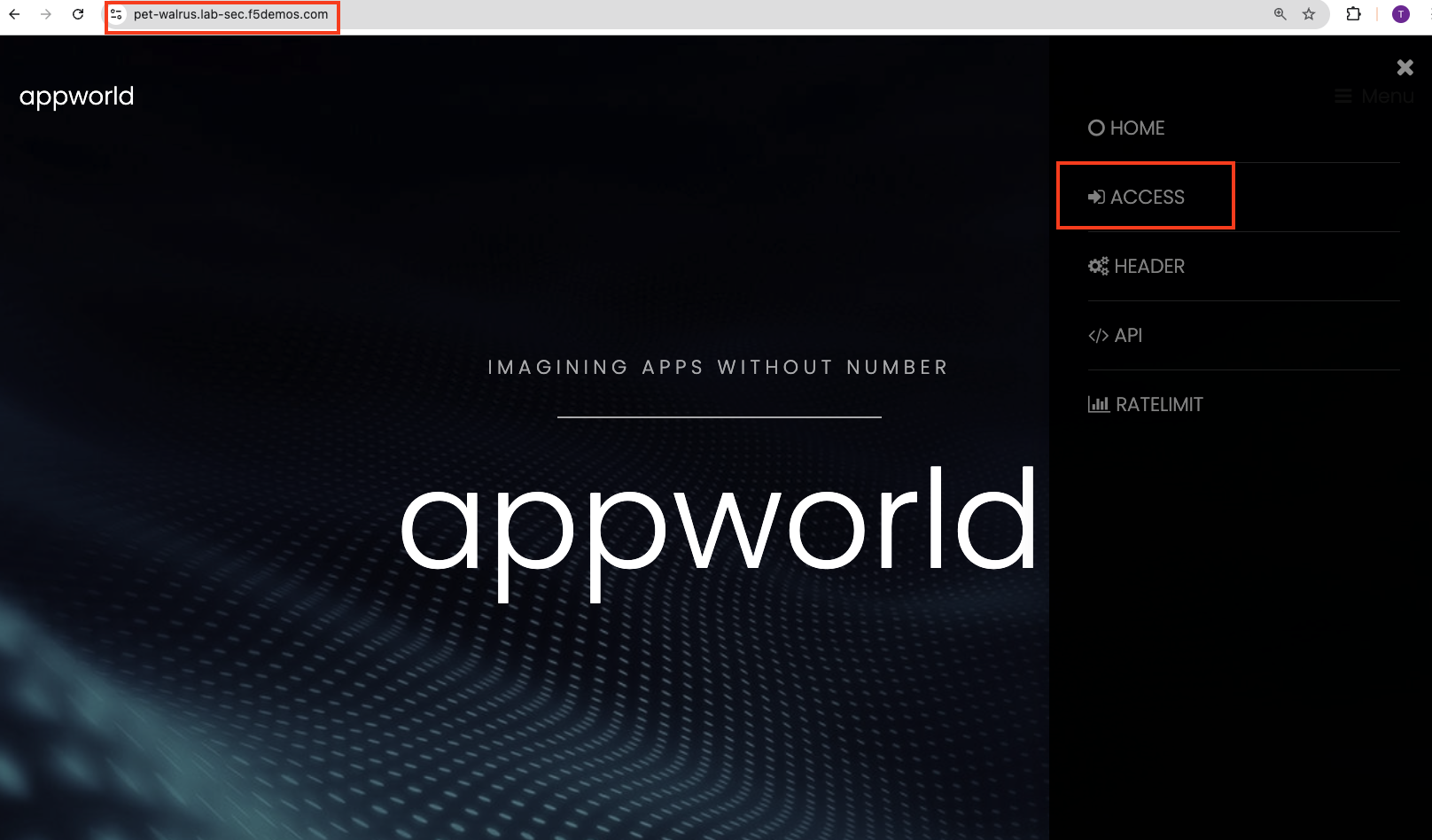
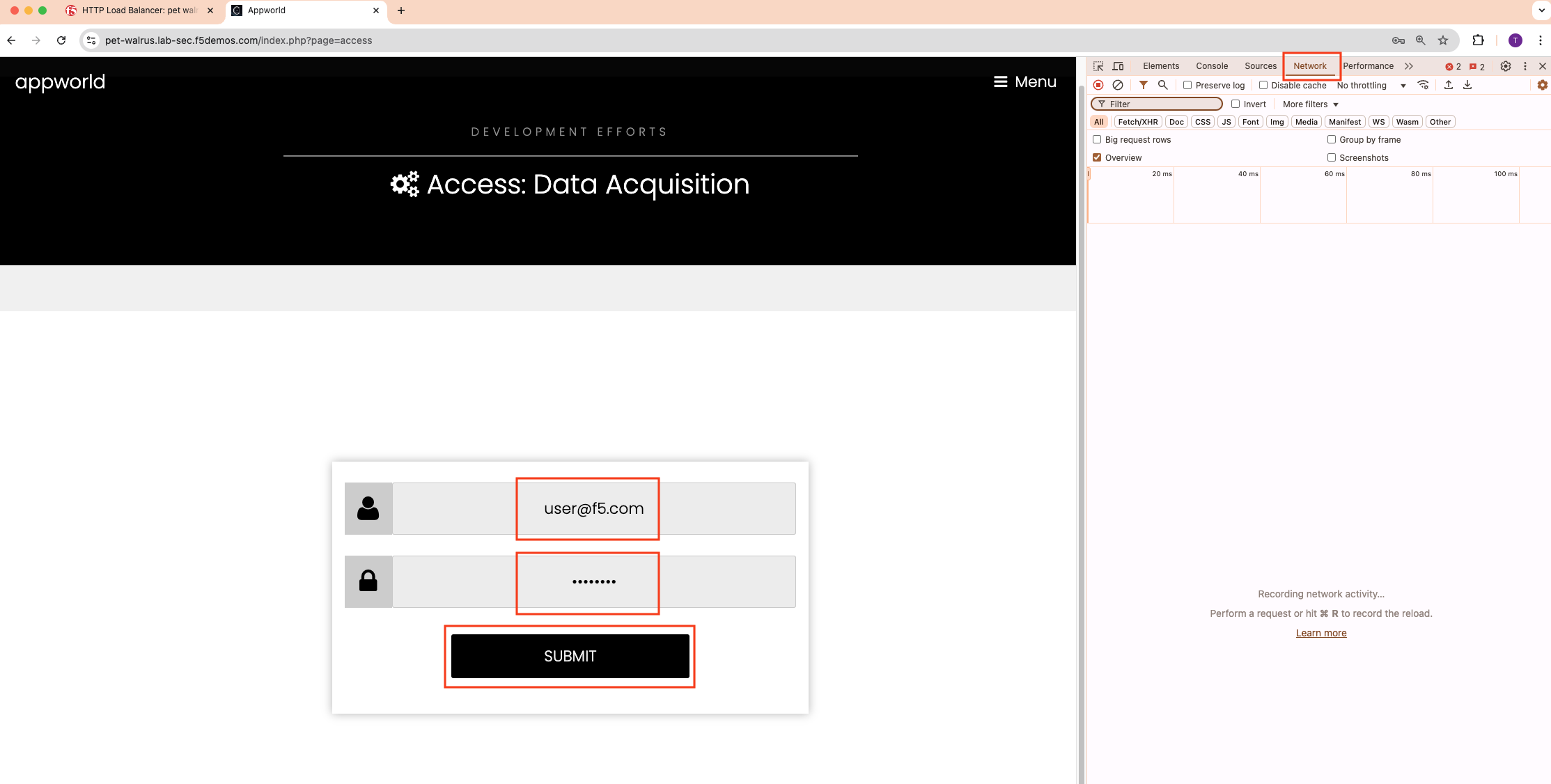
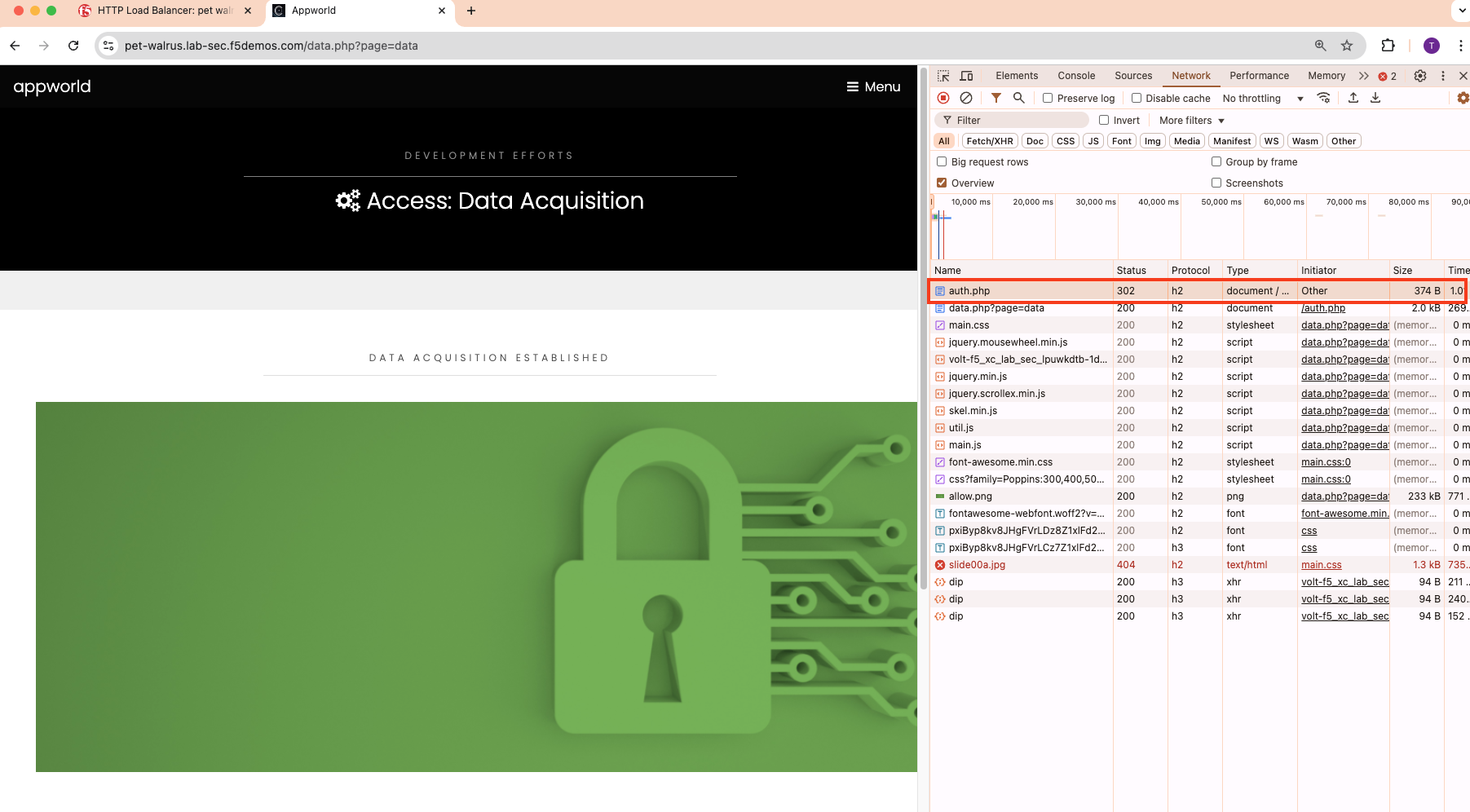
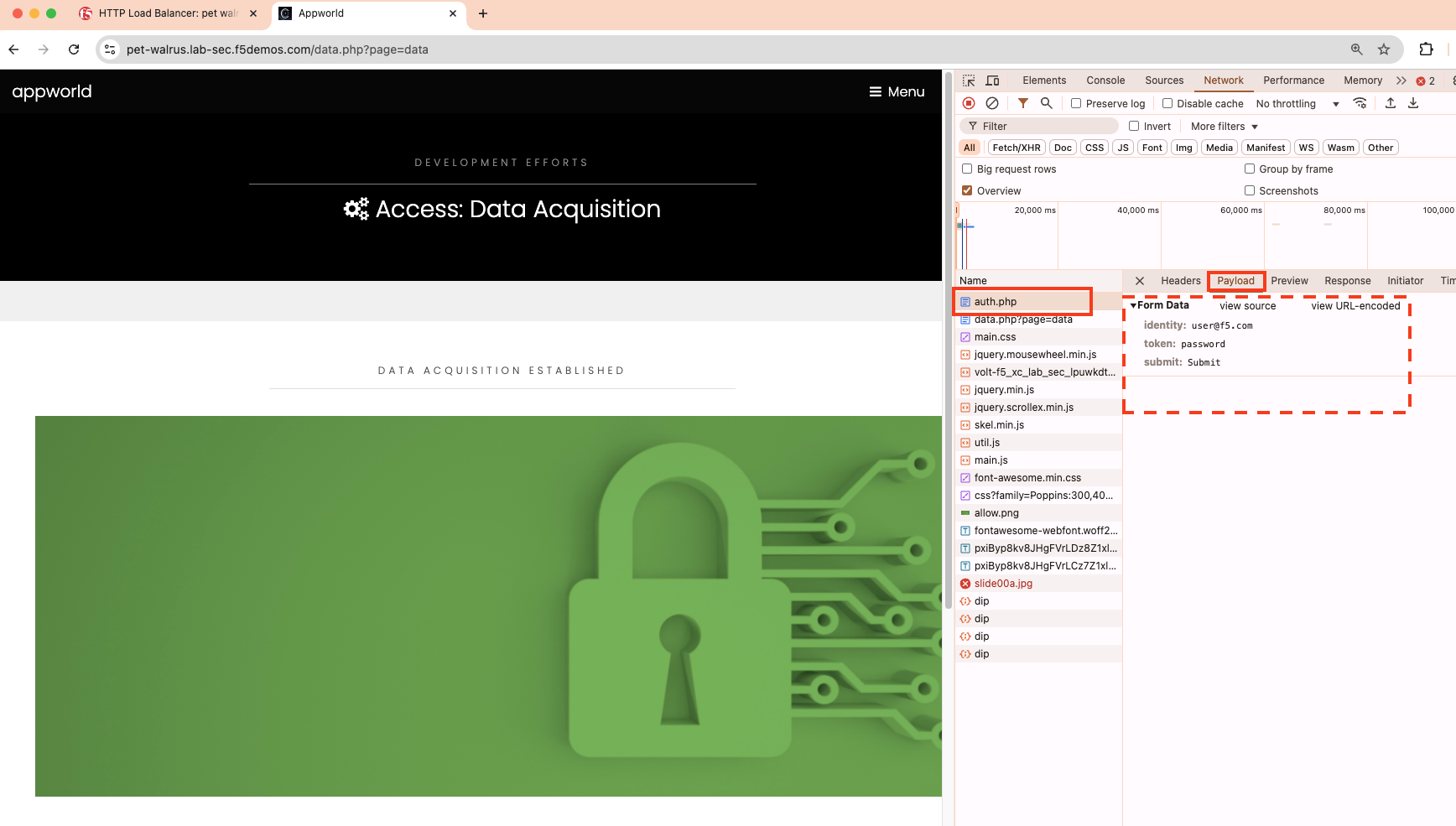
Task 2: Optional Advanced Topics - Part 1
Let’s explore how an attacker could perform credential stuffing attacks by using the curl command:
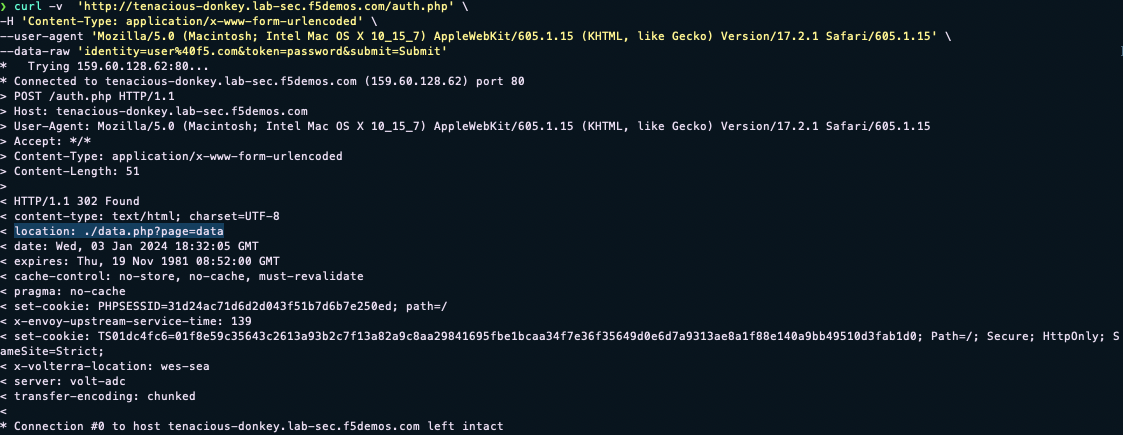
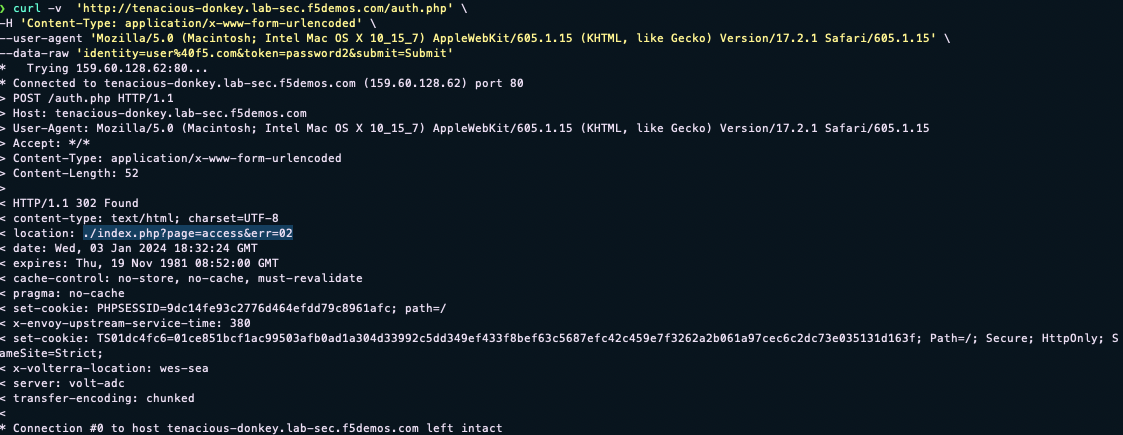
curl -v https://<your-namespace>.lab-sec.f5demos.com/auth.php -H "Content-Type: application/x-www-form-urlencoded" --user-agent "Mozilla/5.0 (Macintosh; Intel Mac OS X 10_15_7) AppleWebKit/605.1.15 (KHTML, like Gecko) Version/17.2.1 Safari/605.1.15" --data-raw "identity=user%40f5.com&token=password&submit=Submit"
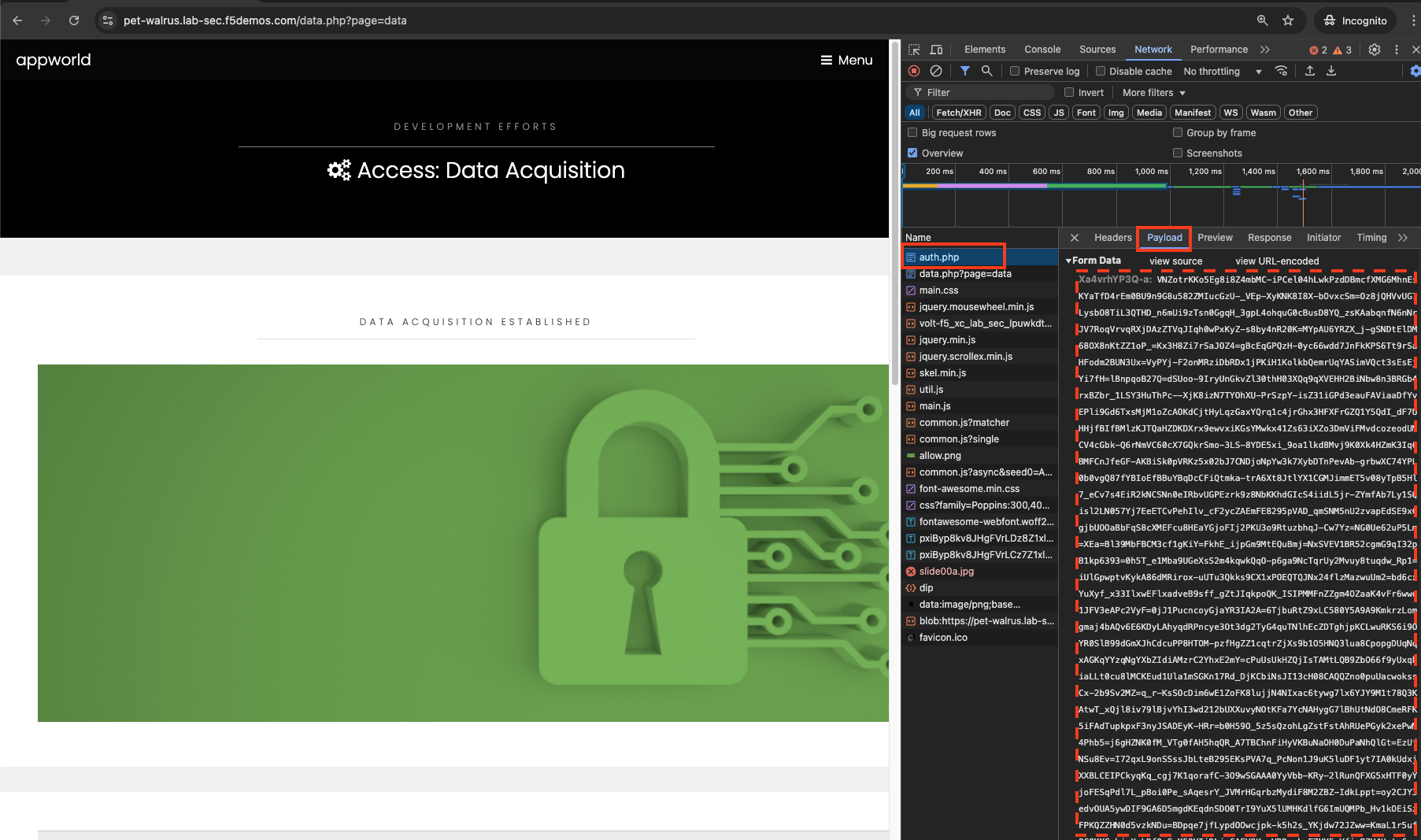
For this application, a successful logon will have a 302 response to the location ./data.php?page=data If we try an invalid password (password2 instead of password) for the same request, we will also get a 302 response to the location ./index.php?page=access&err=02 With this knowledge, we could use curl to perform a credential stuffing attack and potentially avoid detection. Attackers obtaining a list of compromised user credentials can then launch automated attacks at scale using the information returned from the web page about whether a password was good or bad.
Note the return location of a successful logon above.
Note the return location of a failed logon above
|
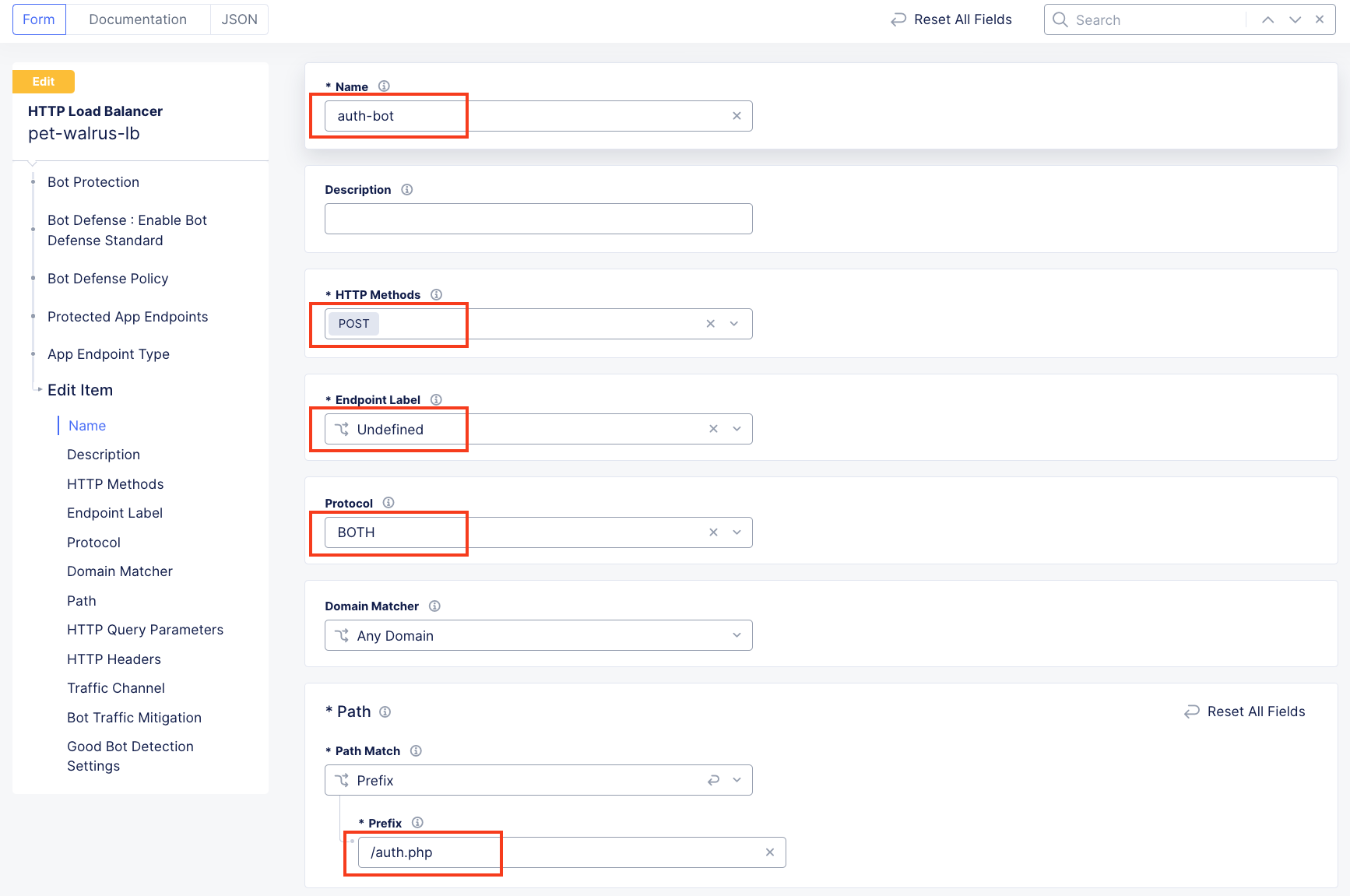
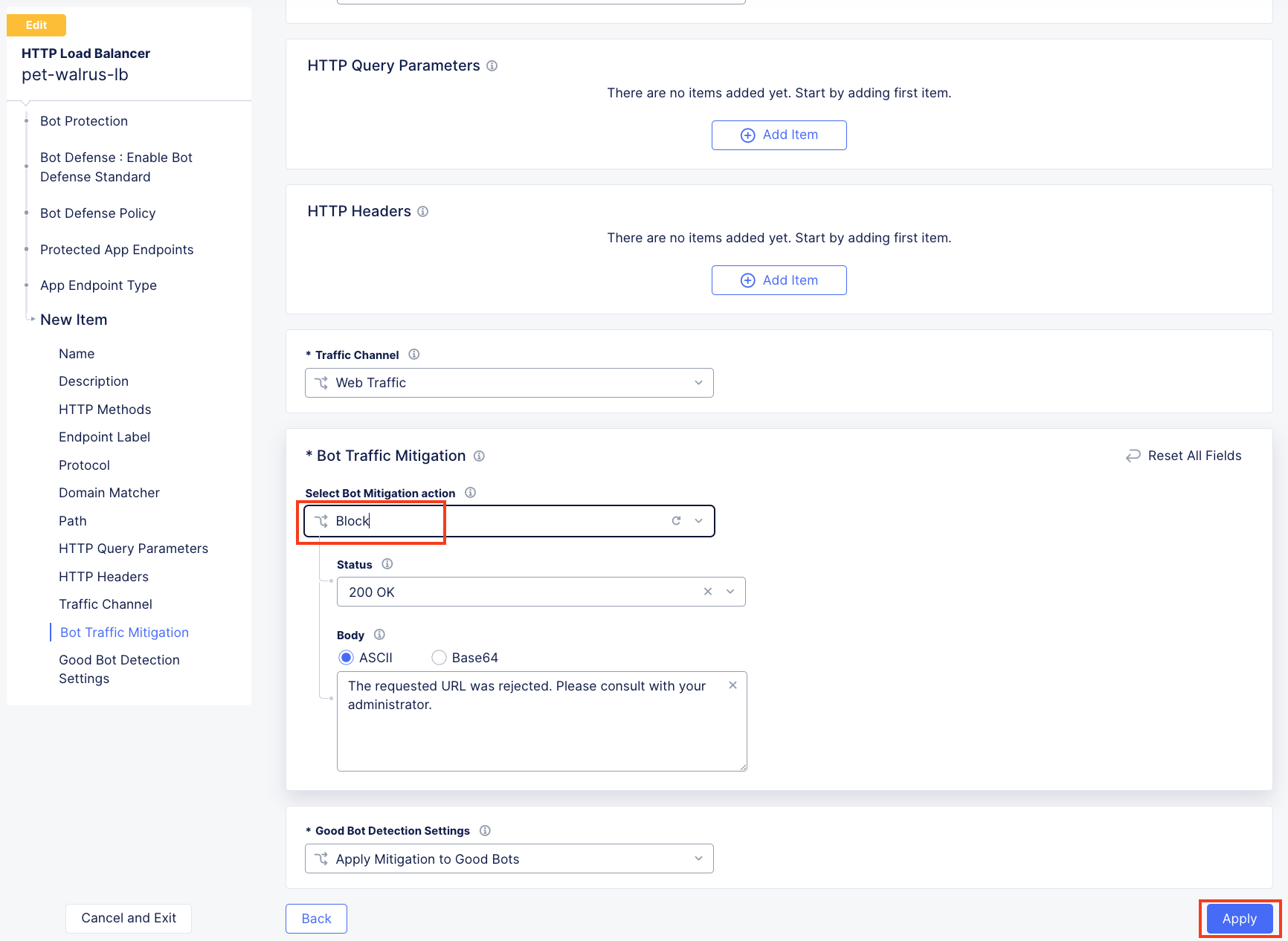
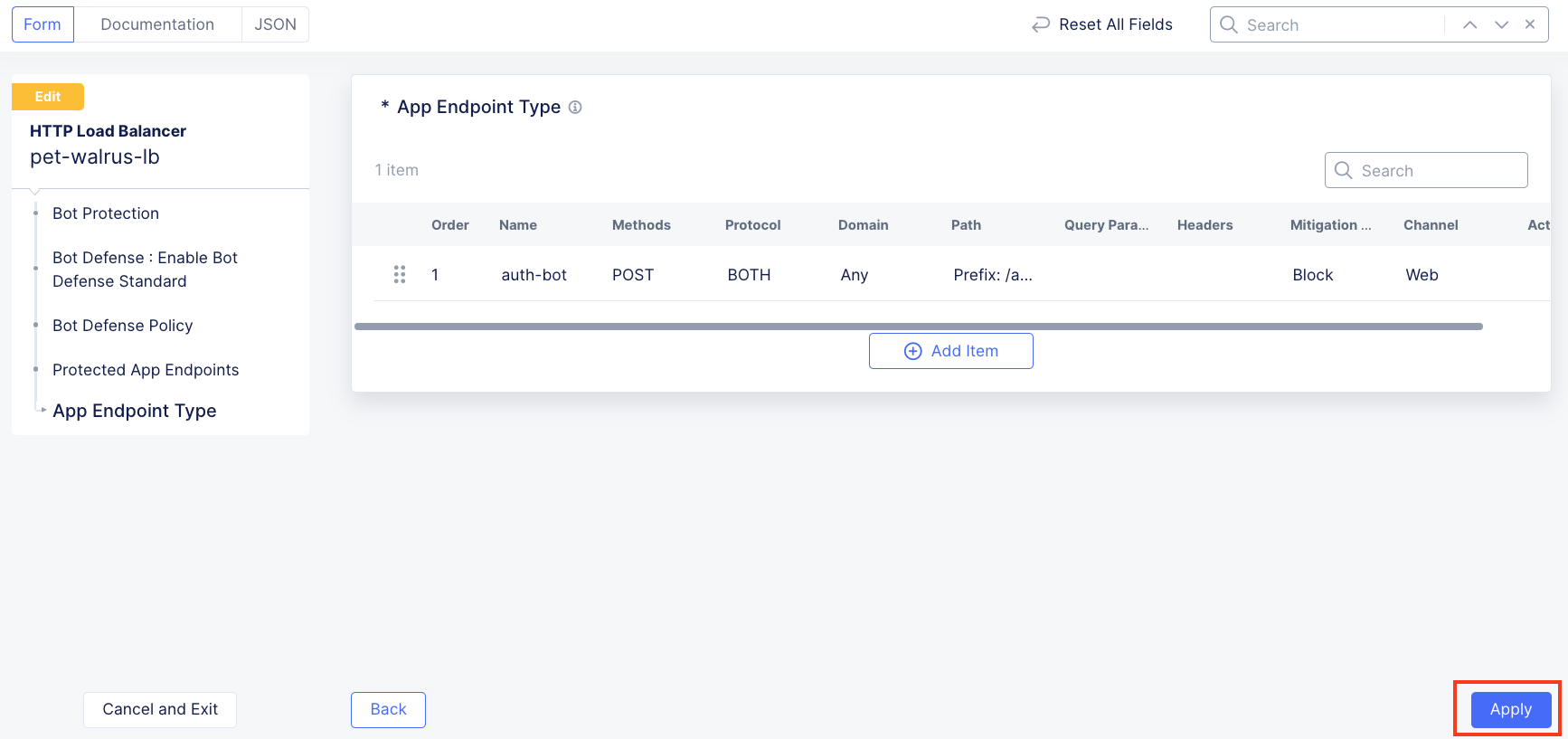
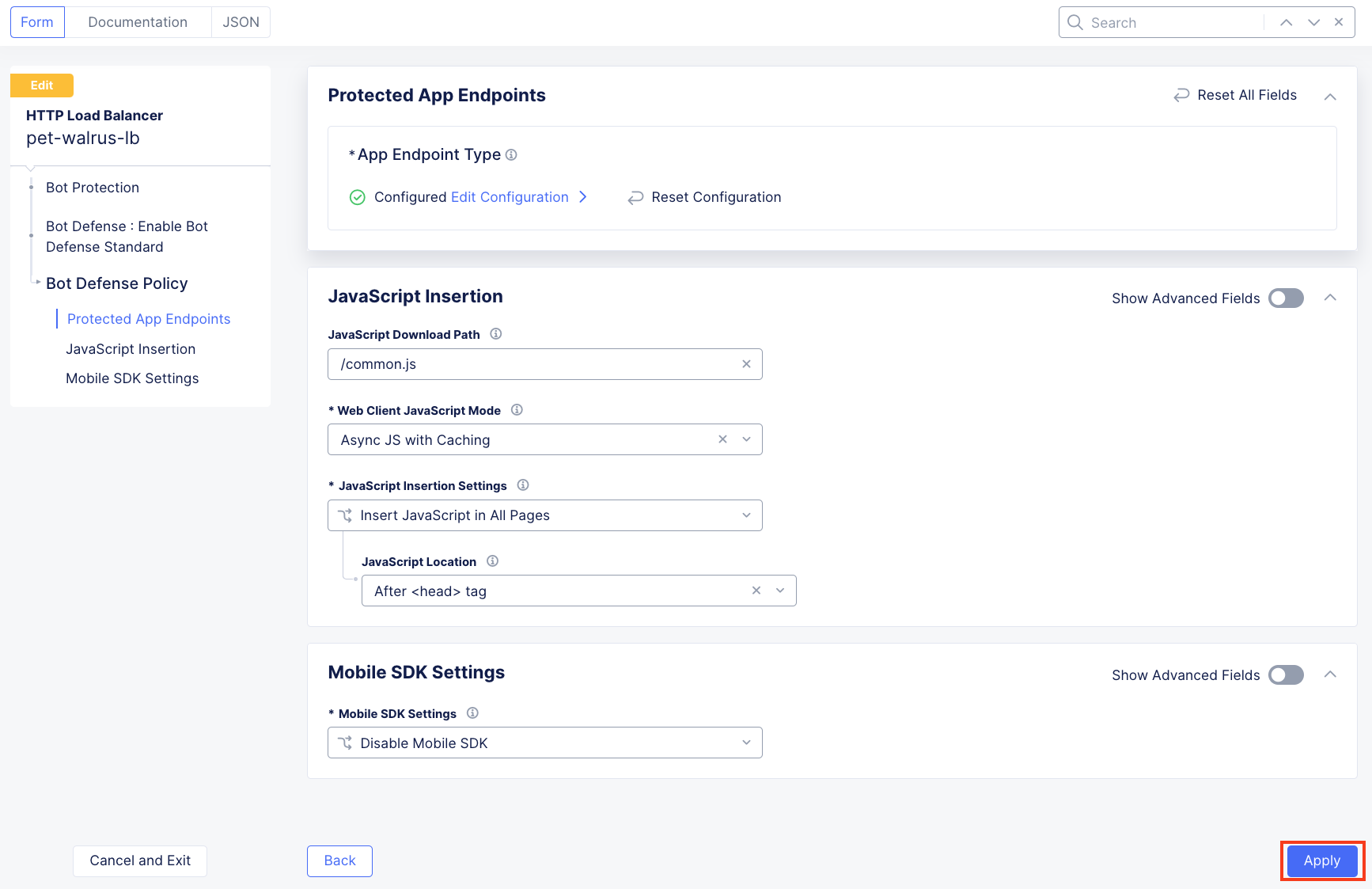
Task 2: Optional Advanced Topics - Part 2
Will F5 Distributed Cloud Bot Defense will prevent curl initiated logon requests and its ability to perform credential stuffing attacks? Let’s find out. Re-run our previously successful logon attempt:
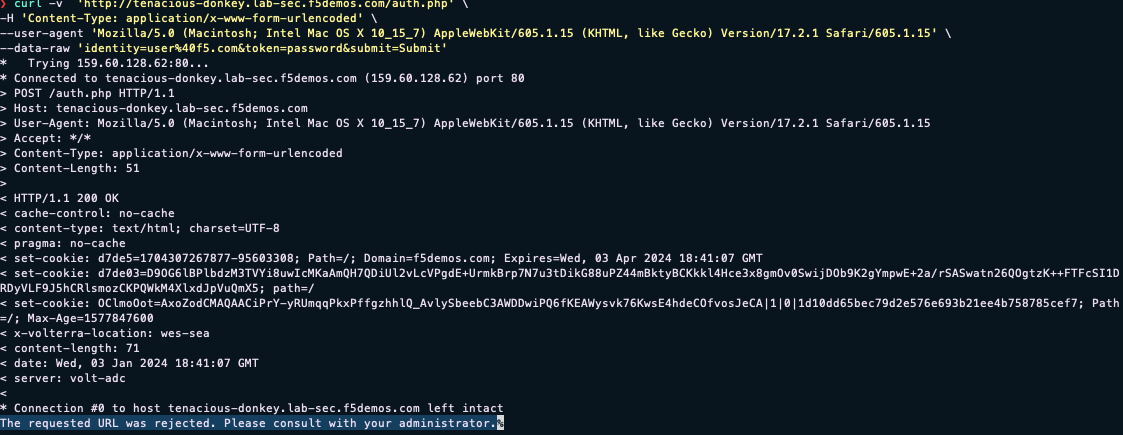
curl -v https://<your-namespace>.lab-sec.f5demos.com/auth.php -H "Content-Type: application/x-www-form-urlencoded" --user-agent "Mozilla/5.0 (Macintosh; Intel Mac OS X 10_15_7) AppleWebKit/605.1.15 (KHTML, like Gecko) Version/17.2.1 Safari/605.1.15" --data-raw "identity=user%40f5.com&token=password&submit=Submit"
As you can see, instead of signaling to a potential attacker that they have a good or bad password, we have prevented the would-be attacker from programmatically testing accounts. F5 Distributed Cloud Bot Defense can protect against basic attacks performed with commands like curl to the most advanced attacks.
|
You have now enabled F5 Distributed Cloud security policies to protect against potential attackers from probing ACME Corp’s application and deter credenital stuffing attacks.
End of Lab 2: This concludes Lab 2. Feel free to review and test the configuration.
A brief presentation will be shared prior to the beginning of Lab 3.