Lab 4: Web App Scanning

Objective:

  • Analyze a baseline scan, configure web app scanning, and compare results with a post-protection scan to demonstrate the effectiveness of F5 Distributed Cloud.

Narrative:

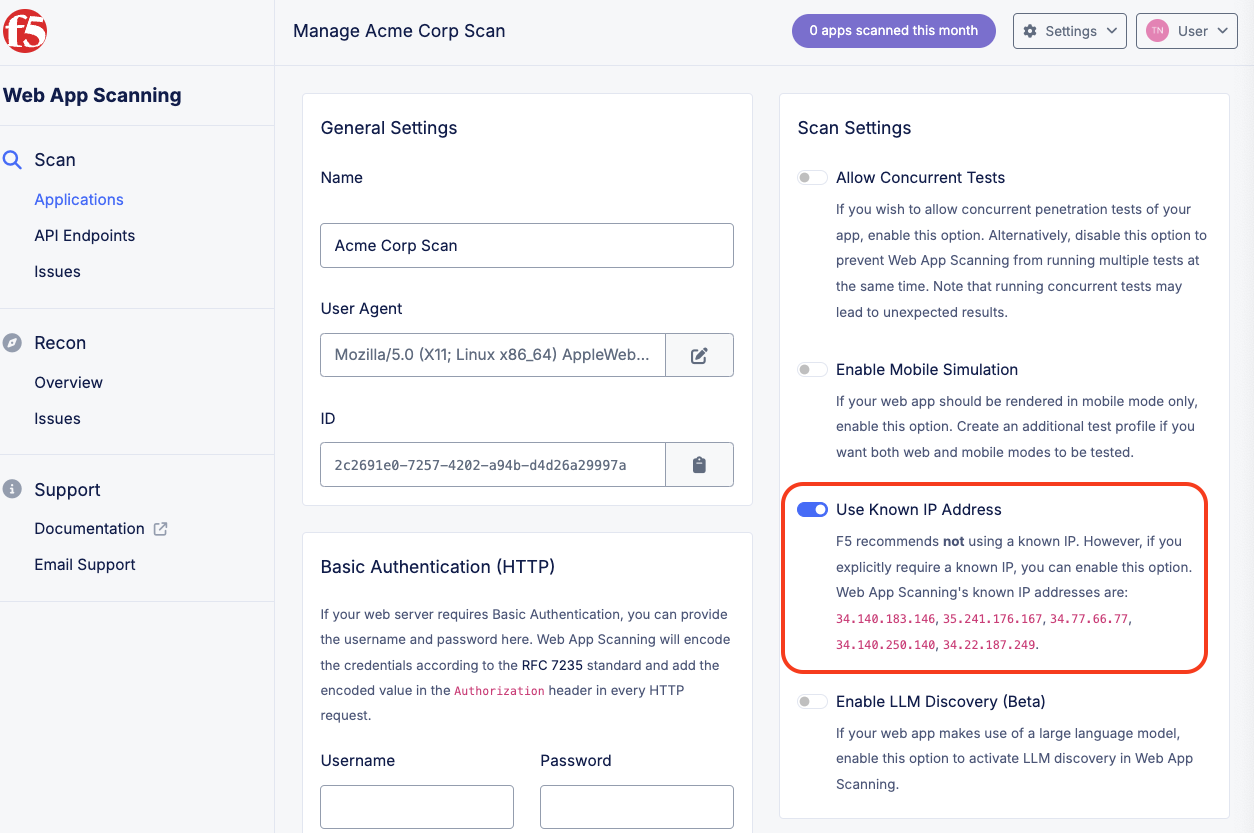
Following the successful rollout of the F5 Web Application Security policies, there is a request to setup OWASP Top 10 Web Vulnerability Scanning of the application and measure the security posture of the application over time. Currently ACME Corp does a penetration test every six months which requires an external vendor and lots of effort. ACME Corp would like to move to weekly scans with more automation and less effort. There is also a requirement to run the scan from a specifically allowed known IP addresses so the security team can setup specific rules to identify and allow the scans to come in from the the internet. After reviewing this requirement, ACME decides to evaluate F5 Distributed Cloud Web App Scanning. F5 Distributed Cloud Web App Scanning is an offering that lets you discover exposed assets and run automated penetration tests of your web applications and APIs.

Note

Expected Lab Time: 20 minutes

Lab 4 Summary-Web App Scanning: Configure continuous web application scanning for the ACME Corp web application using F5’s Web App Scanning service. You will first review a baseline vulnerability scan with no security protections in place, highlighting multiple OWASP Top 10 findings. Next, you will outline and configure an automated scan (scope, schedule, and scanner IPs) without waiting for the scan to complete. Pre-generated before-and-after scan reports are provided to demonstrate the impact of F5 Distributed Cloud security controls. After applying WAF, bot defense, and malicious user protections, the post-scan report shows a significant reduction in exposed vulnerabilities, validating the effectiveness of the deployed protections.

Note

This lab includes supplemental pre-security and post-security assessment results from a deliberately vulnerable test application used in place of the public-facing AppWorld application to better demonstrate the effectiveness of the security controls and remediation measures implemented. These results were generated using the same security protections and policies applied within the lab; however, differences in findings are expected due to the intentionally vulnerable nature of the test application. All results are provided for demonstration and evaluation purposes within a controlled lab environment only.

Task 1: View Existing Scan

In this lab, you will evaluate the security posture of the ACME Corp web application using F5 Distributed Cloud Web App Scanning. Before configuring a new scan, you will first review a pre-existing vulnerability scan that was performed before any F5 Distributed Cloud security controls were applied. This baseline report represents the application in its original, vulnerable state and highlights multiple security findings.

After reviewing the baseline scan, you will proceed through the lab as normal by configuring web application scanning. At the conclusion of the lab, you will review a second pre-existing scan report that was generated after WAF, bot defense, and malicious user protections were enabled, demonstrating a significantly improved security posture. This approach allows you to clearly see the before-and-after impact of F5 Distributed Cloud without waiting for long-running scans to complete during the lab.

Steps to Locate the Baseline Scan Report:

  1. Log in to the F5 Distributed Cloud Console.

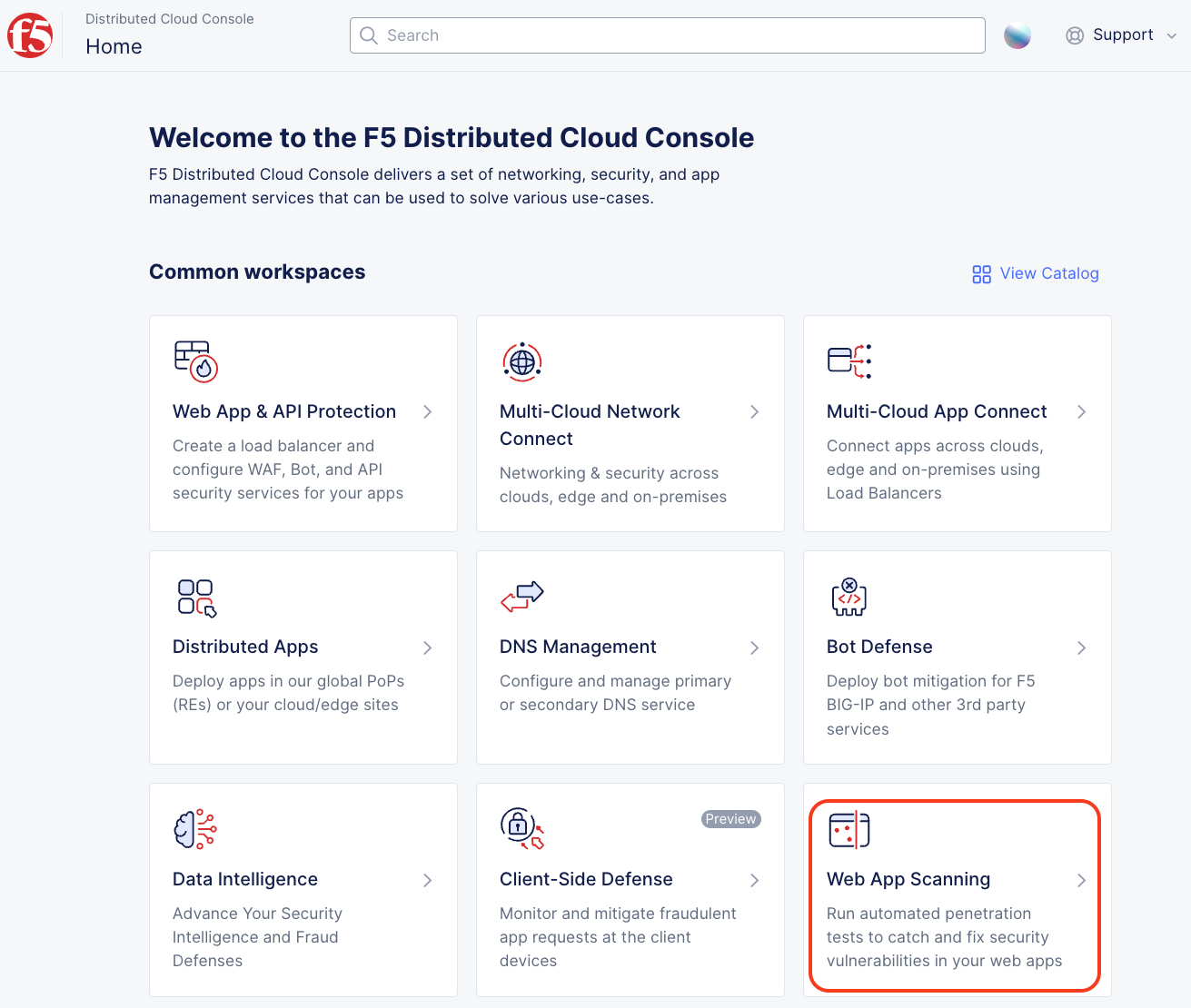
  2. From the navigation tiles, select Web App Scanning.

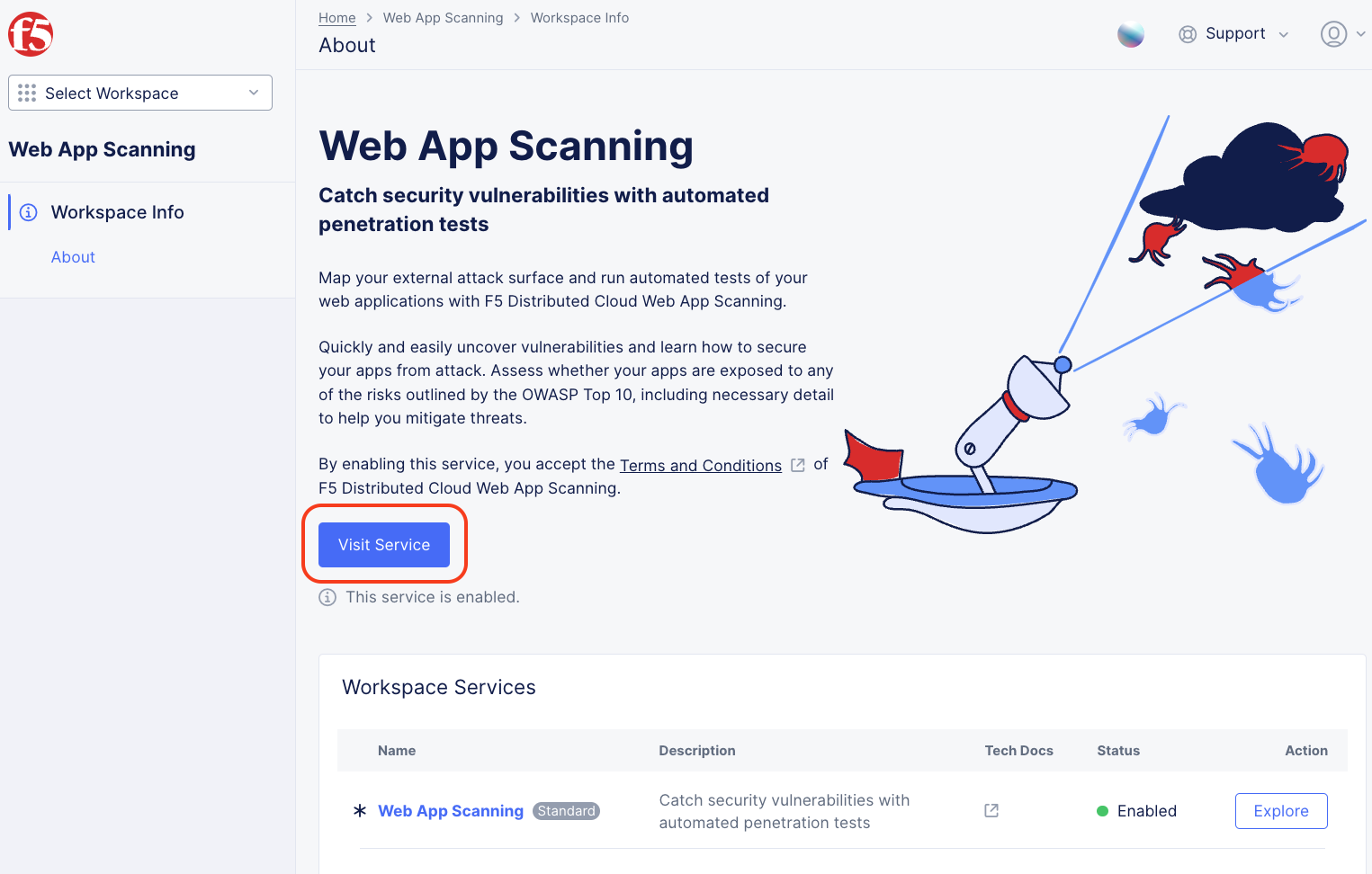
  3. Click View Service.

  4. You will be presented with the Web App Scanning Dashboard to view a summary of all application scans.

  5. In the left-hand menu, under Scans, select Applications.

6. In the list of available scans, locate & select: AppWorld 2026 Baseline Vulnerability Scan.

Note

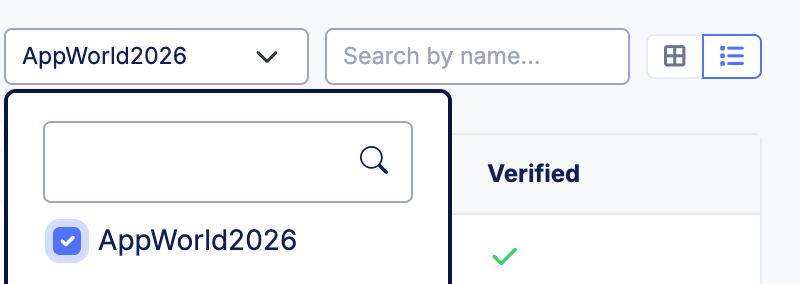
In the upper right-hand corner, select the Filter by tags… drop-down menu and enable the AppWorld2026 entry. Alternatively, you can search for the scan by name using the Search by Name field by typing in AppWorld.

lab4-a

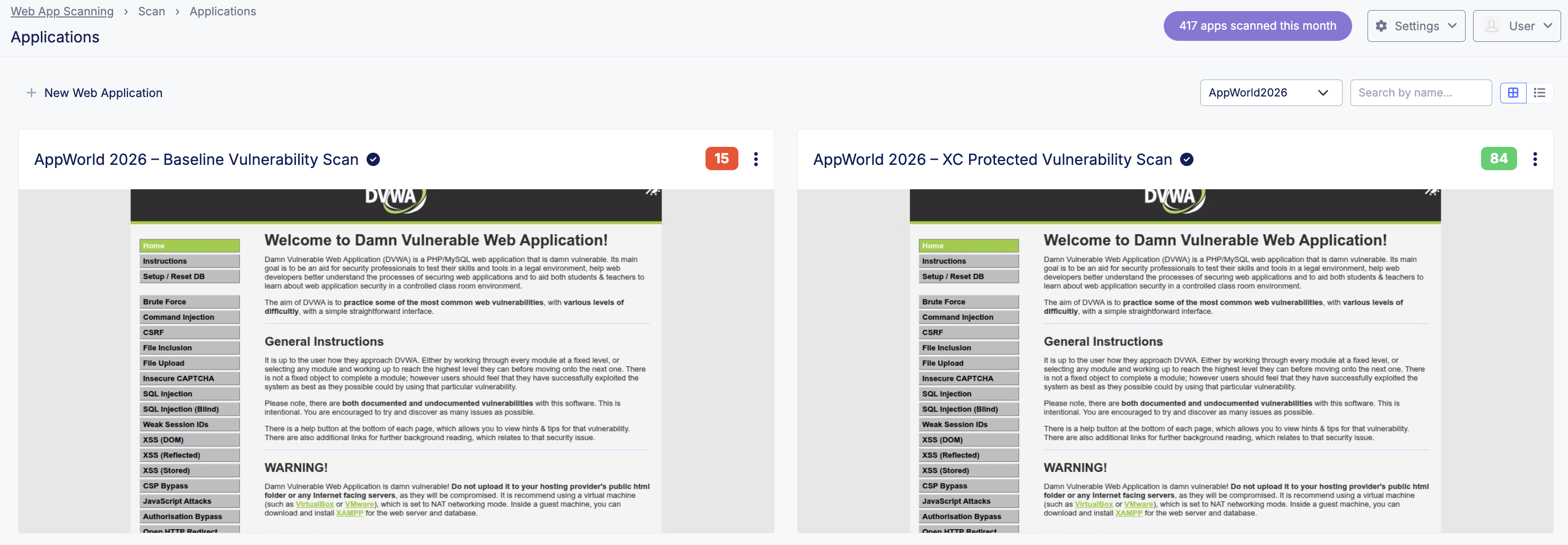
Here are the results after searching for the appropriate scan report:

lab4-b

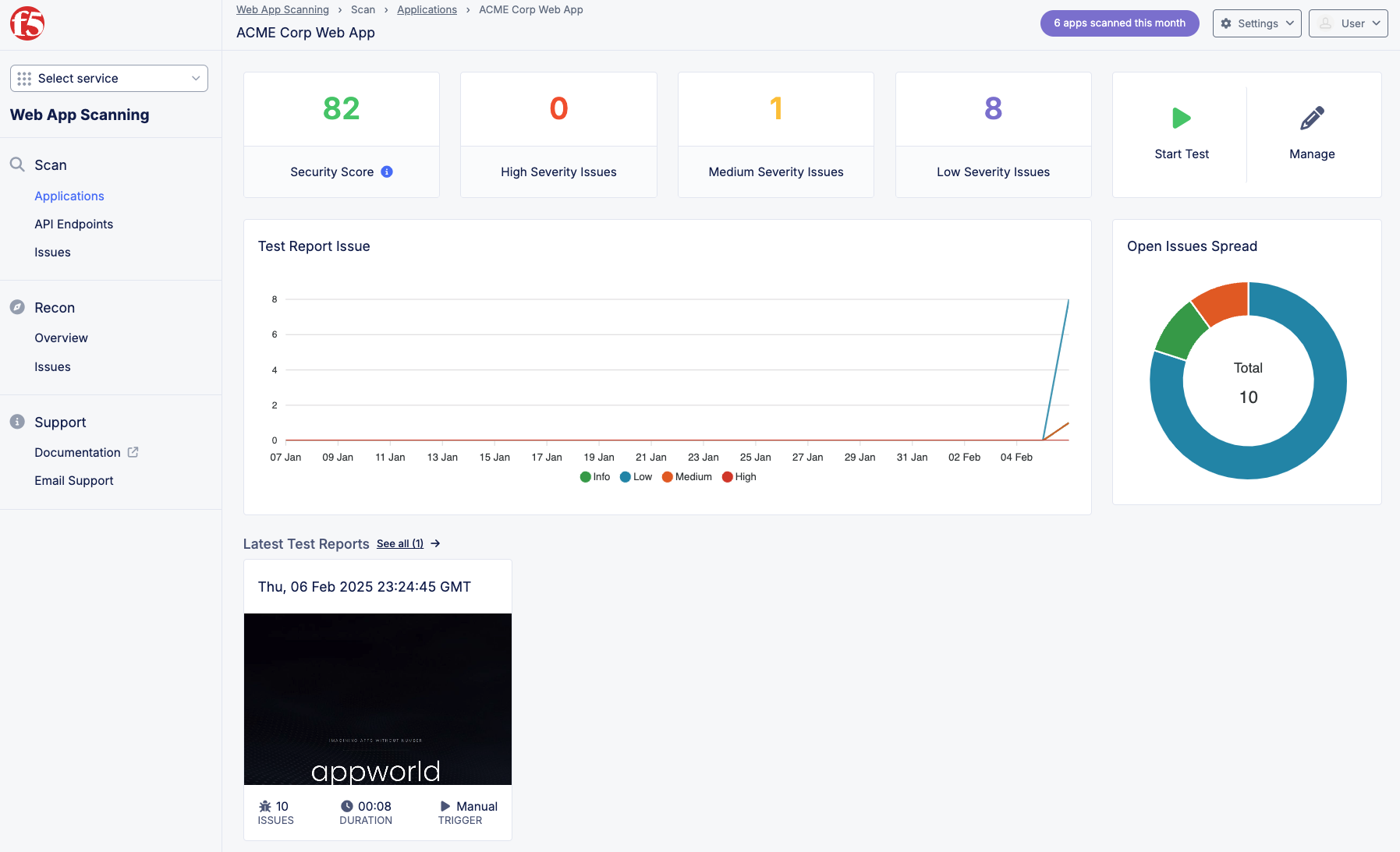
  1. Select AppWorld 2026 - Baseline Vulnerability Scan to review the scan results, noting:

  • Security Score + High, Medium and Low Severity issues (Select each one).

  • Notice the vulnerability type and associated CVSS 3.0 Score.

lab4-c

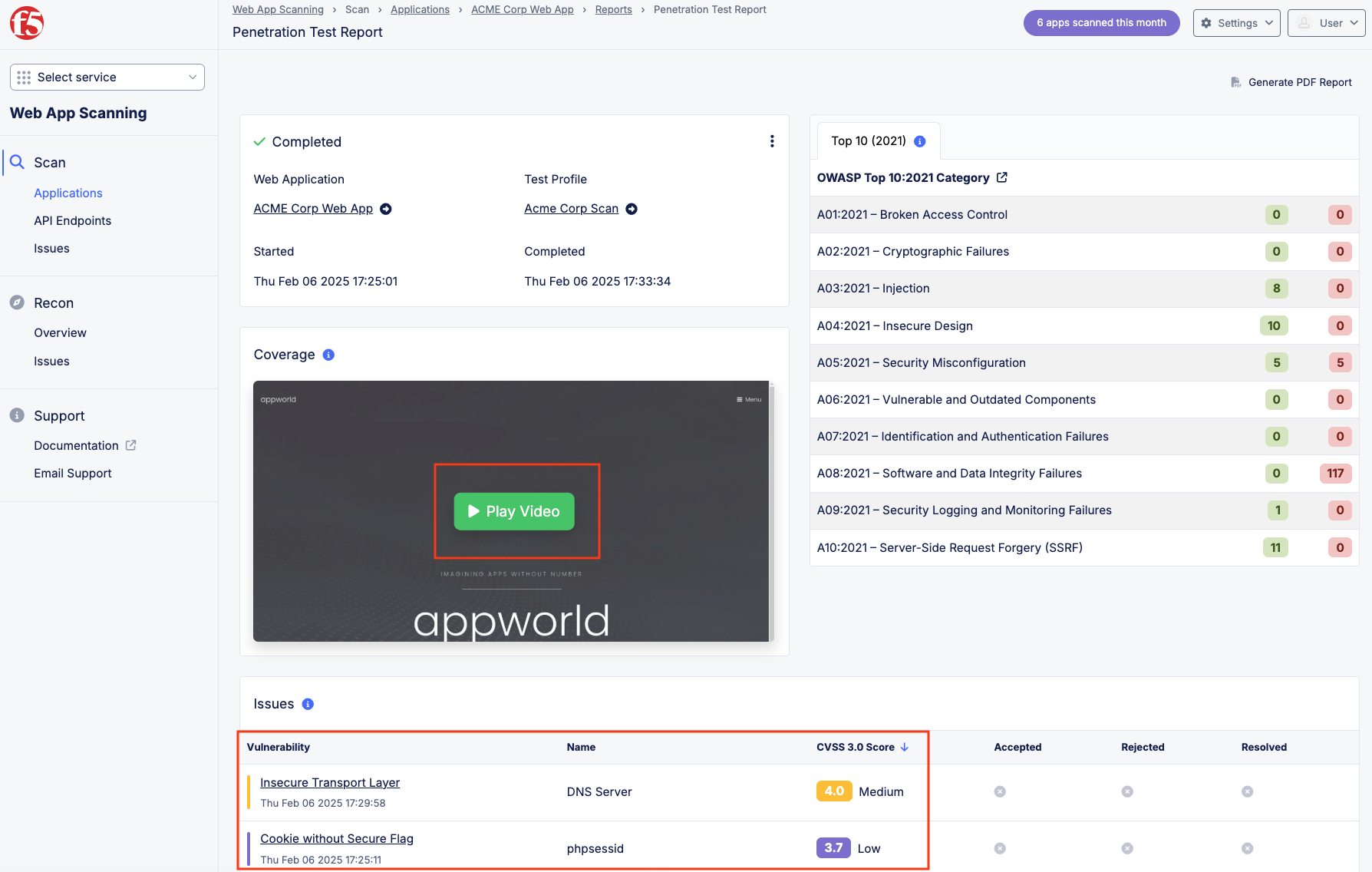
  1. Select the report under Latest Test Reports to note:

  • OWASP Top 10 findings.

  • Issues: Cross-Site-Scripting, Sensitive Data Exposure, and misconfiguration issues.

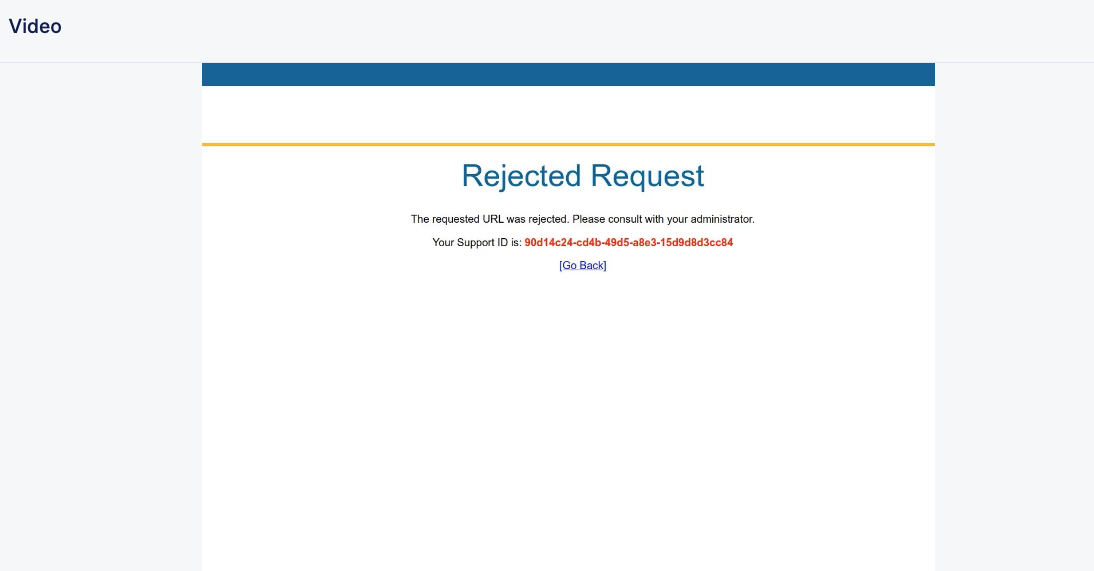
  • Select Play Video to view the end-to-end vulnerabiity assessment procedures performed.

Task 2: Configure a Web Application Scan

Now that you had a chance to review the Baseline Scan report in this next task, you will setup a penetration test of your internet facing application to report on OWASP Top 10 for Web Applications. Below are some of the tests conducted by the Scan:

  • Broken Access Control: Tests for issues related to the violation of the principle of least privilege, bypassing access control checks, accessing/editing other users’ data, and more.

  • Business Logic Attacks: Leverages multiple test users and AI to learn the functionality of the app and actively attempts to break it to find vulnerabilities associated with the logic and rules defined in the app.

  • SQL Injection (incl. Blind SQL Injection): Intelligent testing for a wide variety of SQL injection issues.

  • Cross-Site Request Forgery (CSRF): This is an attack that forces an end user to execute unwanted actions on a web application in which they’re currently authenticated.

  • Cross-Site Scripting (XSS) (Stored, Reflected, DOM-based): Comprehensive tests for HTML rendering/execution of JavaScript.

  • Insecure Direct Object References (IDOR): This is when an application exposes a reference to an internal implementation object, such as a file, directory, or database key.

  • Security Misconfiguration: This is a general term for when applications and systems are not properly configured for security.

  • Vulnerable and Outdated Components: This is when applications and systems use components with known vulnerabilities.

  • Identification and Authentication Failures: This is when applications and systems fail to properly identify and authenticate users.

  • Software and Data Integrity Failures: This is when applications and systems fail to protect the integrity of software and data.

  • Security Logging and Monitoring Failures: This is when applications and systems fail to properly log and monitor security events.

  • Server-Side Request Forgery (SSRF): This is an attack that allows an attacker to send crafted requests from the vulnerable server to other internal systems.

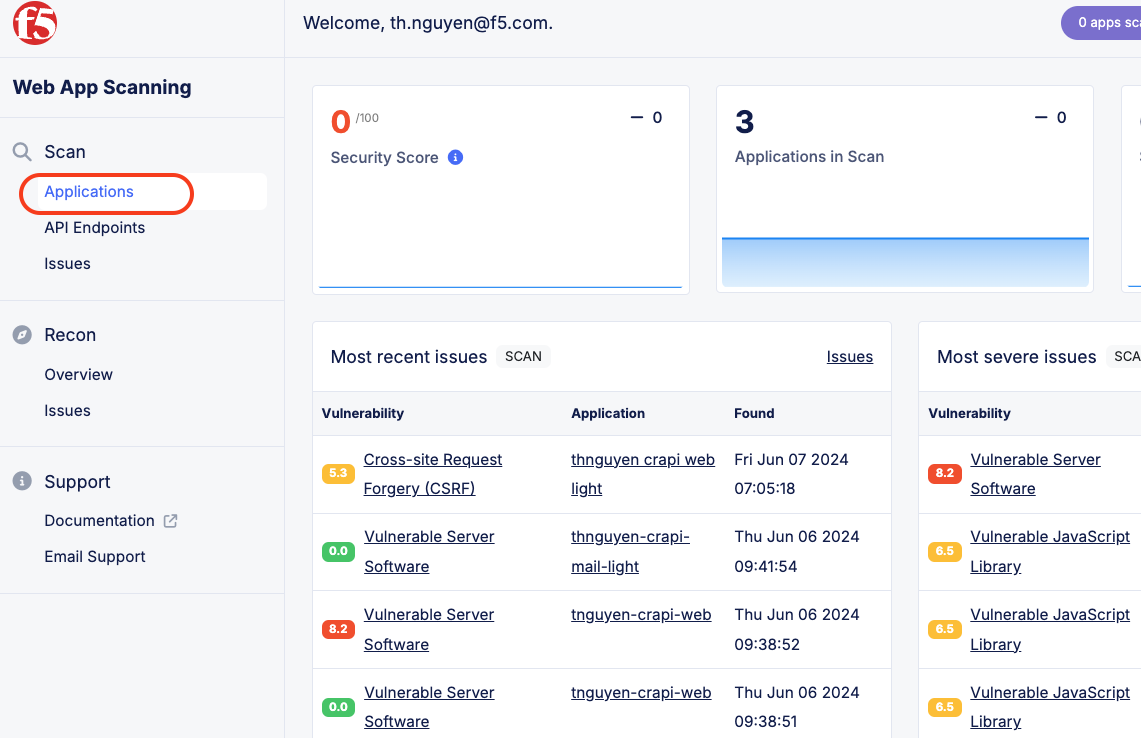
  1. Within the Home page in the F5 Distributed Cloud Console, click Web App Scanning and then click Visit Service.

lab001

lab002

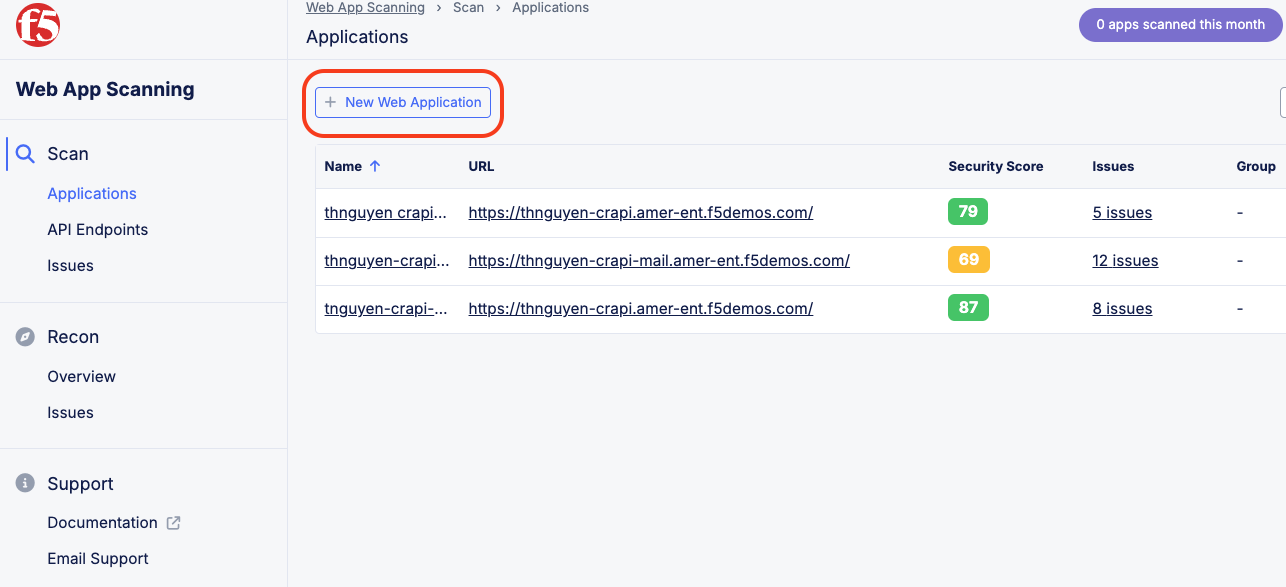
  1. From the Web App Scanning page, click on Applications in the top left-hand corner.

  2. Click on New Web Application.

lab003

lab004

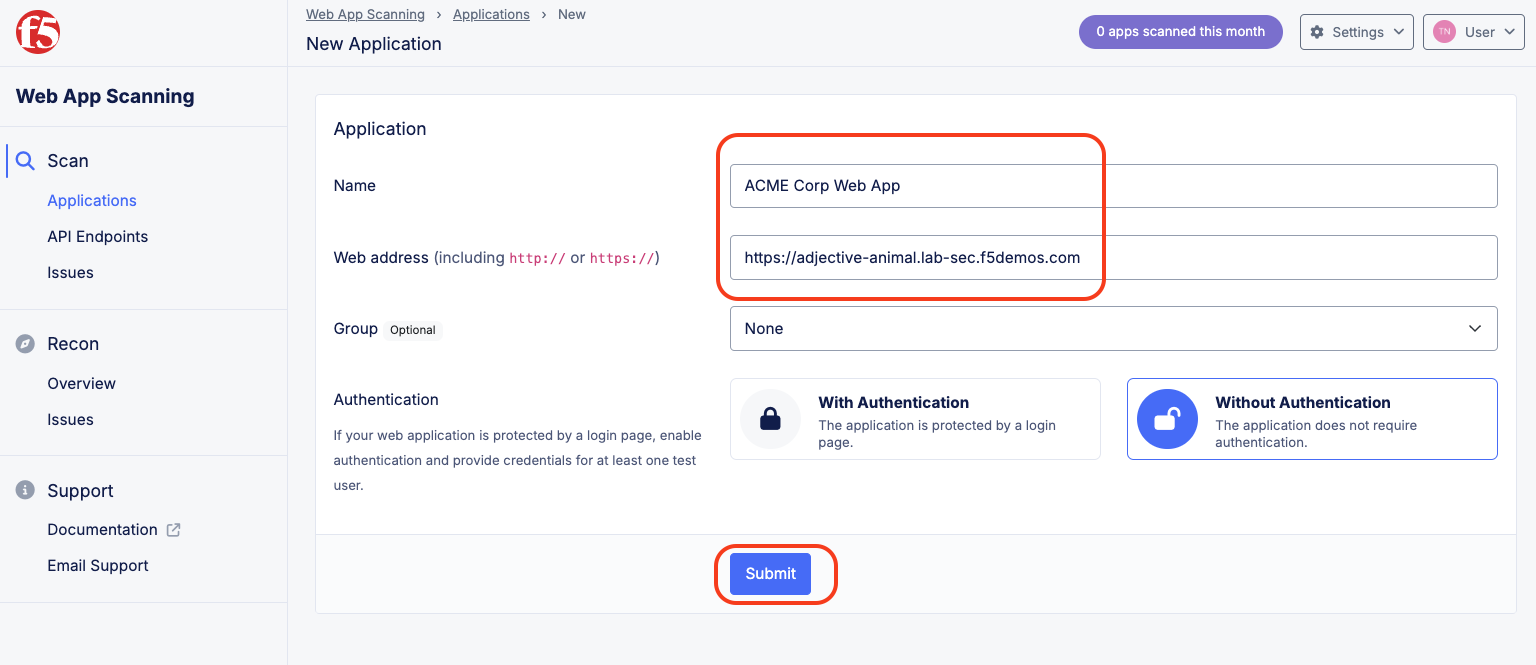
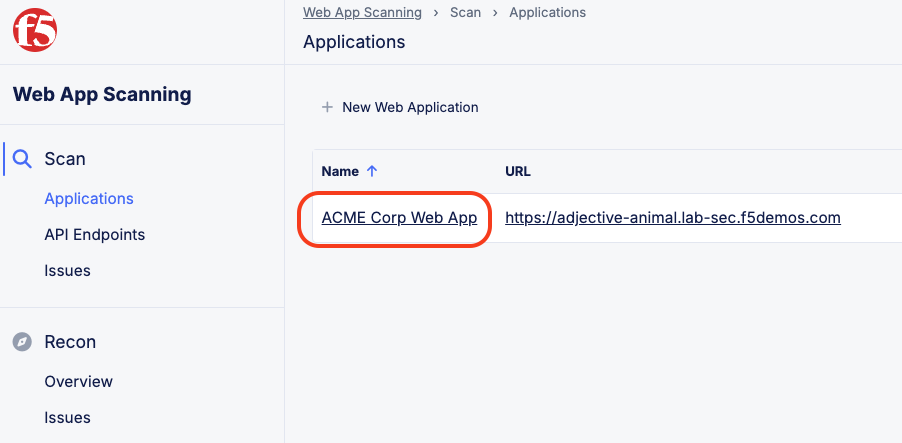
  1. Add a name for the application: <your-namespace> ACME Corp Web App

  2. Add the Web Address of the application that was built as part of this lab. It will match your namespace following the pattern https://<your-namespace>.lab-sec.f5demos.com

lab005

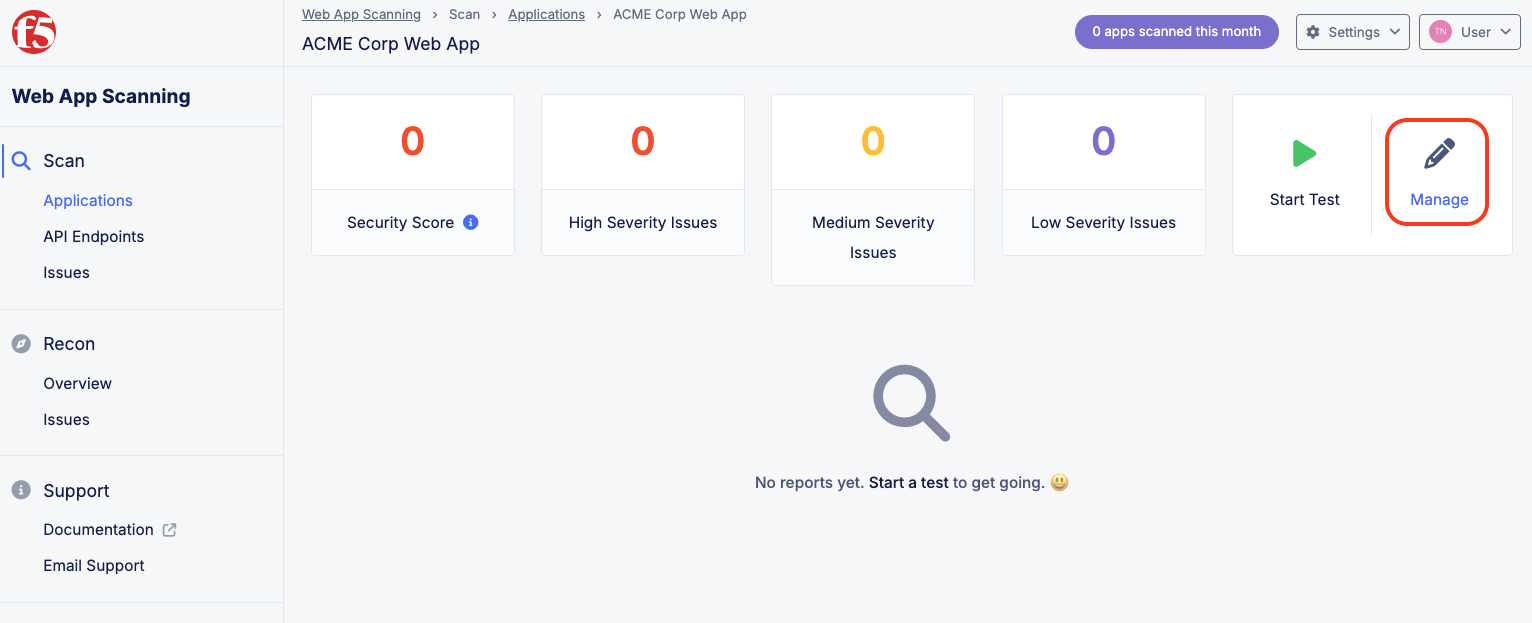
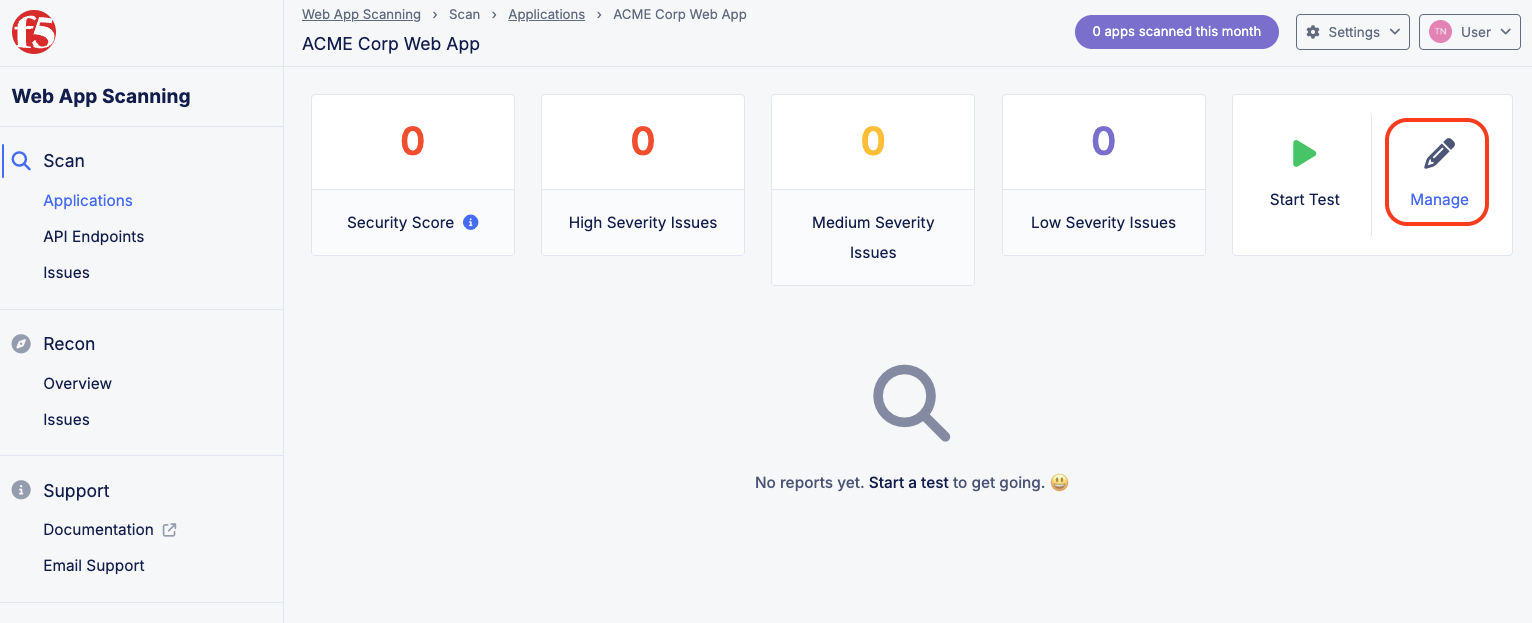
  1. Once the application has been added, the scan can be configured to add additional options. In this lab, you will be modifying the scan profile and setting up a schedule. Click on Manage to access the configuration options.

lab006

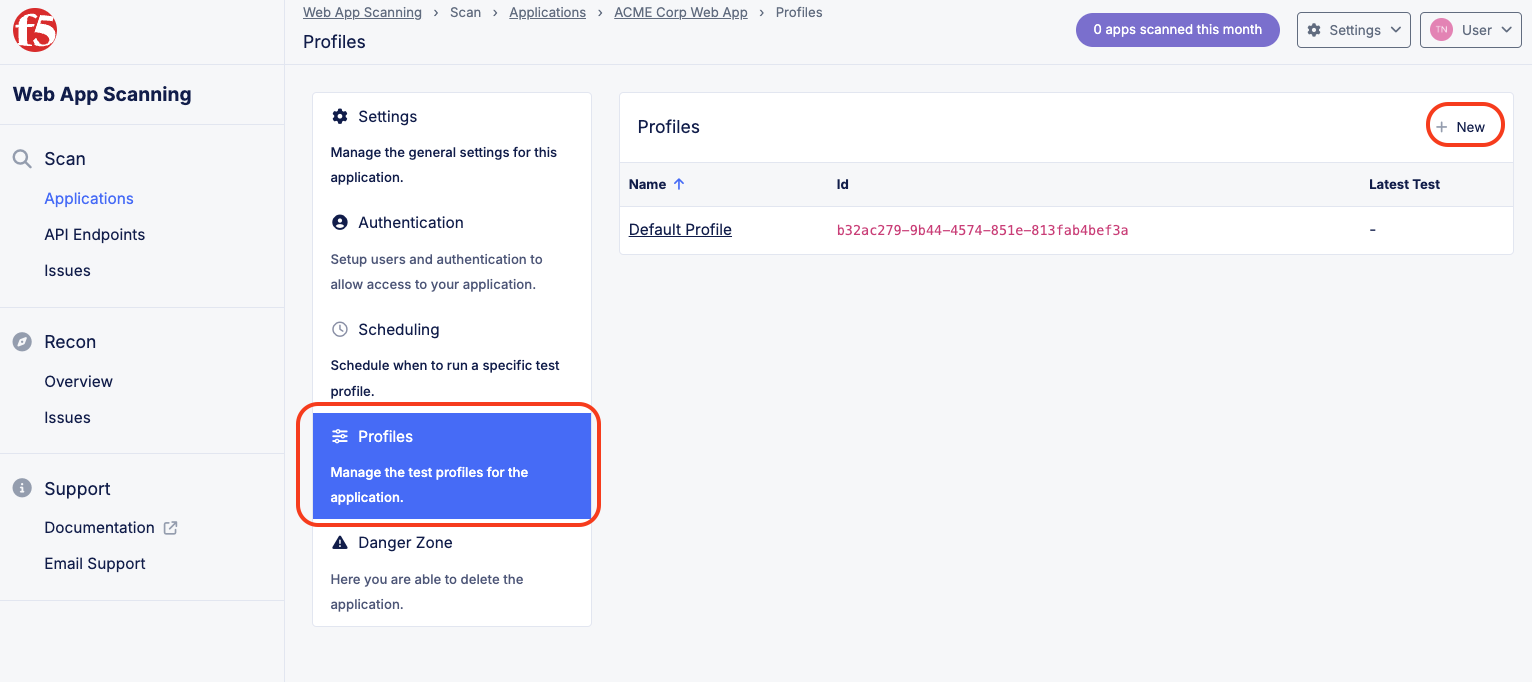
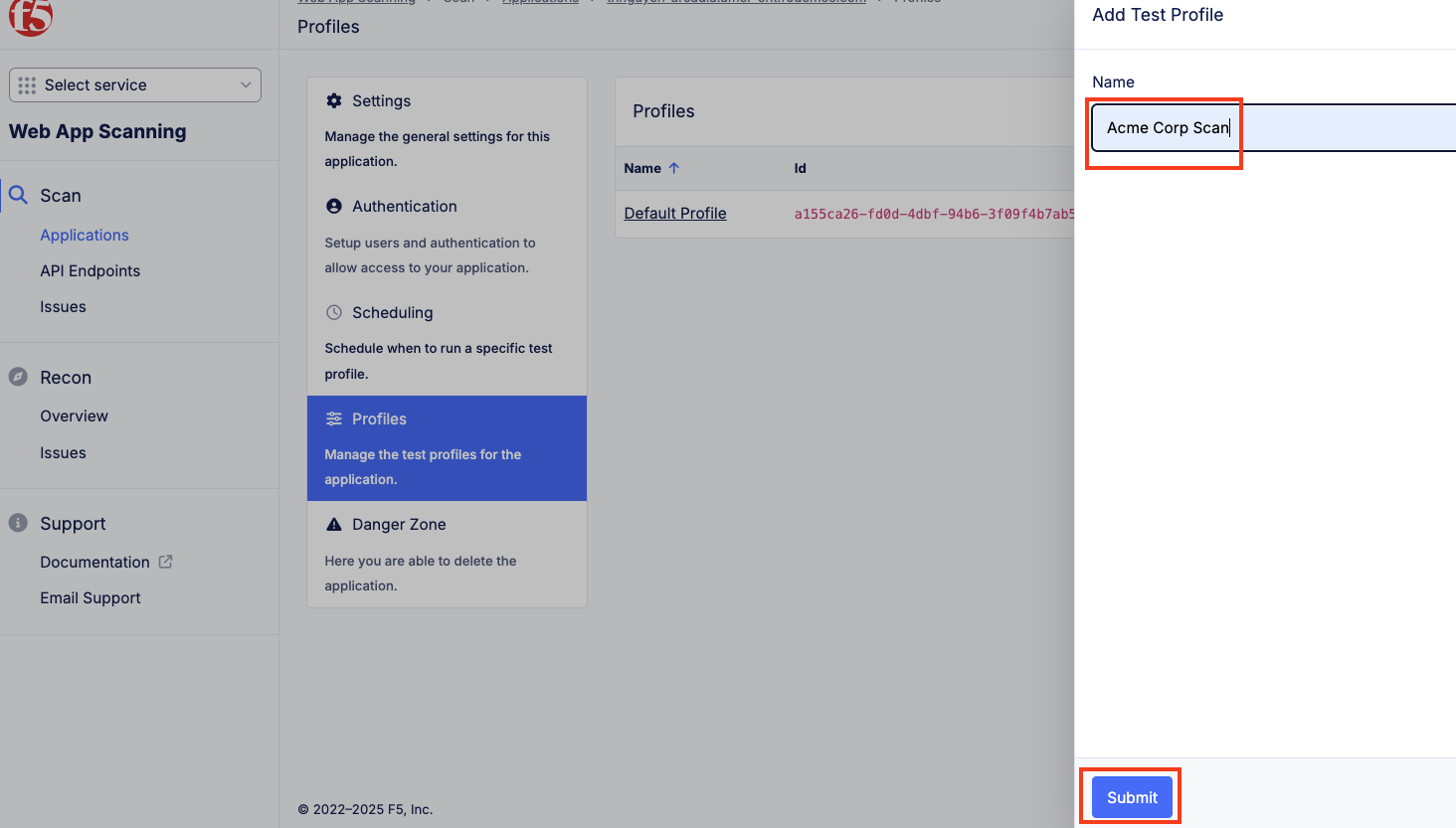
  1. Select Profiles and click New to add a new scanning profile that will be customized for ACME corp’s need. Name the profile Acme Corp Scan and Click Submit.

lab007

lab008

  1. On the new profile page, additional settings can be configured such as changing the User Agent of the scan, adding basic authentication with username password as an encoded value in the Authorization header of the HTTP requests of the scans. To meet the requirement of ensuring that the penetration tests come from pre-approved ip addresses, select the scan settings to restrict scans to originate from only a subset of IPs.

Note

F5 recommends not using a known IP, in order to more closely simulate attackers coming from unknown IPs.

lab009

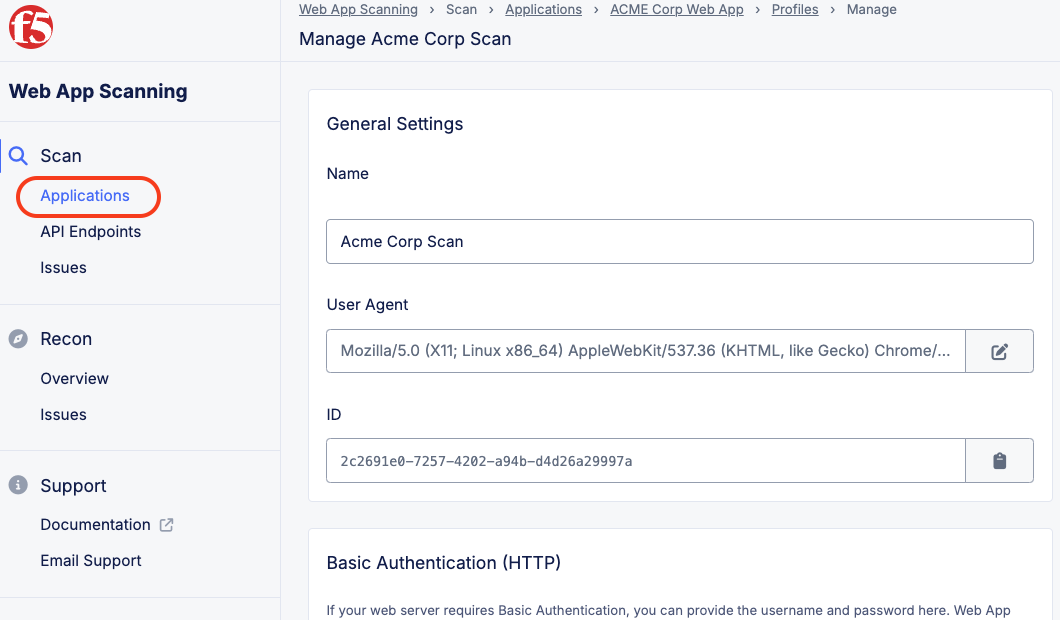
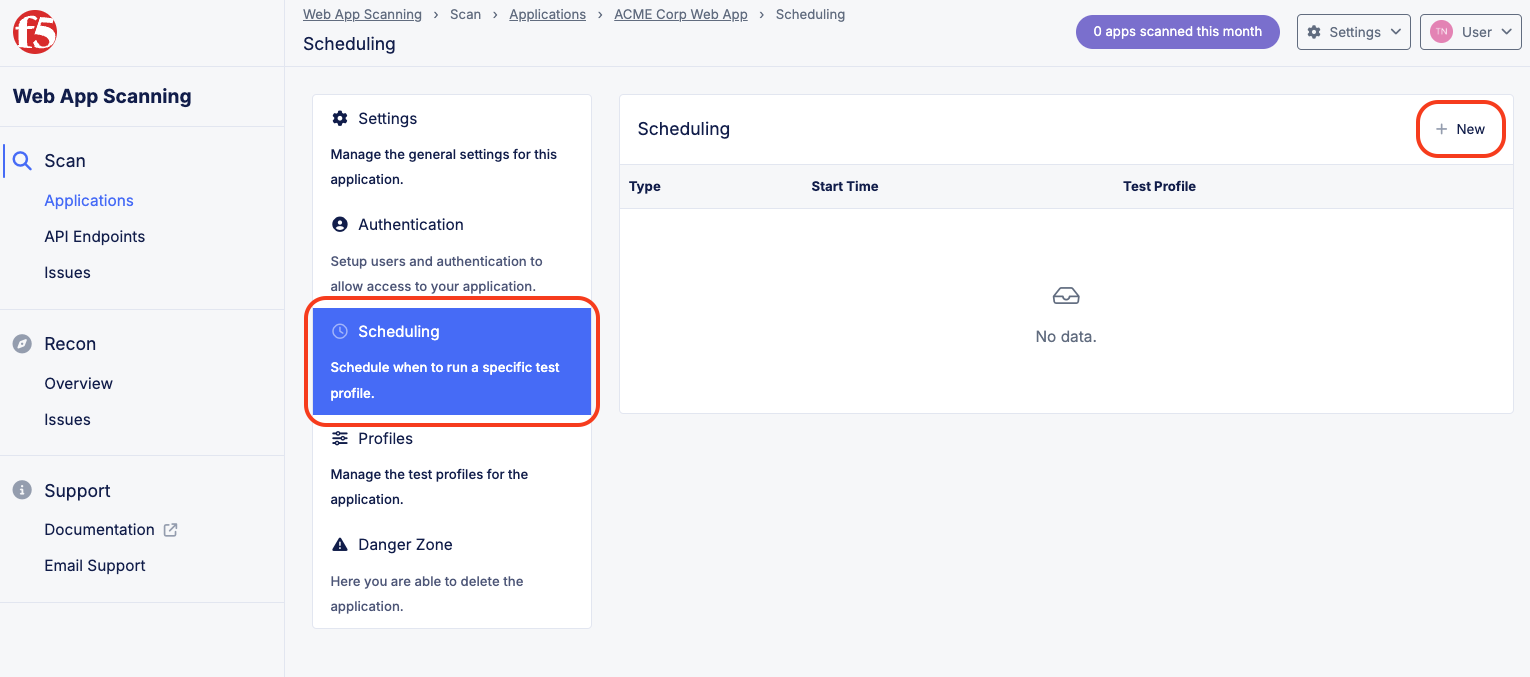
  1. Return to the ACME Corp Web App by clicking on Applications on selecting the ACME Corp Web App. Next click Manage then Scheduling then New.

lab010

lab011

lab012

lab013

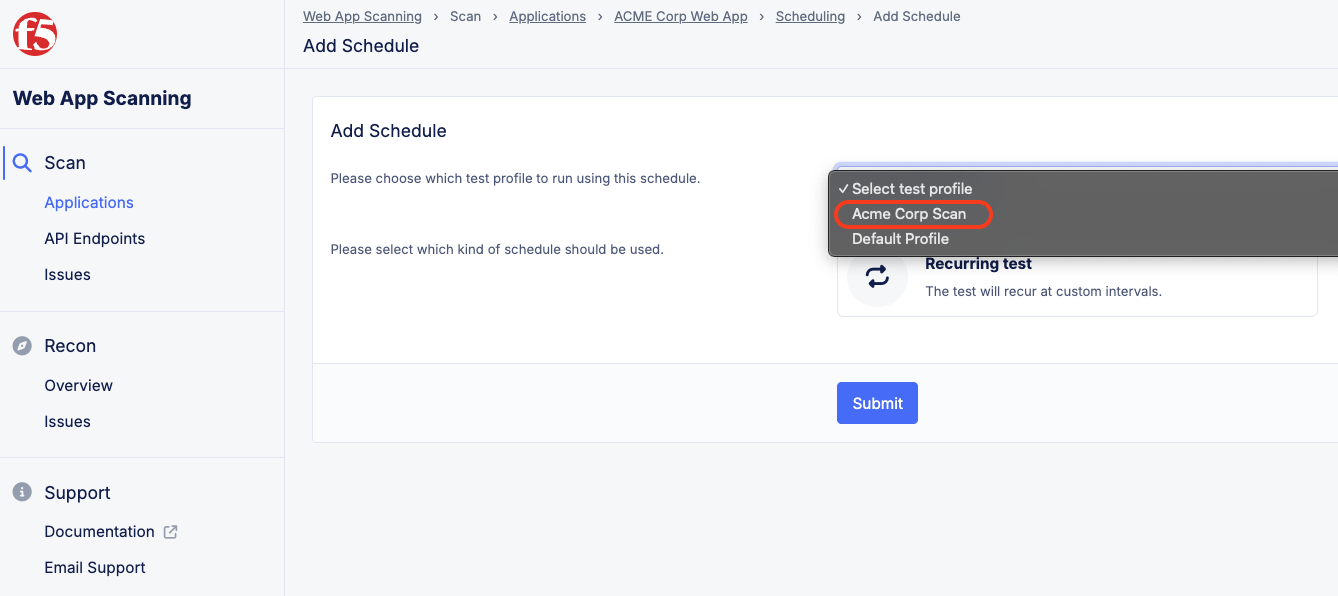
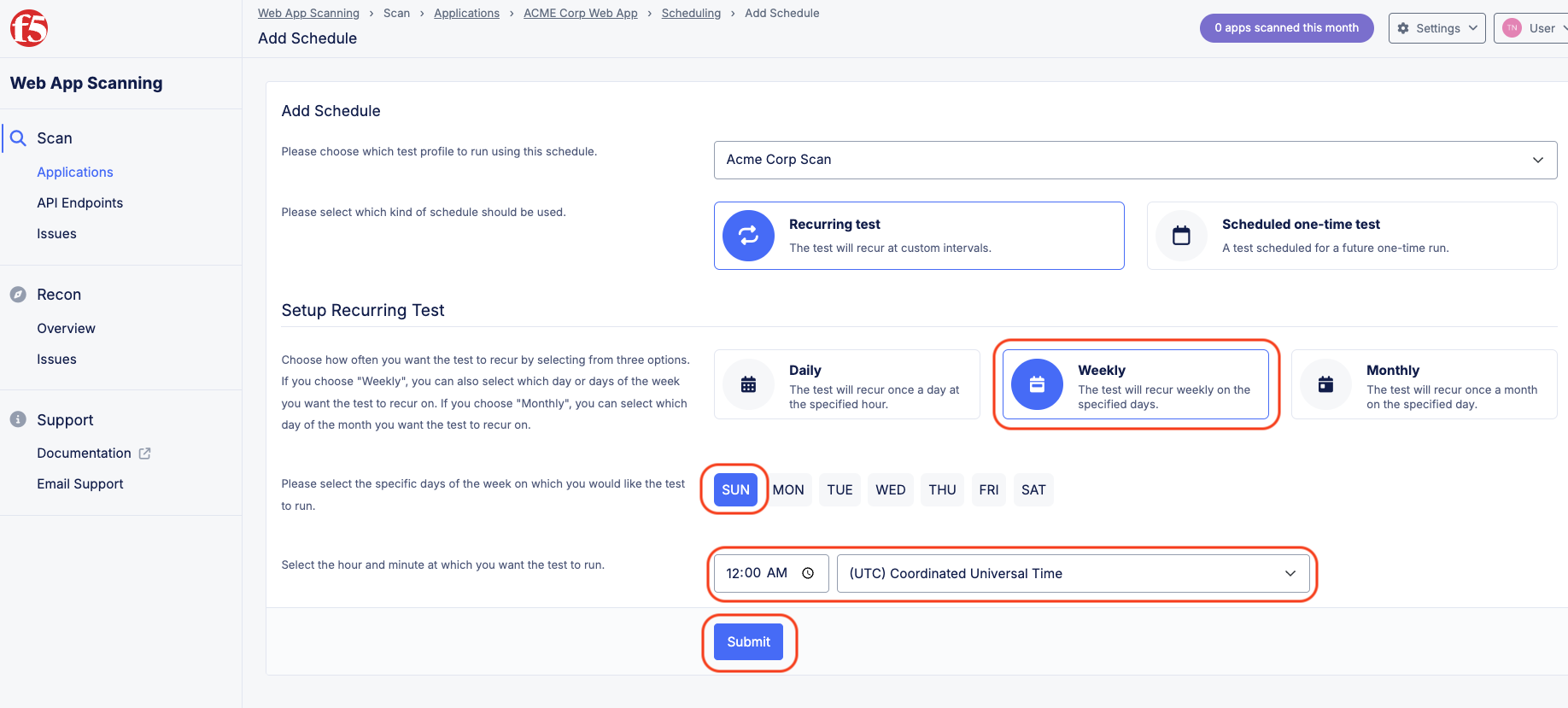
  1. Lets set up a new Recurring Test. Select the Acme Corp Scan and Recurring Test. Define a schedule (Daily, Weekly, and Monthly) and set the start time for the scan. Click Submit when finished.

lab014

lab015

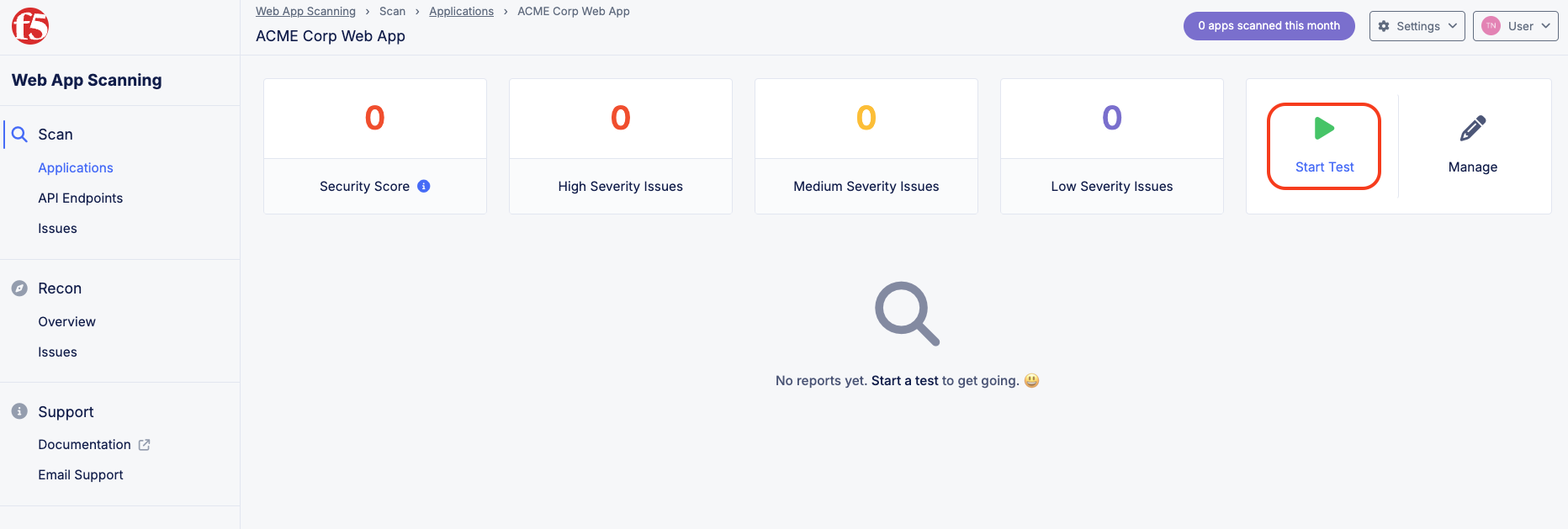
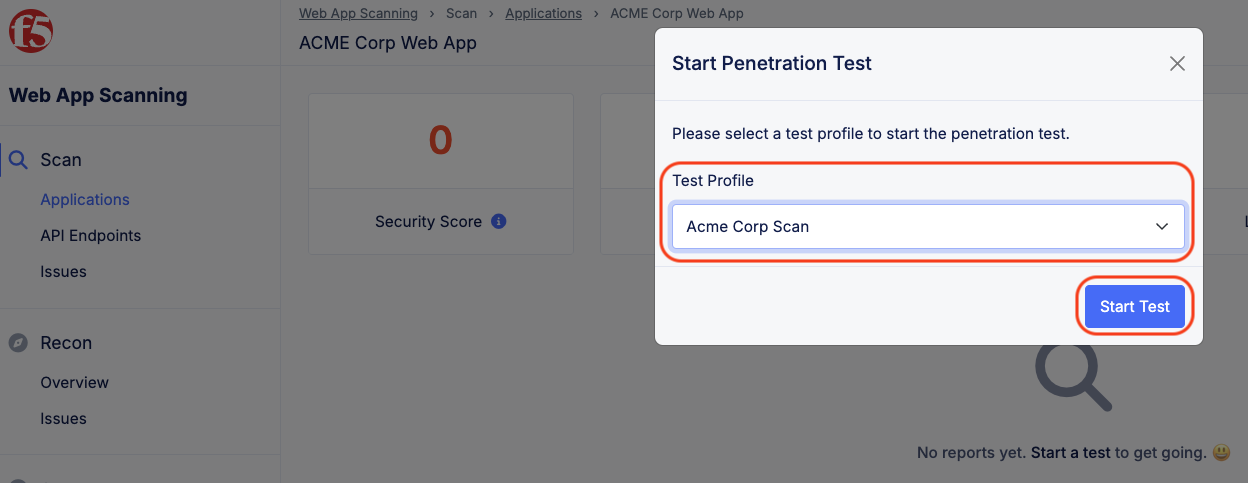
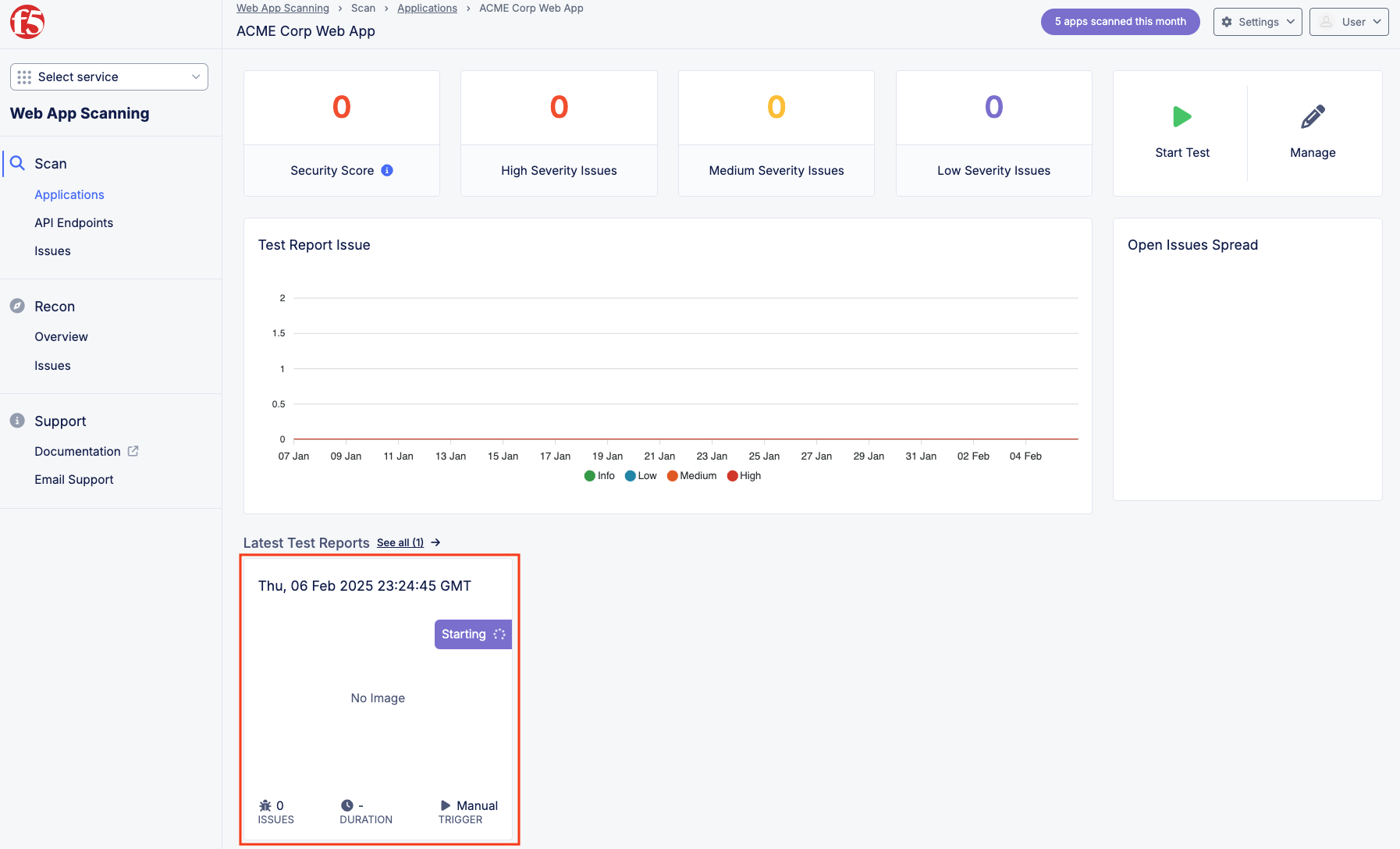
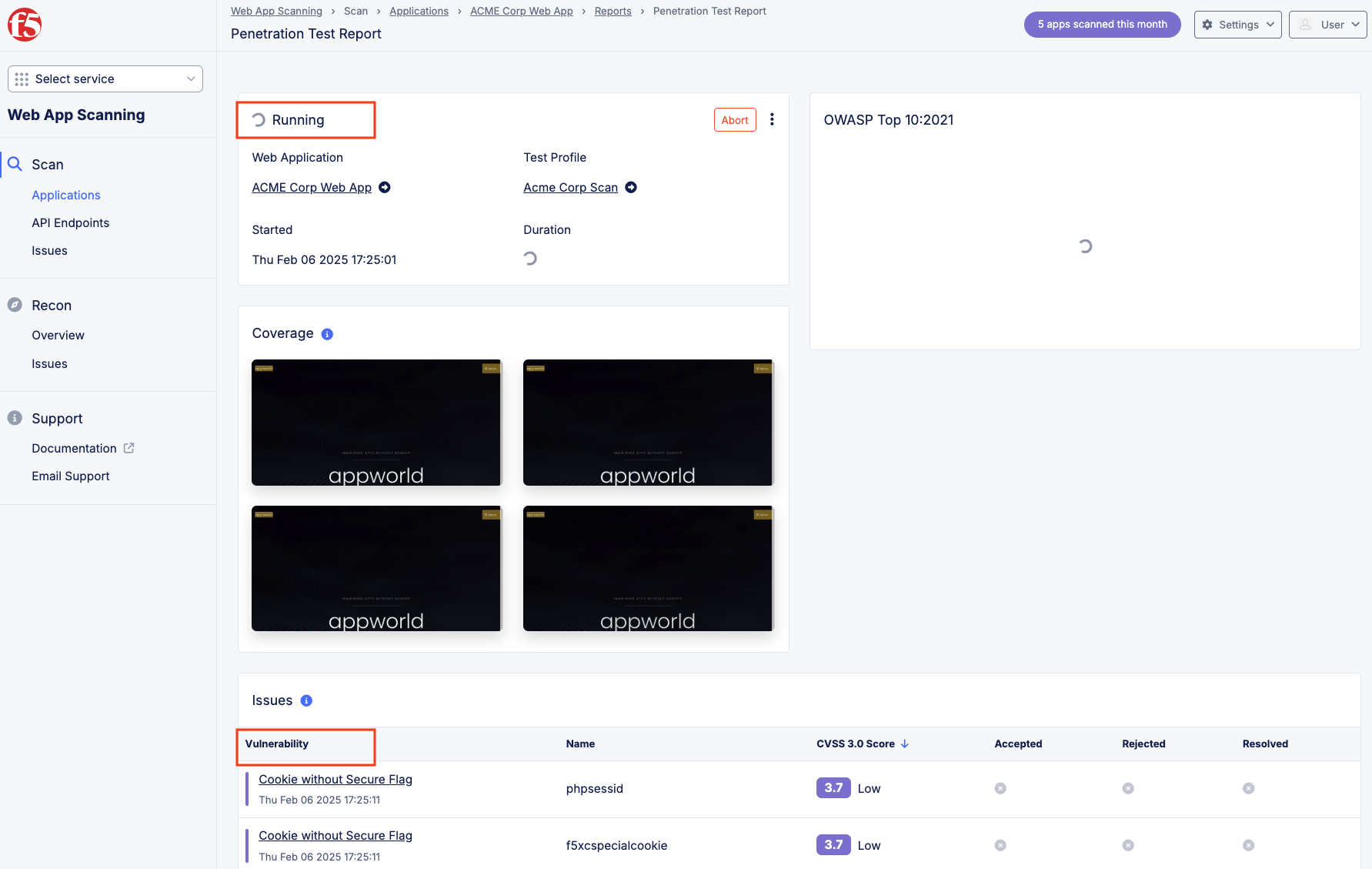
  1. In additional to scheduled scans, Web App Scanning allows for on demand testing. Return back to the ACME Corp Web App. Click Start to begin an ad-hoc test. Select Acme Corp Scan as the scanning profile. Click Start Test. You can click on the test while it’s running to see data being populated live during the test.

lab016

lab017

lab018

lab019

  1. After the Scan completes, results will be displayed on the homepage dashboard and also the page of the individual application. Click on Applications - Acme Corp Web App. Review the data from the latest scan at a high level. Click on Scan that just completed. From theReport page, review the which OWASP Top 10 vulnerabilities were uncovered. There is also a video that replays the penetration testing scan interacting with the website. Note the different colors as they relate to vulnerabilities uncovered and which portion of the application had the issue. While watching the video, note if you can identify the custom block page you configured earlier in the lab. This video can be downloaded as well a PDF of the test results.

lab020

lab021

lab022

Task 3: View Post Lab Scan

Now that you have seen the baseline vulnerabilities and deployed layered protections across the application, its time to see the results.

We will now review the pre-generated post-protection scan report, compare it to the original findings, and observe how F5 Distributed Cloud WAF, Bot Defense, and Malicious User Mitigation reduced critical exposures and measurably improved the application’s security posture.

Steps to Locate the Protected Scan Report

  1. Log in to the F5 Distributed Cloud Console.

  2. From the navigation tiles, select Web App Scanning.

  3. Click View Service.

  4. You will be presented with the Web App Scanning Dashboard to view a summary of all application scans.

  5. In the left-hand menu, under Scans, select Applications.

6. In the list of available scans, locate & select: AppWorld 2026 XC Protected Vulnerability Scan.

Note

In the upper right-hand corner, select the Filter by tags… drop-down menu and enable the AppWorld2026 entry. Alternatively, you can search for the scan by name using the Search by Name field by typing in AppWorld.

lab4-a

Here are the results after searching for the appropriate scan report:

lab4-b

7. Select AppWorld 2026 - XC Protected Vulnerability Scan to review the scan results, noting:

  • Security Score + High, Medium and Low Severity issues (Select each one).

  • Notice the vulnerability type and associated CVSS 3.0 Score.

lab4-d

  1. Select the report under Latest Test Reports to note:

  • OWASP Top 10 findings.

  • Issues: Cross-Site-Scripting, Sensitive Data Exposure, and misconfiguration issues.

  • Select Play Video to view the end-to-end vulnerability assessment procedur performed.

  • Select one of the issues that were uncovered to view the vulnerability details, including description, when it was originally discovered, reocurrances, type, etc.

  • Under the review menu, you can add notes and accept, reject, or mark as resolved, depending on the status or nature of the issue.

By leveraging F5 Distributed Cloud Web App Scanning, organizations can have an ongoing view of the security posture of their web applications and track the issues over time. The Web App Scanning solution can also discover API endpoints and LLM models that make up a Web Application and even provide reports against the OWASP Top 10 for LLMs. So as ACME Corp continues to add new applications, F5 Distributed Web App Scanning can continue to maintain consistent visibility for those web assets.

End of Lab 4: This concludes Lab 4. Feel free to wait for the scan to complete and review the results and playback the recorded video.

labend