F5 Distributed Cloud > F5 Distributed Cloud: Discovering & Securing API’s Source | Edit on
Lab 2: API Inventory
Scenario
There was an update to the Customer Lookup controller, a new endpoint “getbyheroname” was added, allowing the lookup of a customer’s secret identity. However, this endpoint was not intended for release and was not approved for production.
We need to ensure that unapproved endpoints cannot be consumed, both now and in the future.
Expected Lab Time: 15 minutes
Note
This lab uses a pre-built shared API Definition. Refer to Lab 2 Advanced for additional steps on how to download and upload a swagger file, as well as create a API Definition using the newly created OpenAPI file.
Task 1: Simulate Allowed Access to a Shadow API
Using another browser tab, navigate to the the following URL.
http://<your-namespace>.lab-sec.f5demos.com/swagger
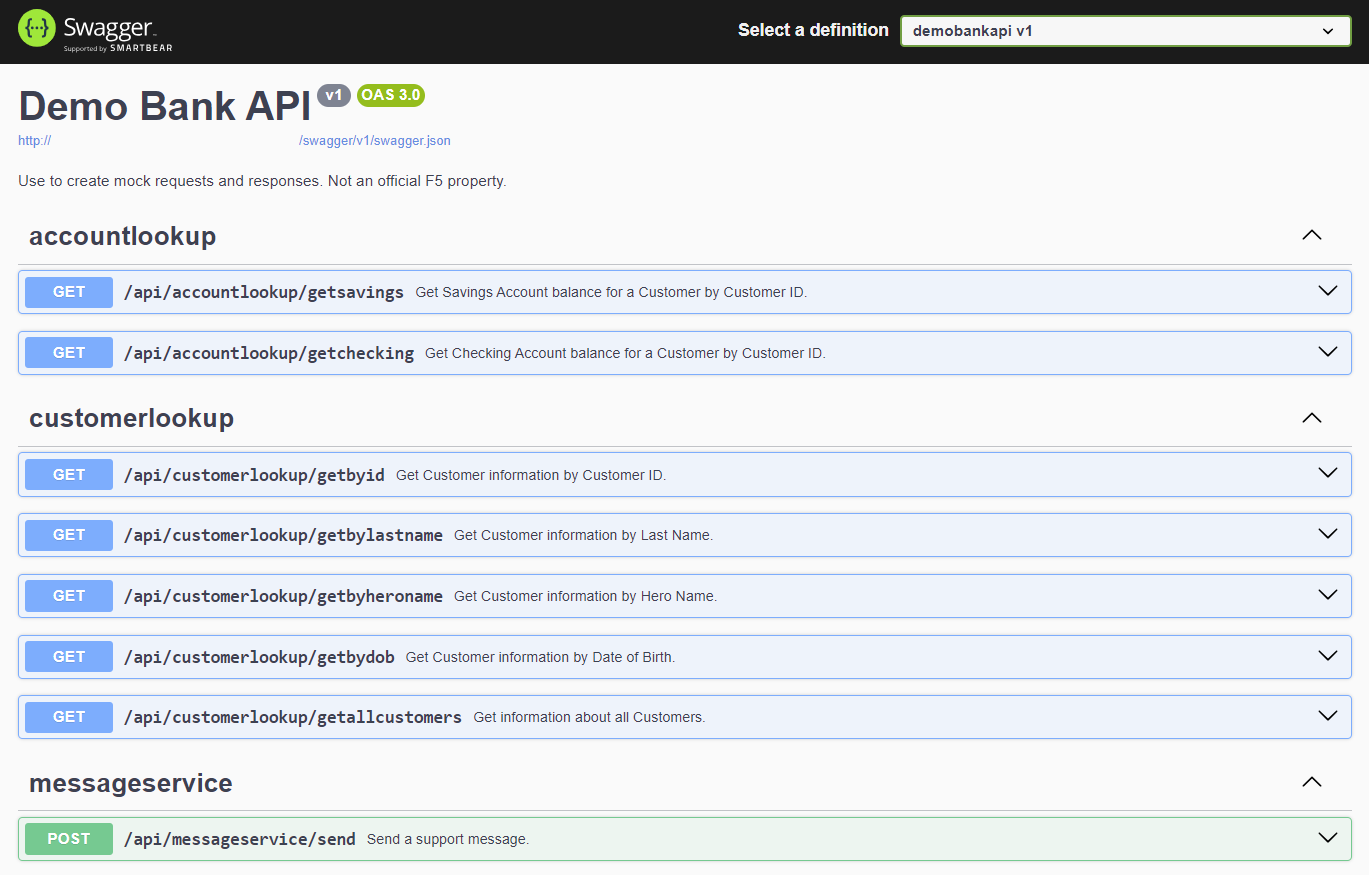
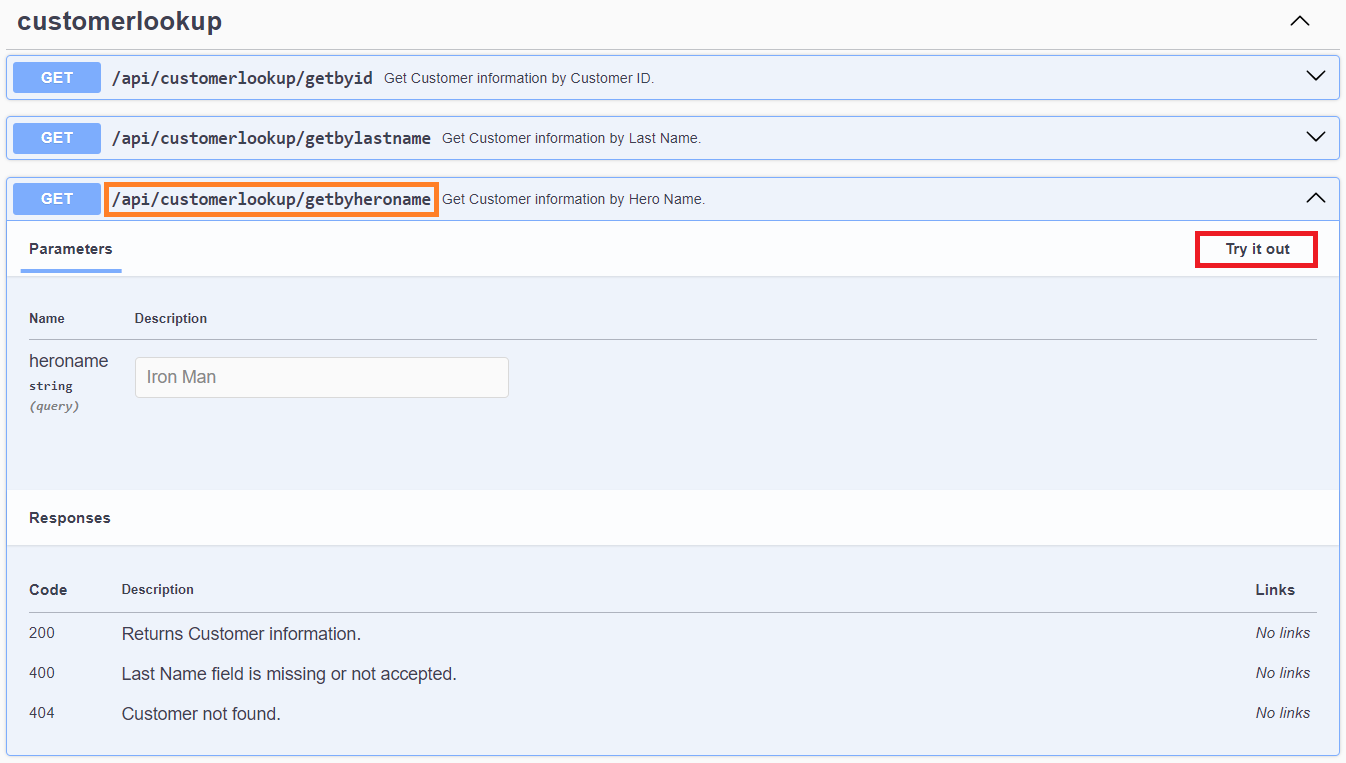
In the Demo Bank API app, navigate to the /api/customerlookup/getbyheroname endpoint, expand it, and click Try it out.
Note
The ‘getbyheroname’ is a shadow API endpoint that is not approved for use. A shadow API refers to an undocumented or unintended API endpoint that exists alongside officially supported APIs, often posing security and/or operational risks due to lack of visibility or management.
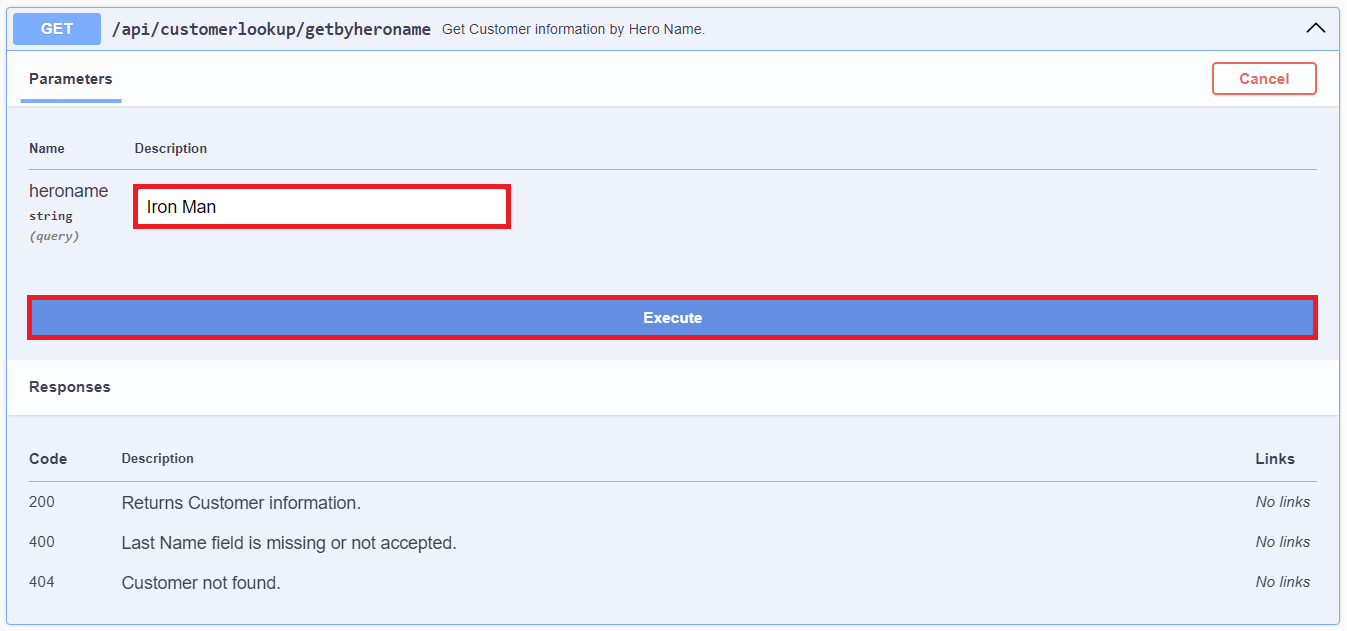
Enter Iron Man in the heroname field.. Click Execute.
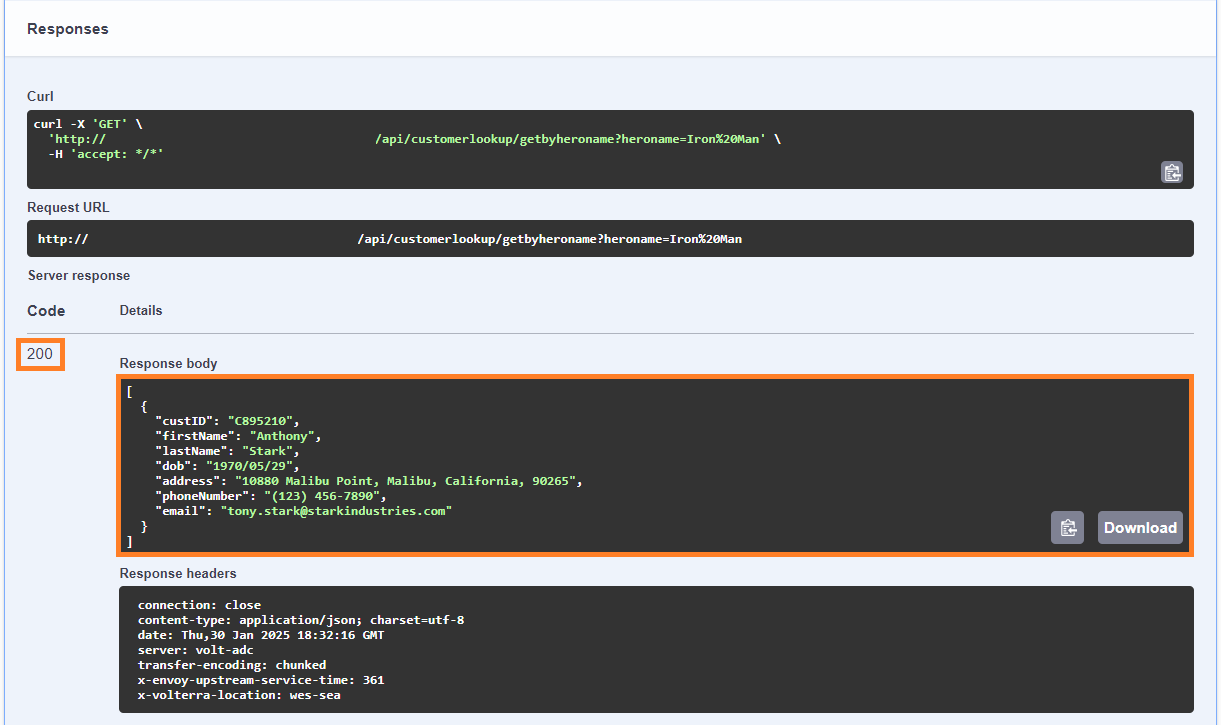
Review the response body. It returns the customer information.
Note
In the next steps, we will address this issue by blocking access to the shadow API endpoints.
Task 2: API Definition
In this task’s series of steps you will create a API Definition using a shared OpenAPI object.
In the left-hand navigation of the Web App & API Protection service under Manage, mouse over API Security and click on API Definition from the slide out.
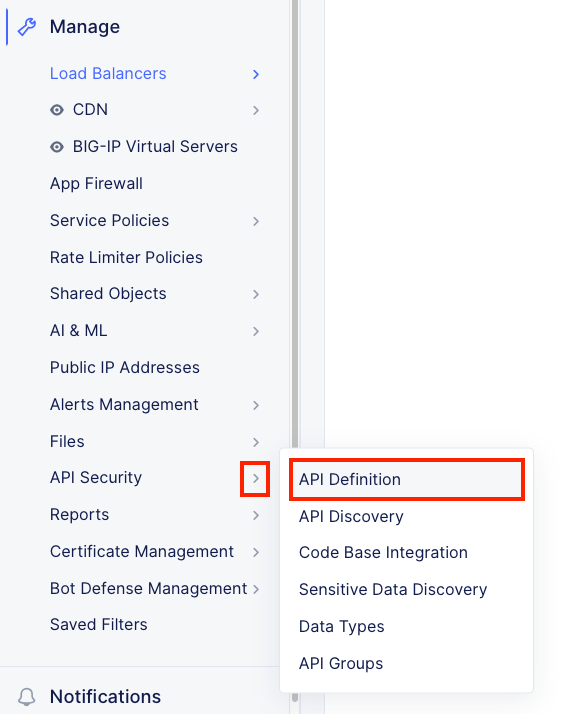
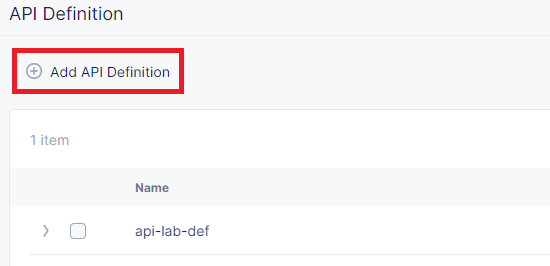
In the resulting API Definition window, click Add API Definition in the main window area as shown.
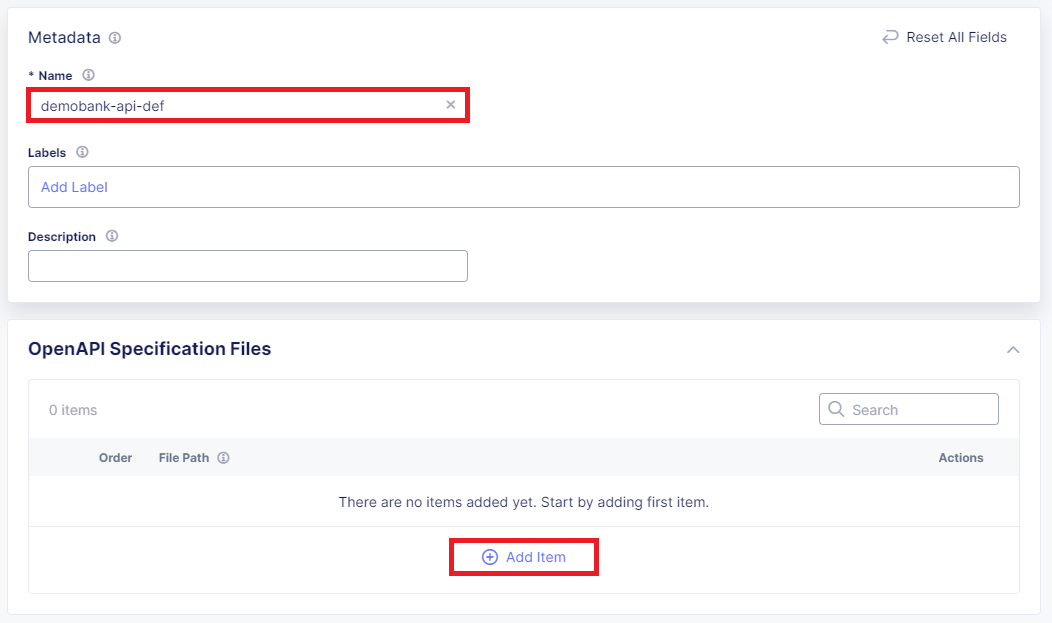
In the resulting New API Definition window, input demobank-api-def for the Name under the Metadata section.
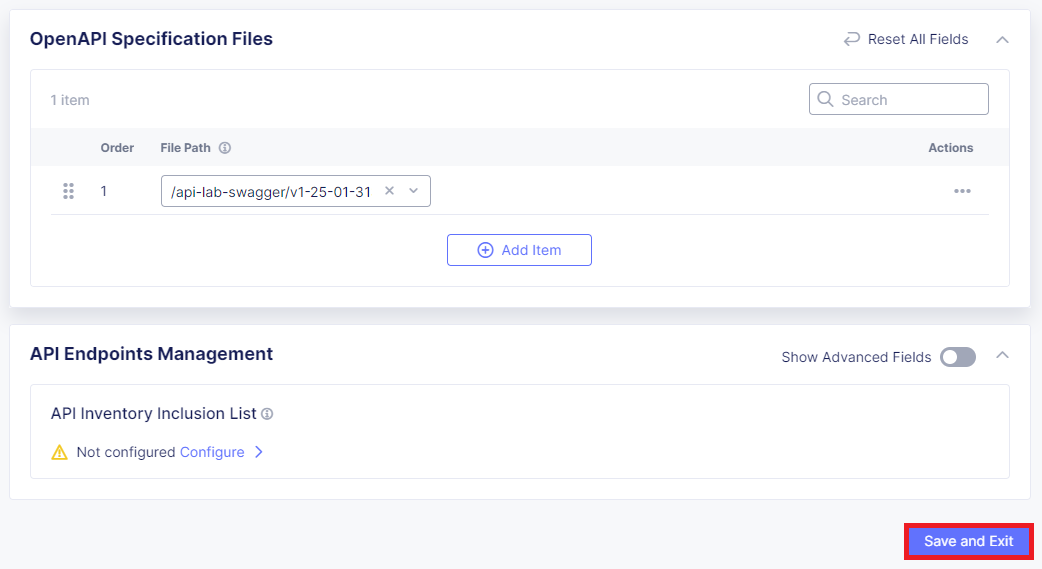
In the OpenAPI Specification Files section, click Add Item.
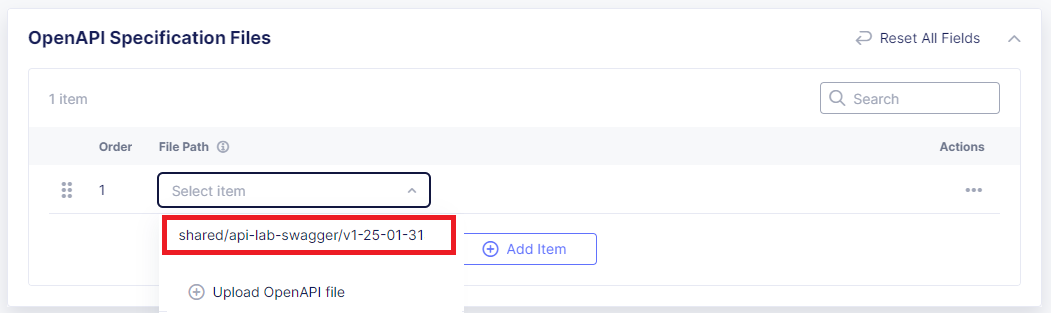
Select a Shared OpenAPI file. It will be in the format shared/api-lab-swagger/v1-25-01-31.
Once selected, click Save and Exit in the bottom-right corner.
Task 3: Enabling API Inventory
In this task’s series of steps you will enable the API Inventory and Discovery feature on the previously built HTTP Load Balancer.
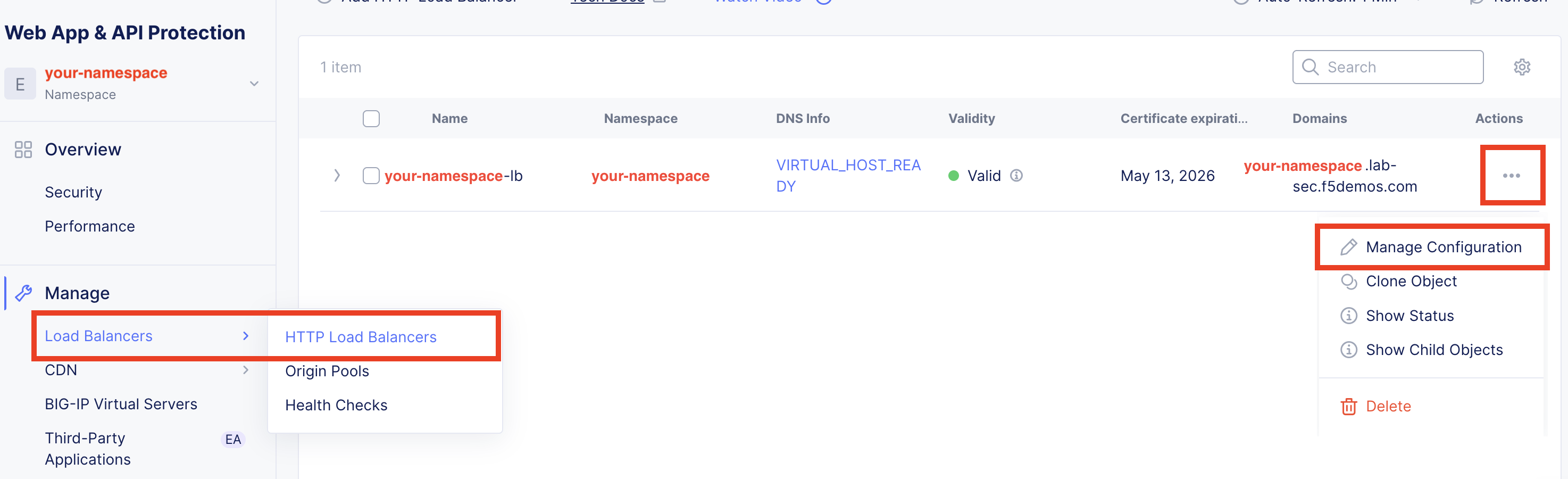
In the left-hand navigation of the Web App & API Protection service, click on Load Balancers > HTTP Load Balancers under the Manage section.
In the resulting Load Balancers window, click on the three dots … in the Action column, and the select Manage Configuration.
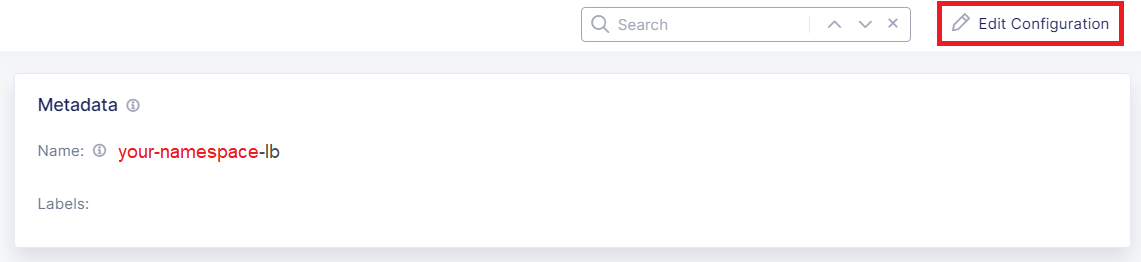
Click Edit Configuration in the top-right corner.
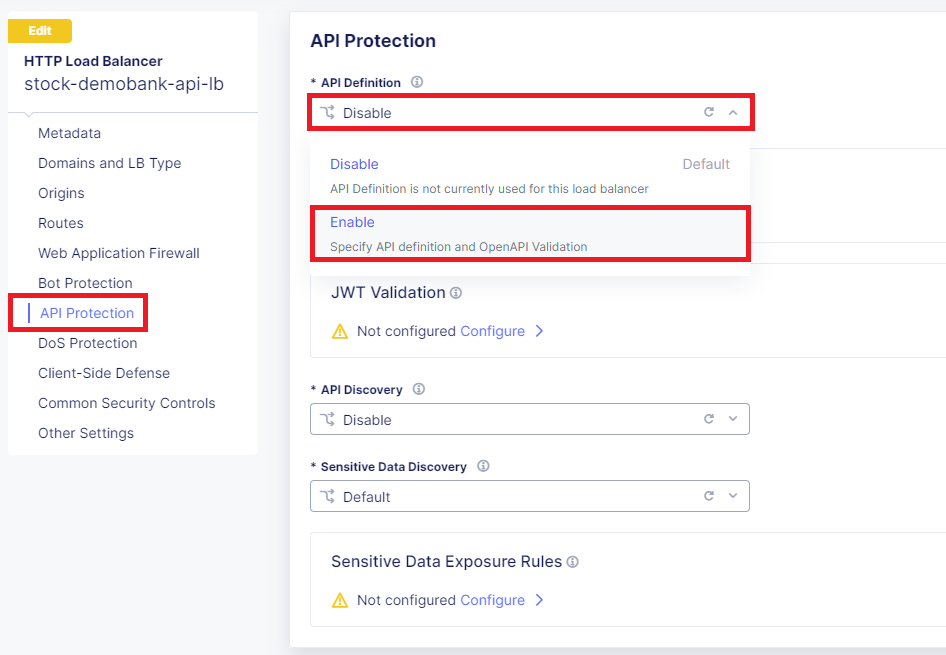
Click API Protection in the left-hand navigation.
In the API Protection section, click the drop-down arrow next to API Definition and select Enable.
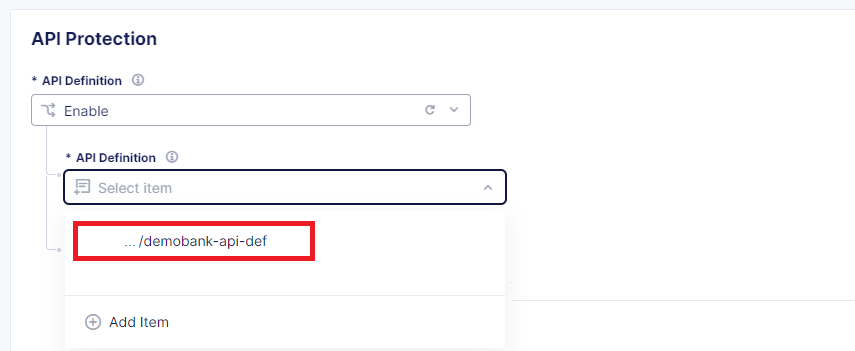
In the second API Definition section, click the drop-down arrow and select the pre-created API Definition <your-namespace>/demobank-api-def.
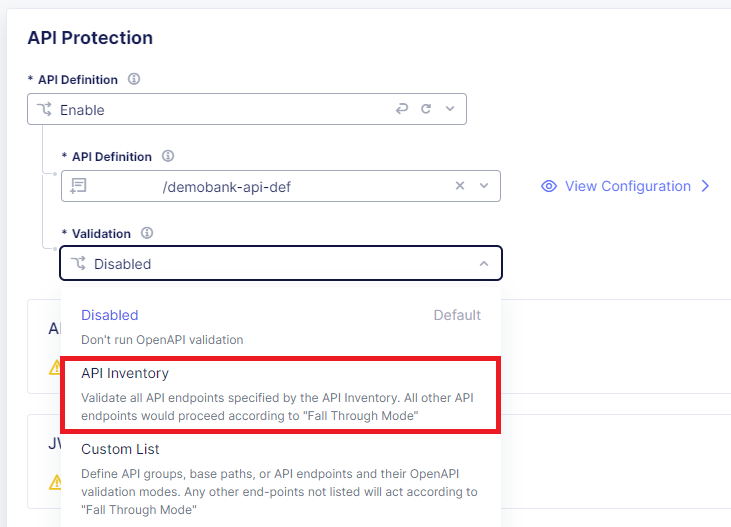
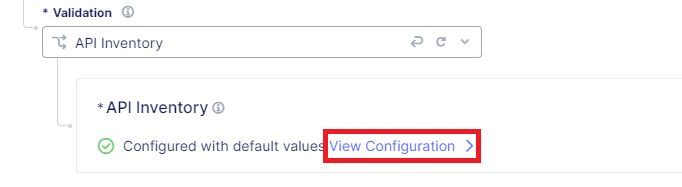
Under Validation, select API Inventory from drop-down then click on View Configuration
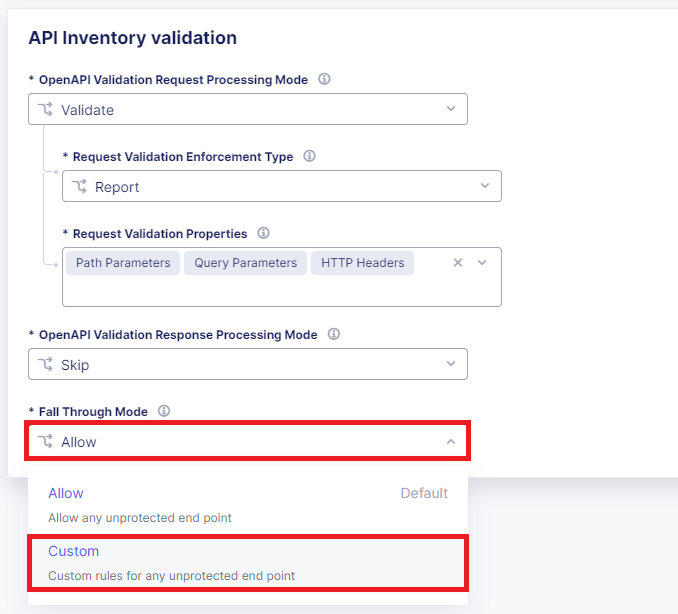
Within API Inventory validation, under Fall Through Mode update the drop-down to Custom.
Within Custom Fall Through Rule List , click on Configure.
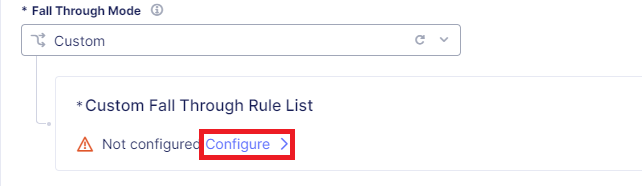
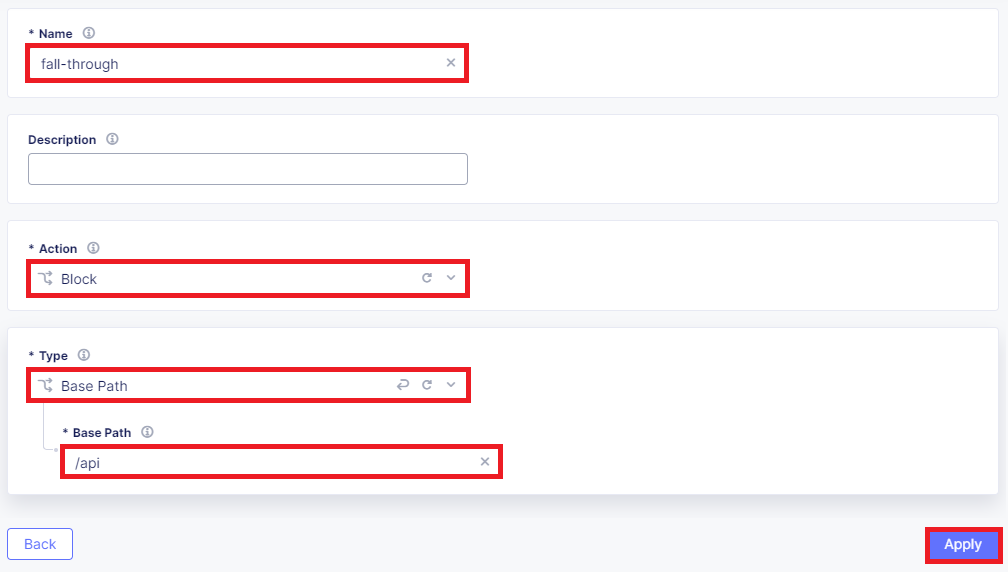
In the Custom Fall Through Rule List section, click on Add item.

Update the fields with the below detail, click on Apply.
Name:
fall-throughAction:
BlockType:
Base PathBase Path:
/api
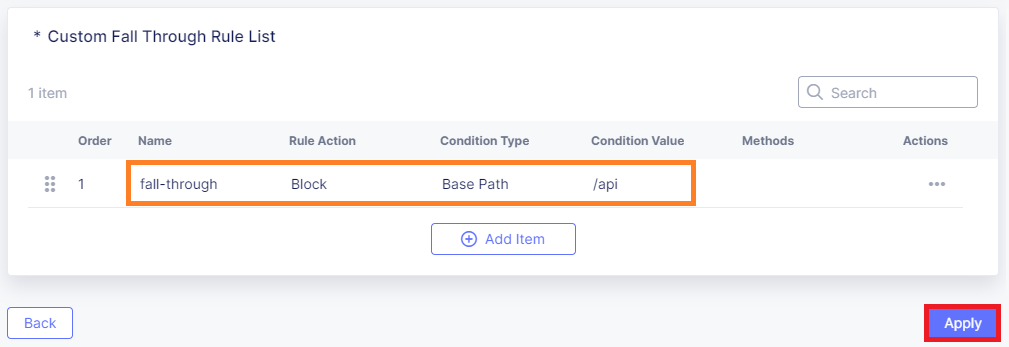
Review the Custom Fall Through Rule List, click Apply.
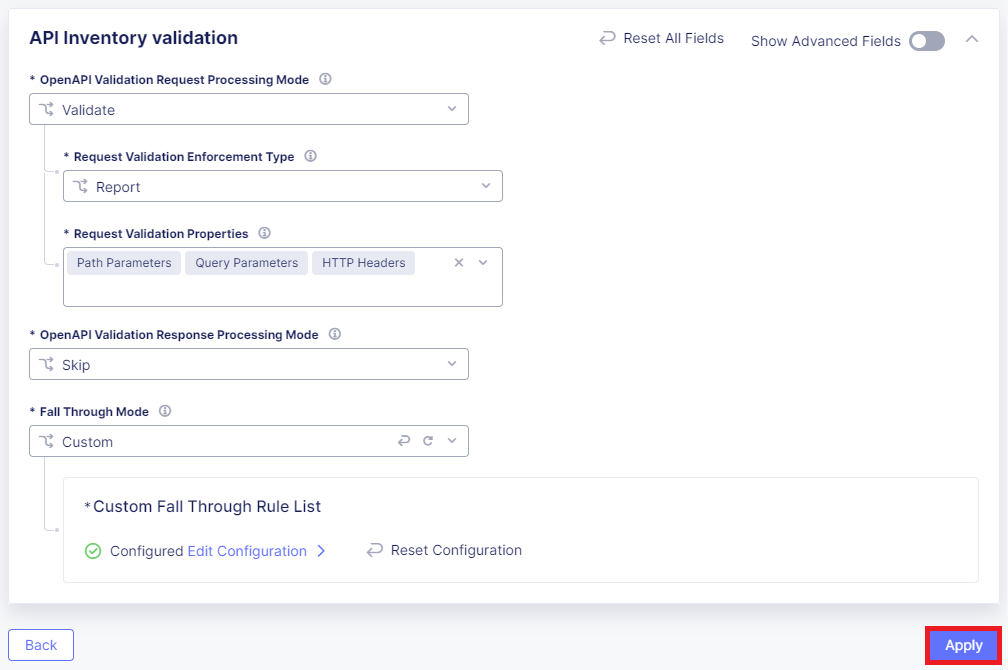
Review the API Inventory validation, click Apply.
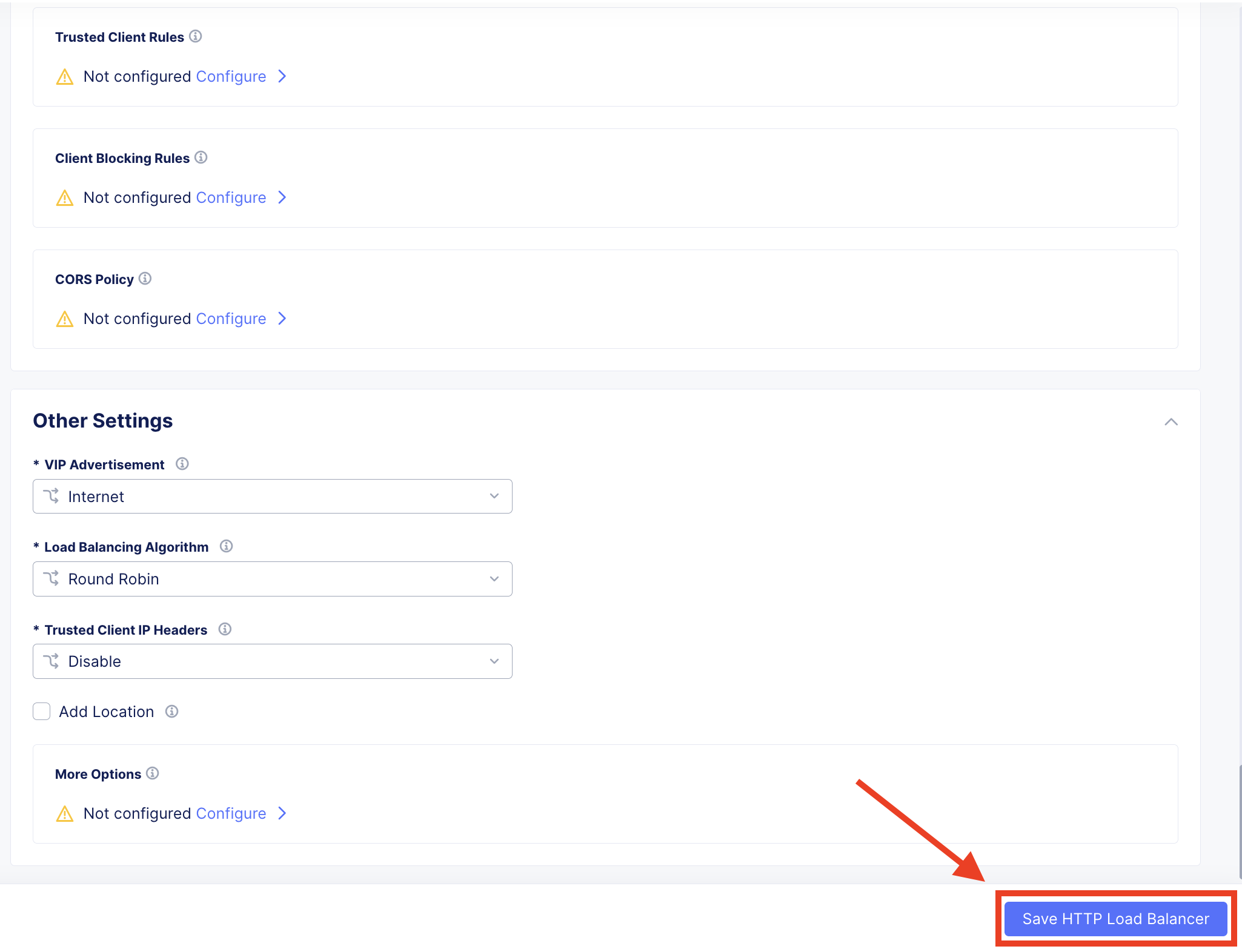
Select Save HTTP Load Balancer at the bottom right of window.
Task 4: Simulate Blocked Access to a Shadow API
Using another browser tab, navigate to the the following URL.
http://<your-namespace>.lab-sec.f5demos.com/swagger
In the Demo Bank API app, navigate to the /api/customerlookup/getbyheroname endpoint, expand it, and click Try it out.
Enter Iron Man in the heroname field.. Click Execute.
Note
Press Execute a couple extra times to create more events which will be reviewed in a later lab.
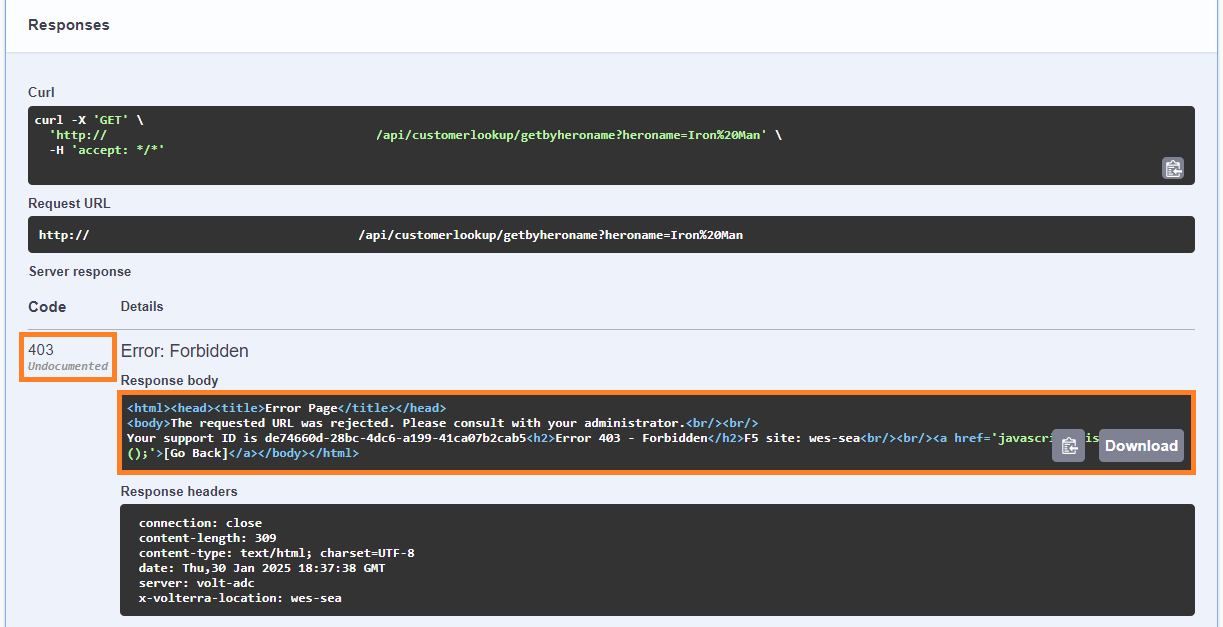
Review the response body.
Note
You should now be blocked from accessing the ‘getbyheroname’ API endpoint, as it is a shadow API, an undocumented and unapproved endpoint.
End of Lab