F5 Distributed Cloud > F5 Distributed Cloud: Advanced Threat & Fraud Security Source | Edit on
Introduction: Accessing F5 Distributed Cloud Console
Welcome to this F5 Distributed Cloud Lab.
The following tasks will guide you through the initial access requirements for the associated lab environment. Lab attendees should have received an invitation email to the lab environment based on the submitted registration email. Please check email and spam folders if it has not been received. If you have not received an email, please contact a member of the lab team.
F5 Distributed Cloud Console, where this lab will be conducted, is a SaaS control-plane for services that provides a UI and API for managing network, security, and compute services. The F5 Distributed Cloud Console can manage “sites” in existing on-premises data centers and sites in AWS, Azure, and GCP cloud environments.
Task 1: Lab Environment
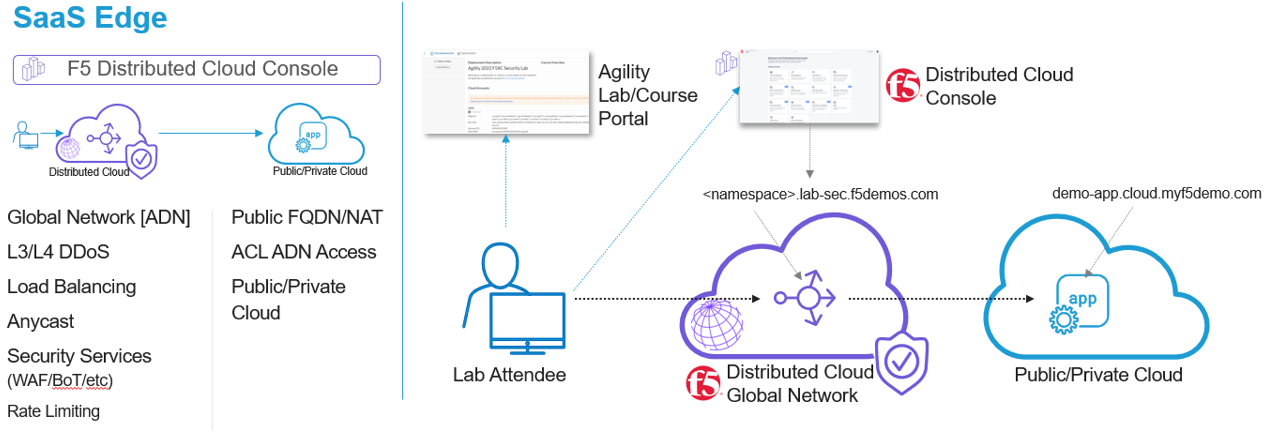
The image below represents an overview of the lab environment. F5 Distributed Cloud Services will be configured as a SaaS Edge delivery and security service tier to a publicly hosted web application. The key elements lab attendees will interact with are as follows:
|
|
Course/Lab Invitation
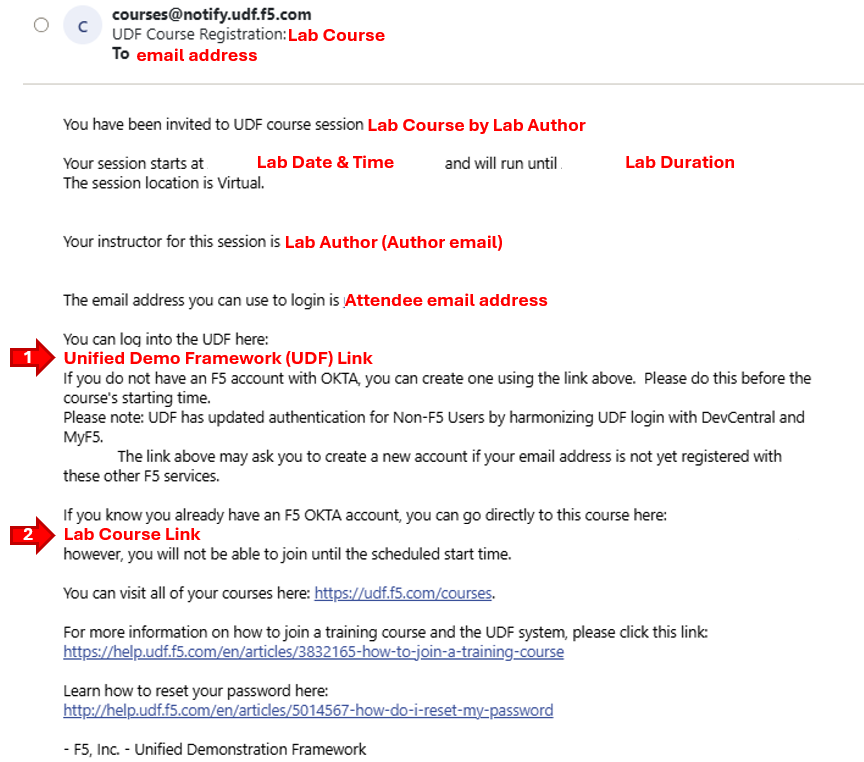
Course/Lab Attendees will receive an email similar to the graphic displayed in this section. The email will come from courses@notify.udf.f5.com. As attendees maybe registered for several lab/courses, ensure the corrcetly identified course is selected. Use either the first or second link position (indicated by arrows) based on the attendee’s F5 UDF (Unified Demo Framework) Account Status.
|
|
Accessing UDF (F5 Unified Demo Framework)
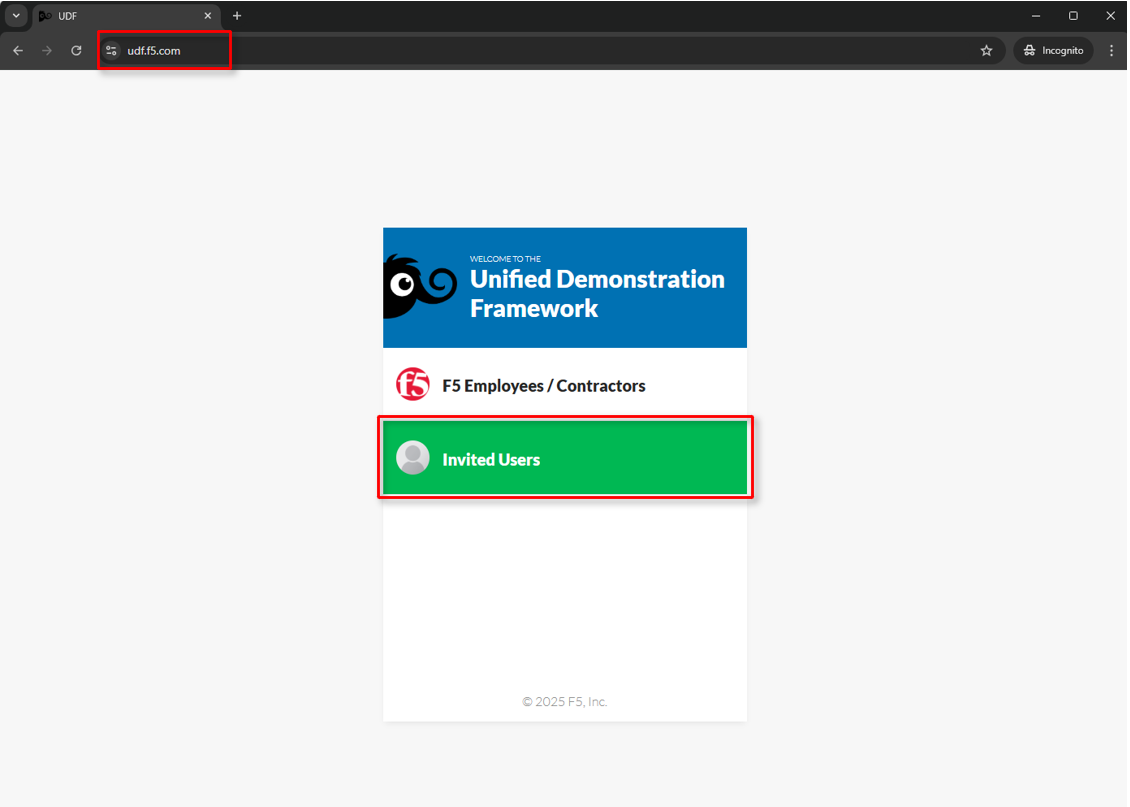
The following will guide attendees through the initial Lab environment access within F5 UDF. Following the instructions from the Course/Lab invitation above, attendees will be prompted to login at https://udf.f5.com Note The steps for new UDF Users or the steps for resetting UDF User account passwords are not shown. Please contact a member of the lab team if further assistance is needed. |
|
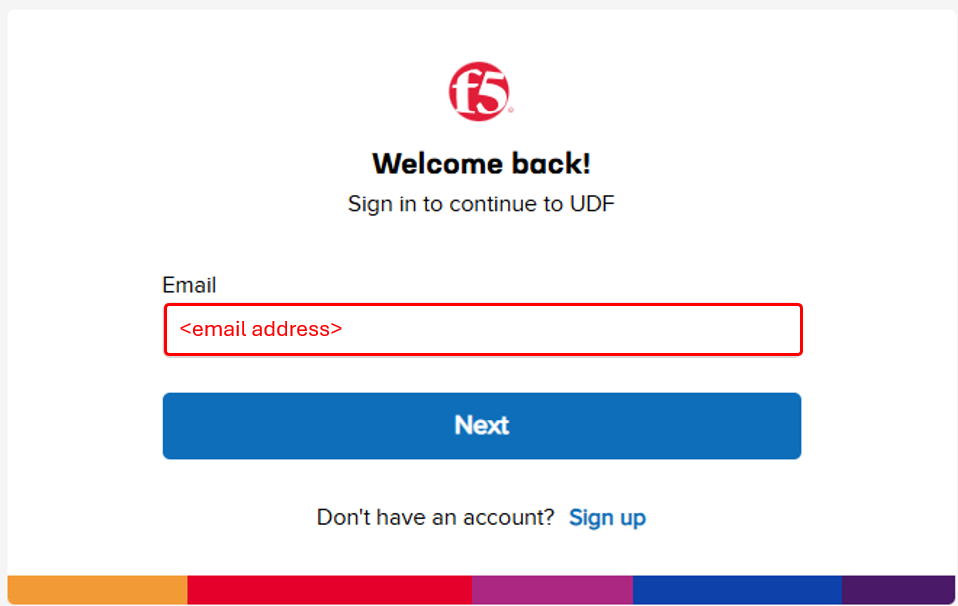
Attendees will be prompted to enter their email address, password and complete MFA as shown. MFA must be completed by selecting one of the available options. Note If you choose the email verification option as shown below, make sure you have access to your UDF email account when starting this class (to retrieve your one-time MFA verification code.) |
|
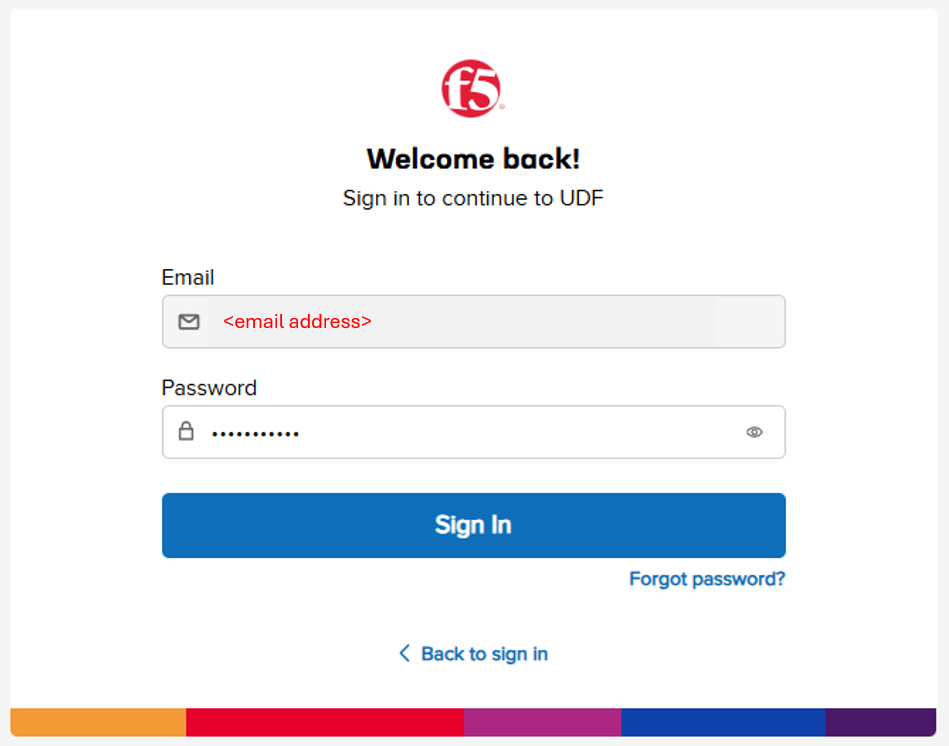
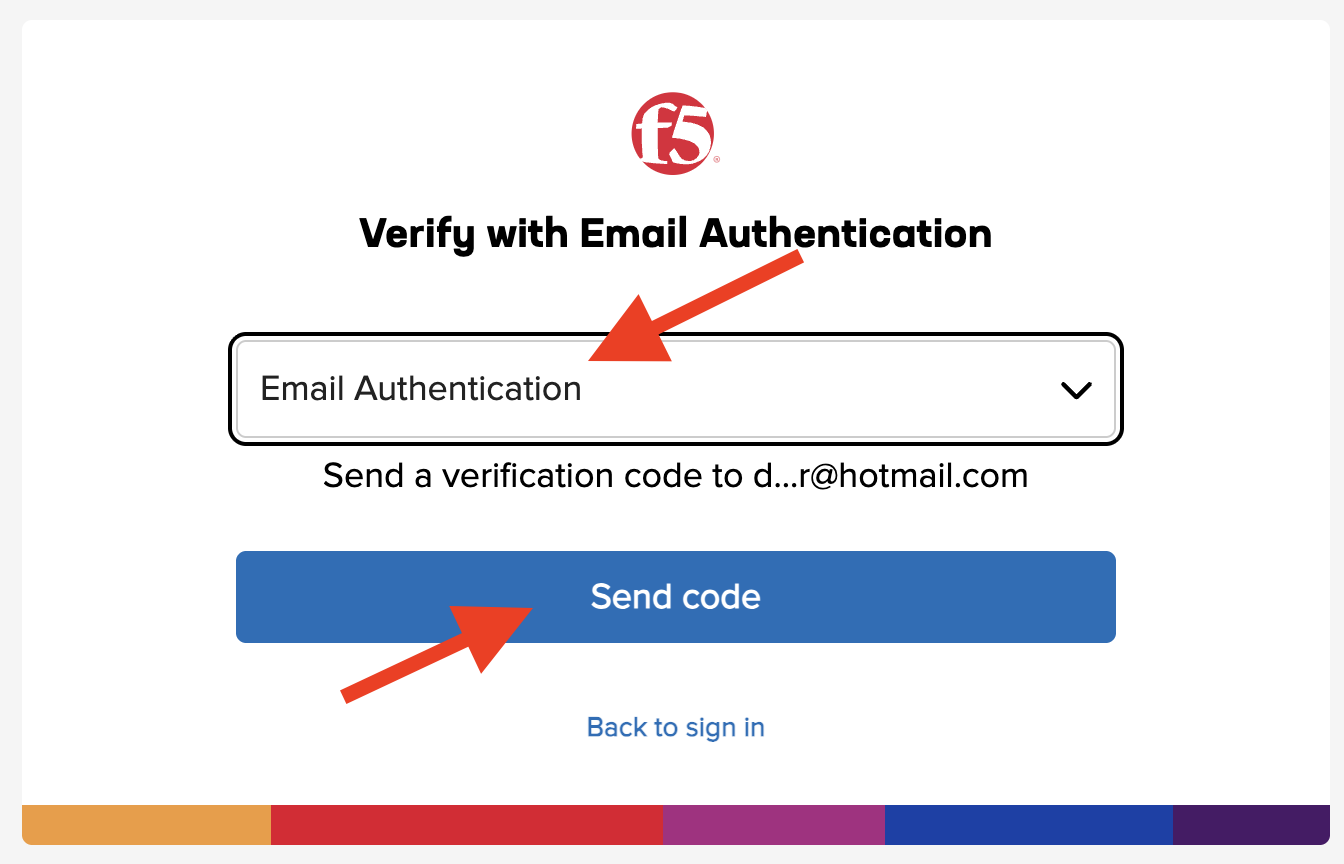
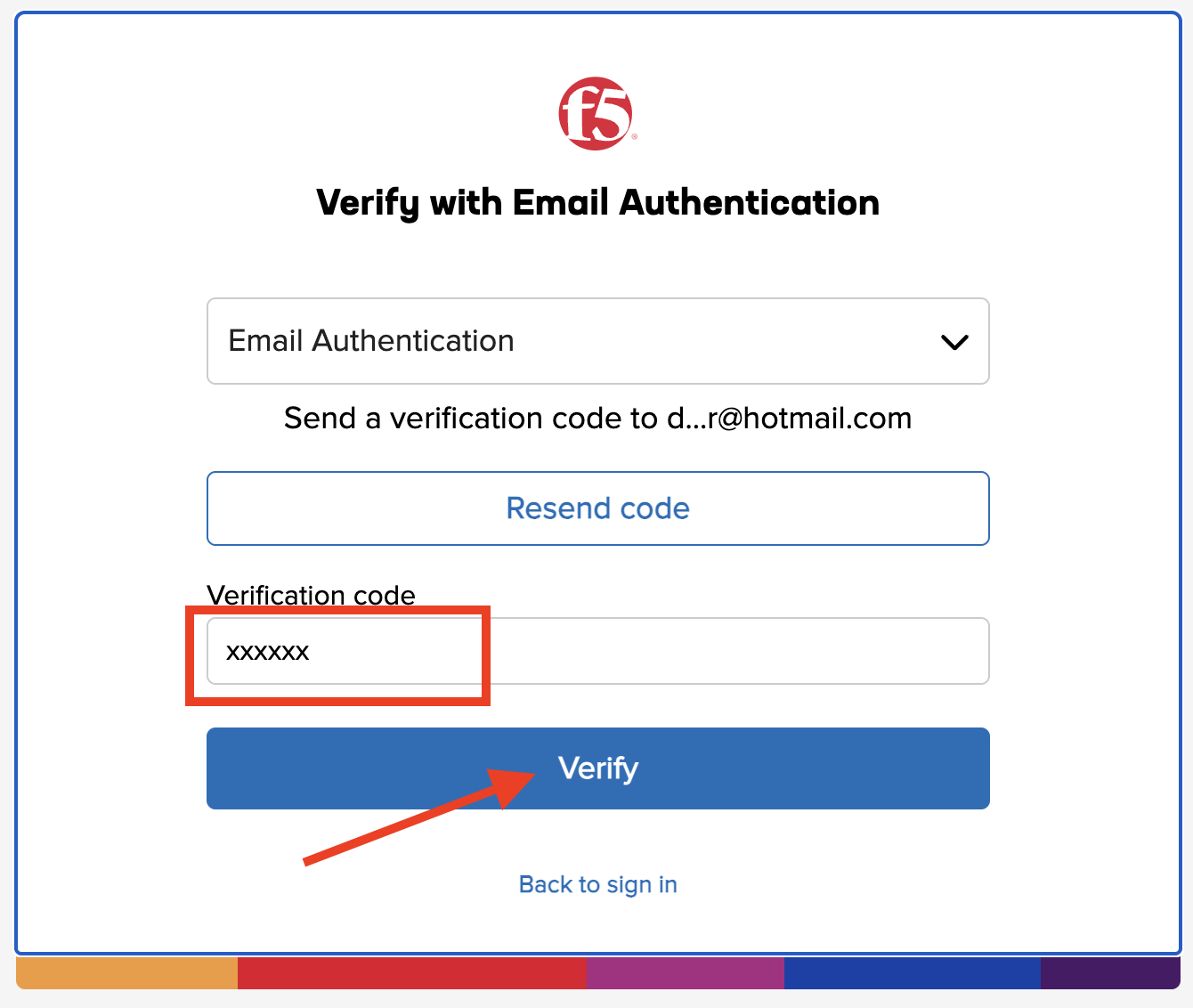
Attendees will then be presented their scheduled course sessions. Locate the course/lab with the appropriate Date, Time and Name and then click Launch. |
|

Once redirected to the selected Course/Lab, click the Join button. |
|
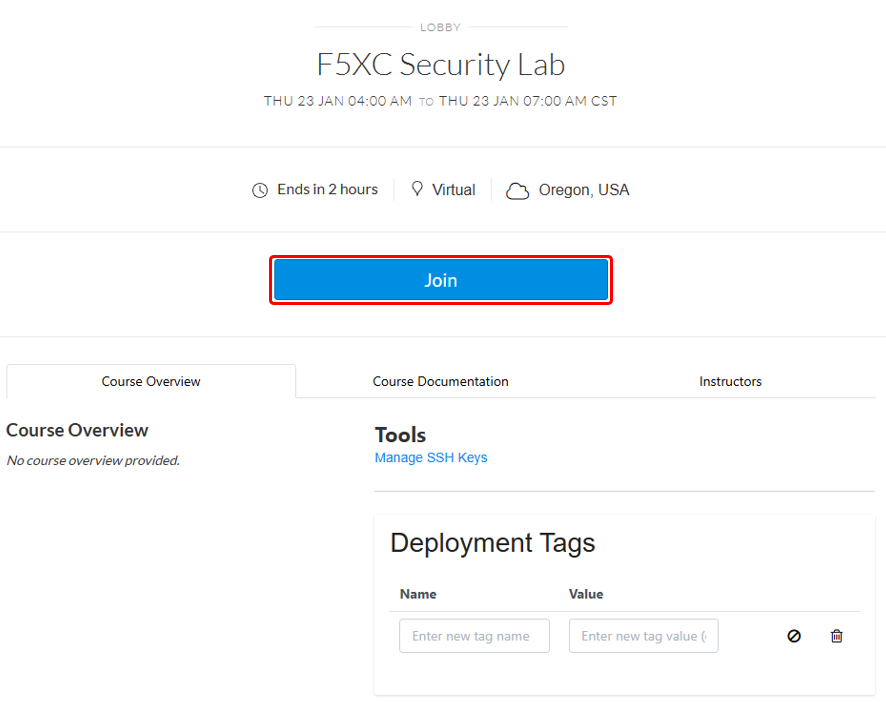
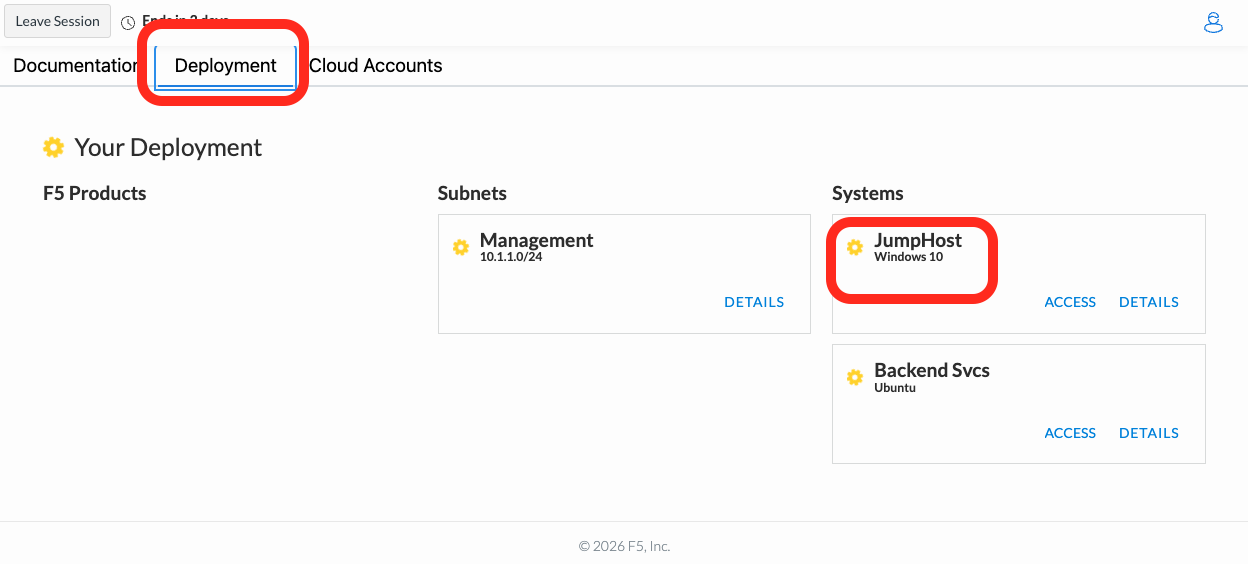
The Lab environment window will now be displayed. Click on the Documentation tab in the horizontal navigation links. Locate and observe the state of System. Note Your specific lab environment may vary from the graphics shown below. Your environment might contain different systems. |
|
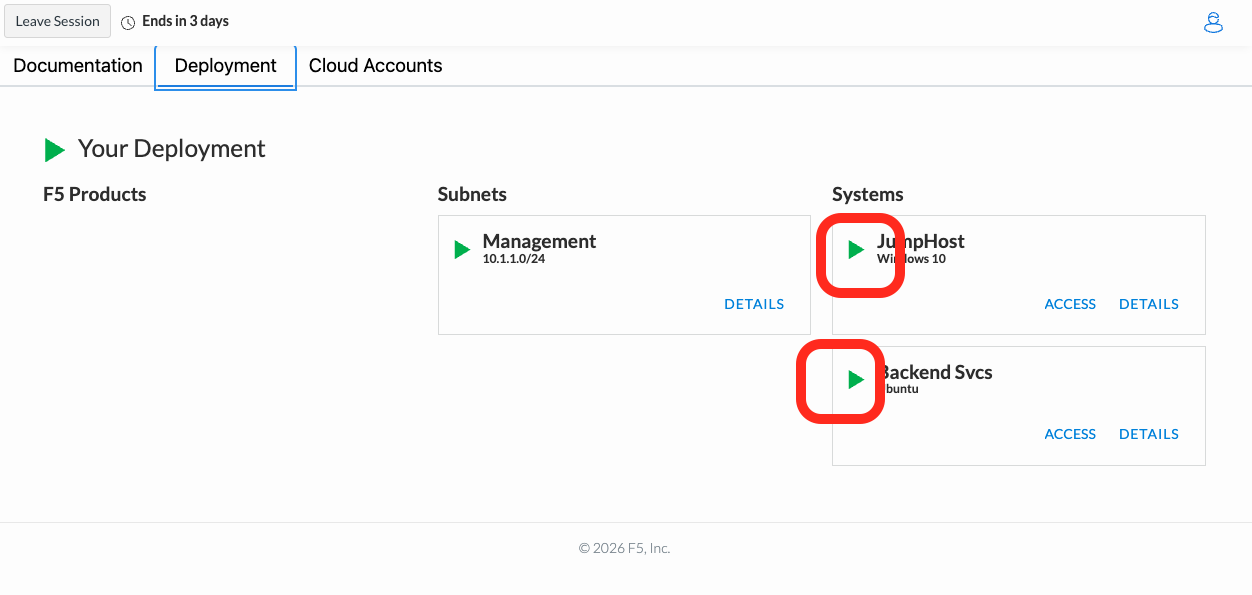
It will take at least 5 minutes for the systems to start. The yellow gear icons will change to green arrow icons. Wait for all systems to be running (green) before proceeding to the next section. |
|
Accessing F5 Distributed Cloud
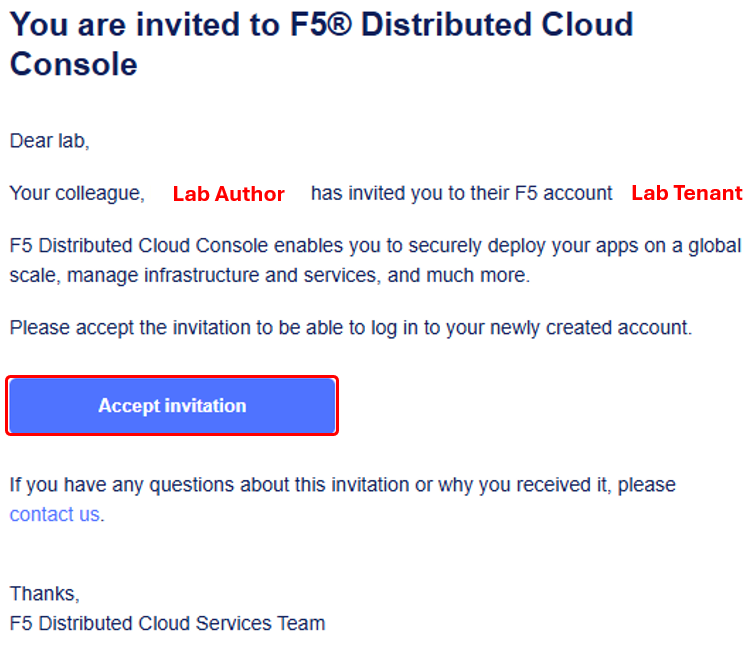
Shortly after joining the UDF course, attendees will receive a second email. This email will come from no-reply@cloud.f5.com. Click the Accept invitation button within the email. Note This link should be accessed in the same browser session as UDF was accessed for seamless experience. Warning Attendess should not attempt access to F5 Distributed Cloud tenant prior to receiving email. Lab permissions may need to be re-applied. |
|
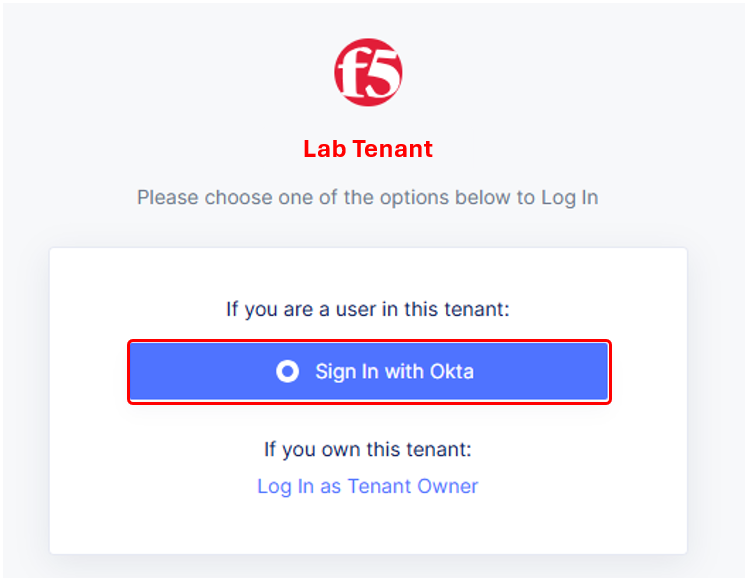
The initial XC logon prompt will be presented. Click Sign on with Okta to continue. In the interest of time, SSO has been pre-configured and lab attendees will be automatically logged in (with their UDF credentials). Each student is assigned a new dedicated name-space that was pre-configured with various components. |
|
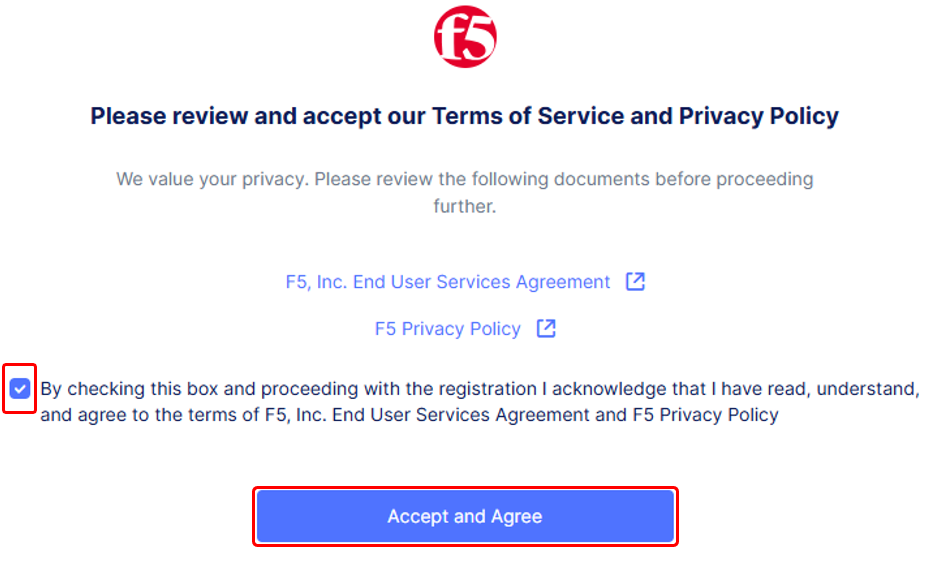
Next the Terms of Service and Privacy Policy will display, check the box and then click Accept and Agree. Note Several Guidance ToolTips or Notices may appear. Attendees can safely close these out in order to begin the lab. |
|
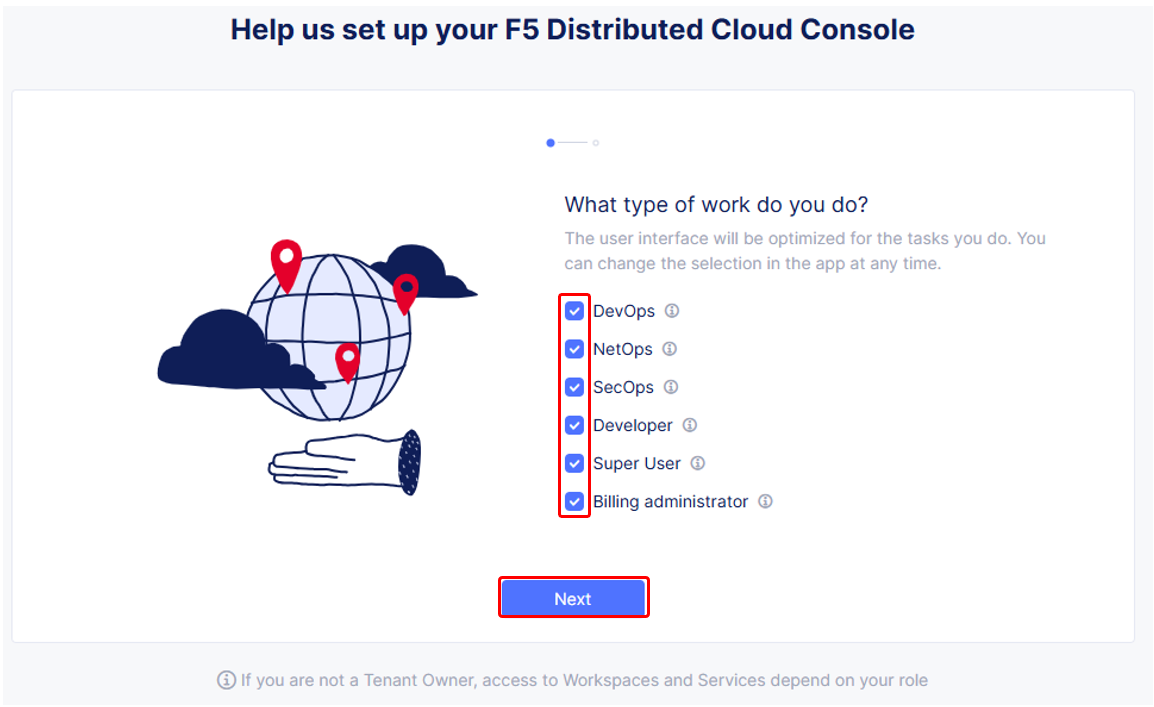
In the following screen, select all persona roles and click Next. This allows attendees to see all the various configurations. Personas can be changed anytime later within the console if desired. |
|
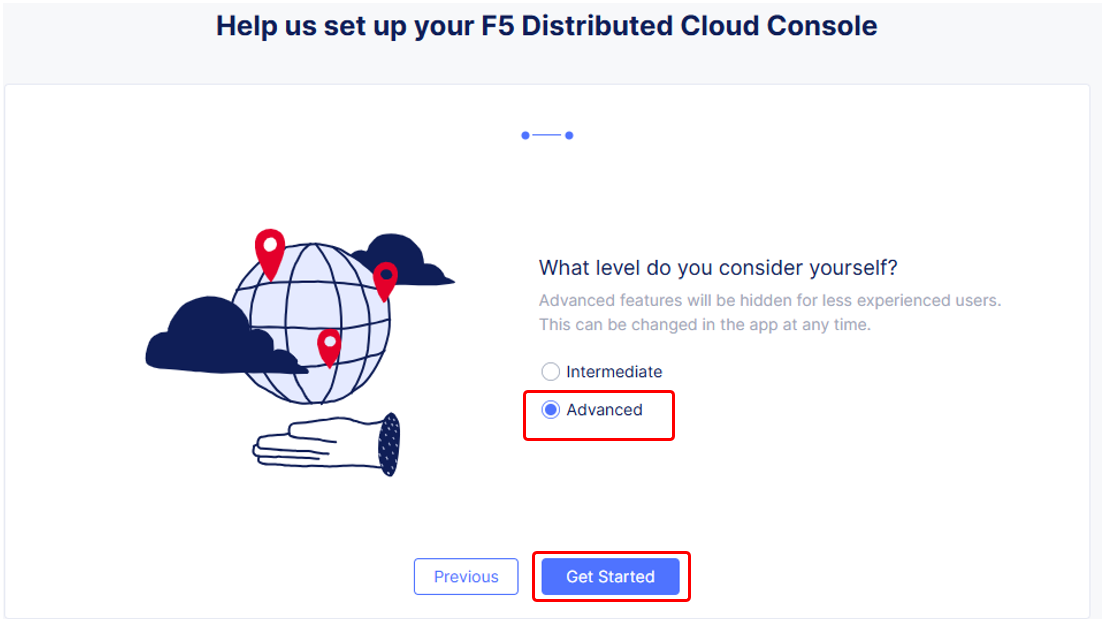
In the next screen, click Advanced to expose more menu options and then Get Started to begin. You can change this setting after logging in as well. |
|
Attendees will now be presented the Home page of the F5 Distributed Cloud Console with all the workspaces, features and services available. |
|
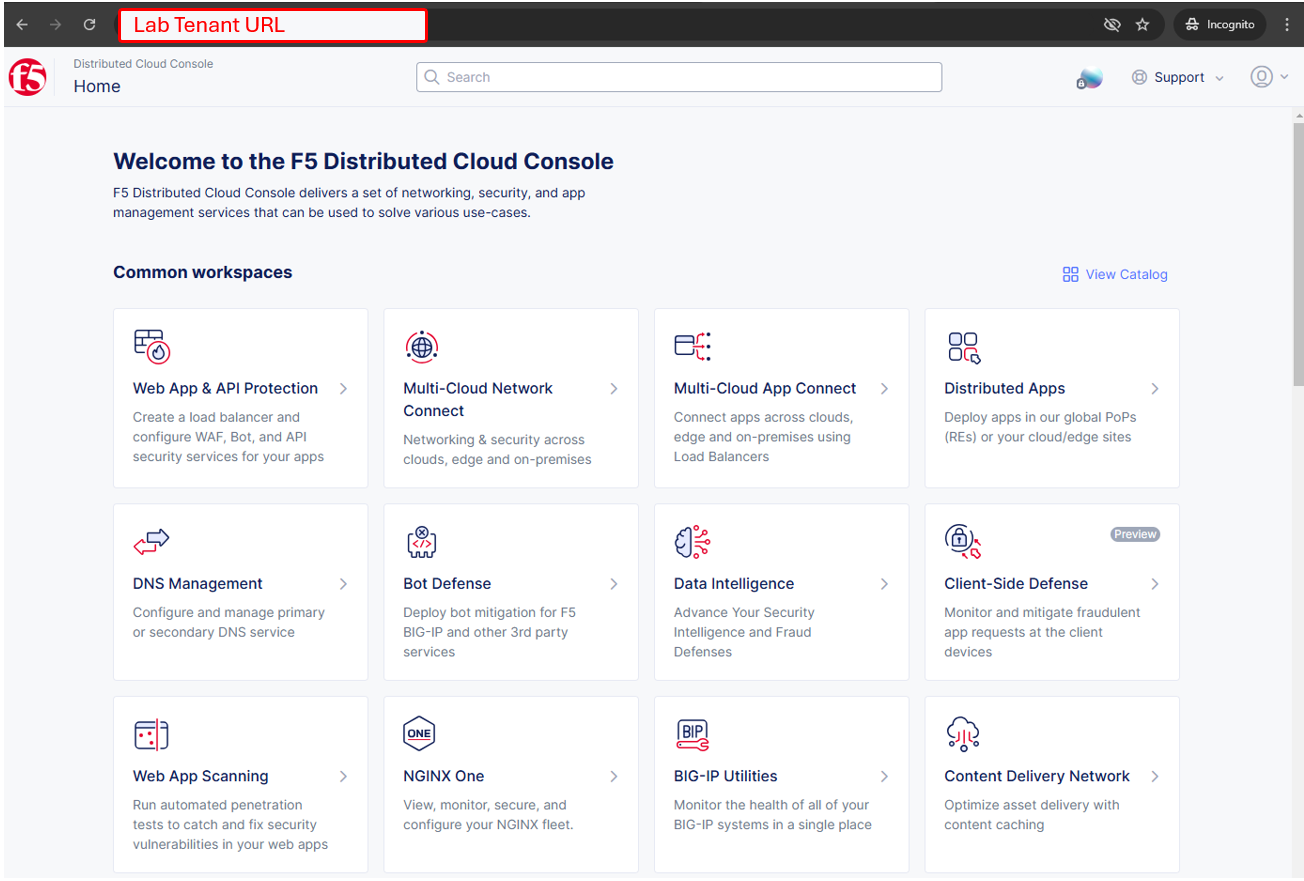
Beginning of Lab: You are now ready to begin the lab, Enjoy! Ask questions as needed. |
|