Lab 2: Adding a Bot Protection Profile and Testing

Scenario Lab 2

In the prior lab we discovered our airline application lacked proper security protections and was vulnerable. The following lab tasks will strengthen our security posture and address the increase in Bot activity towards your company’s airline application. We will leverage our Bot testing tool to validate our Bot protection policies and utilize security analytics to examine various requests.

Expected Lab Time: 30 minutes

Task 1: Create a Bot Protection Profile

In this task you will view recent requests and filter out specific requests from our test tool. You will then work on configuring a Bot Defense profile to protect our airline application’s Sign-In page. We will initiate a Basic Credential Stuffing attack and observe related events using security analytics and making any necessary adjustments needed.

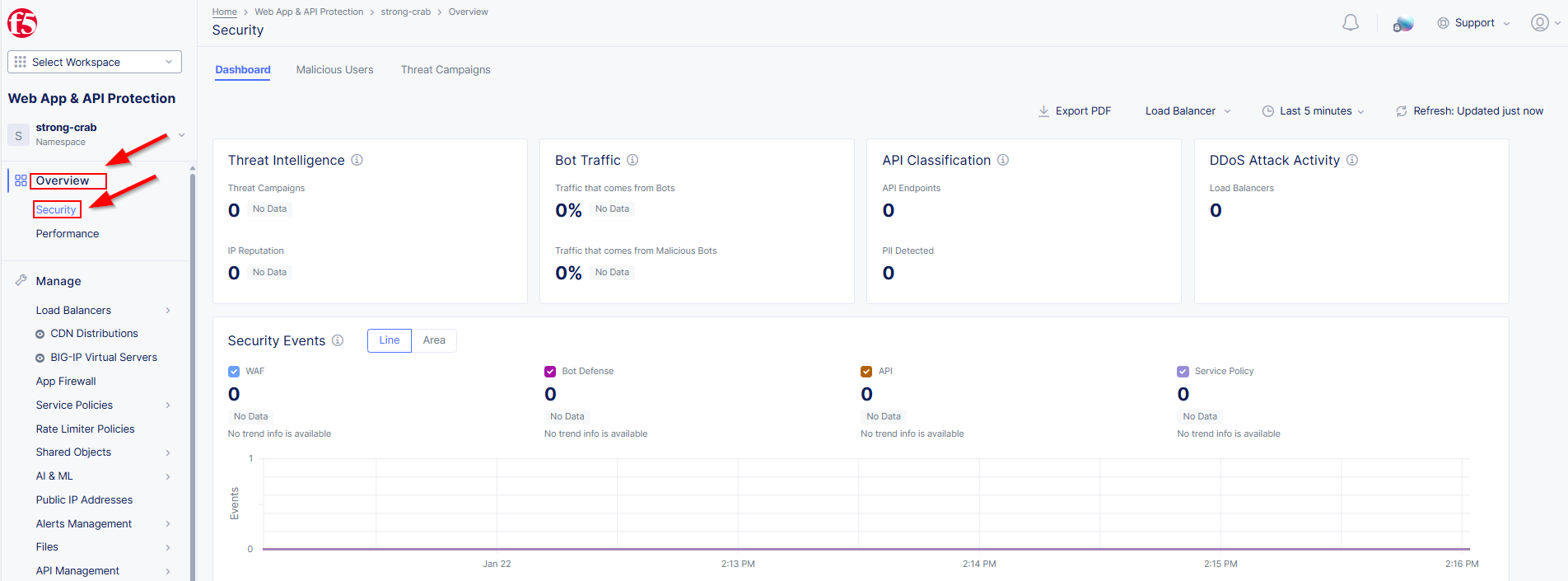
  1. In the Distributed Cloud (XC) Console go to Web App and API Protection then click on Overview and finally Security (You may have to adjust the time filter as needed)

lab1-task4-01

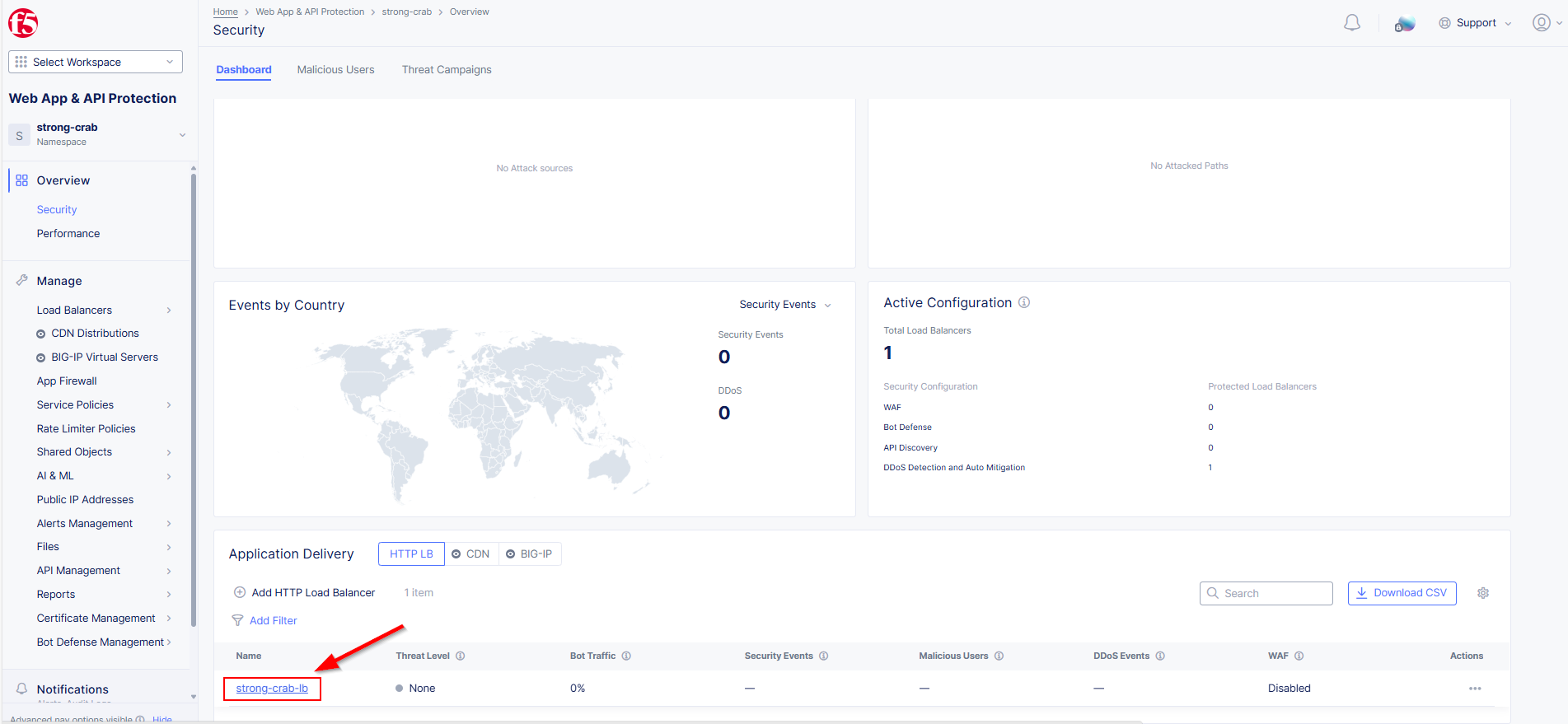
Scroll to the bottom and click on your HTTP Load Balancer

lab1-task4-02

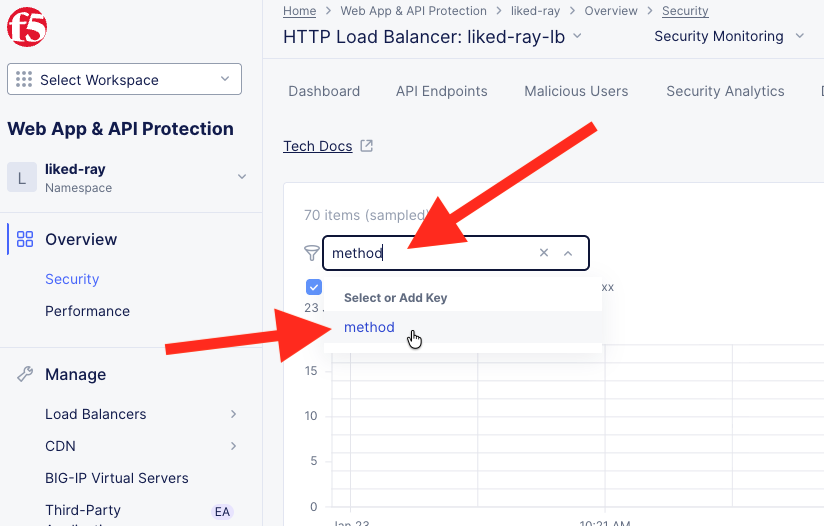
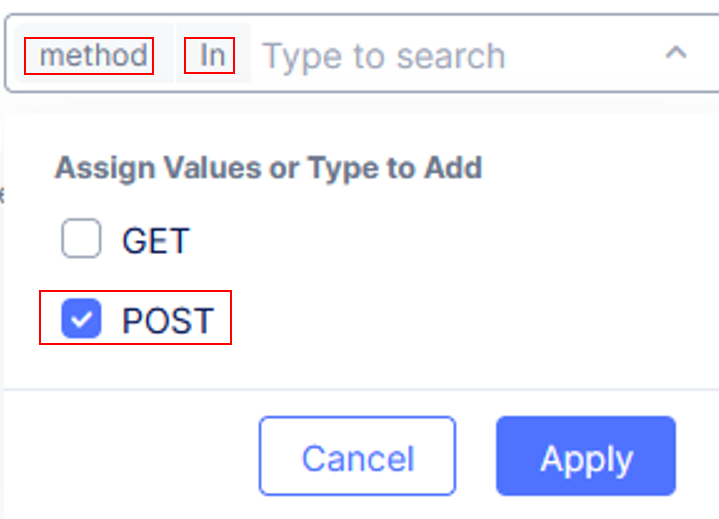
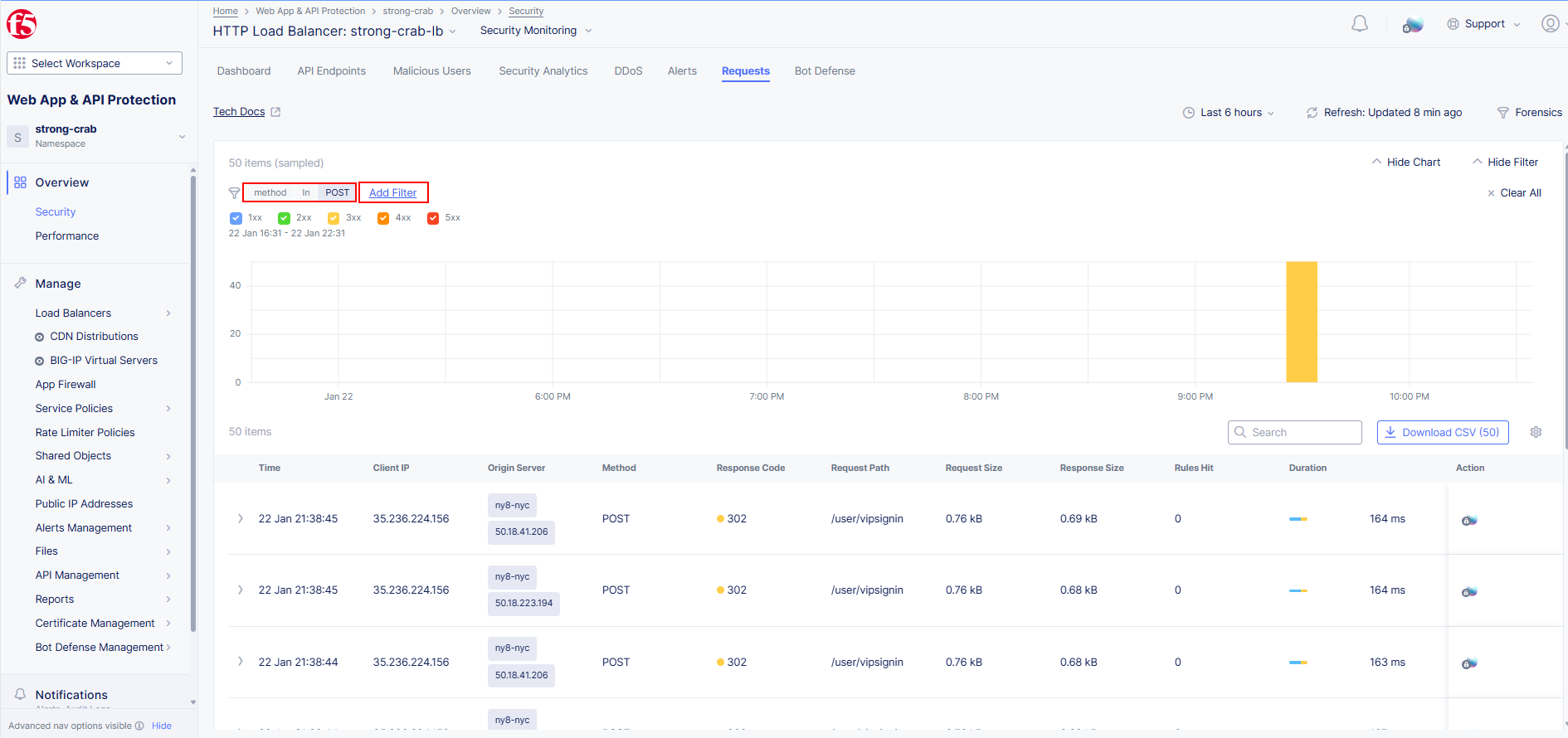
  1. Now we are going to Click Add Filter and enter the following filter syntax “Method In Post”. As you type each word click on the syntax match that will appear in the dialogue box.

    See the example below on how your filter will appear as your create it.

lab2-task4-02b lab2-task1-01a

Here is what the filter should end up looking like when correctly created

lab2-task1-01

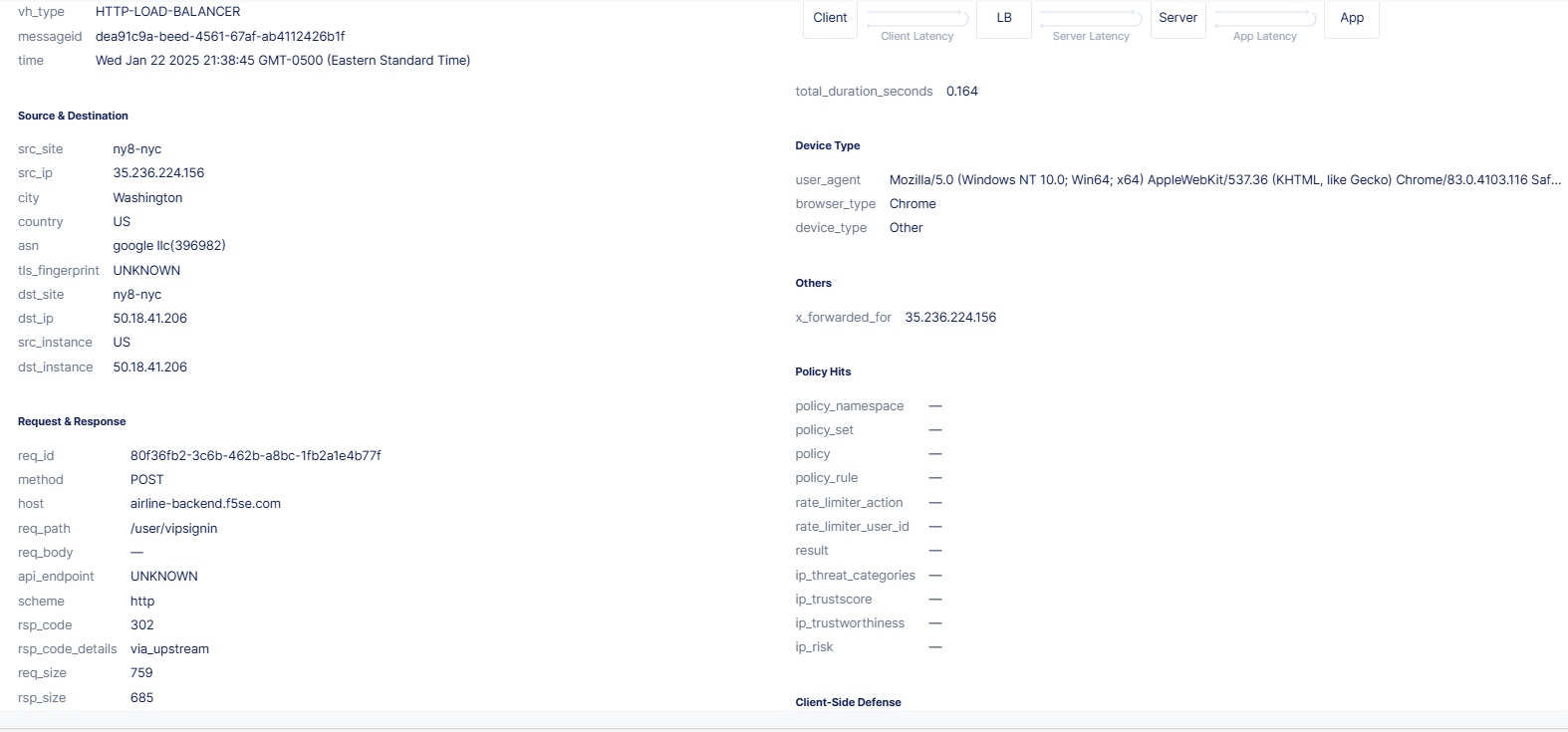
As you examine these POST requests can you see what endpoint is being targeted ?

Hint: Request Path

lab2-task1-03

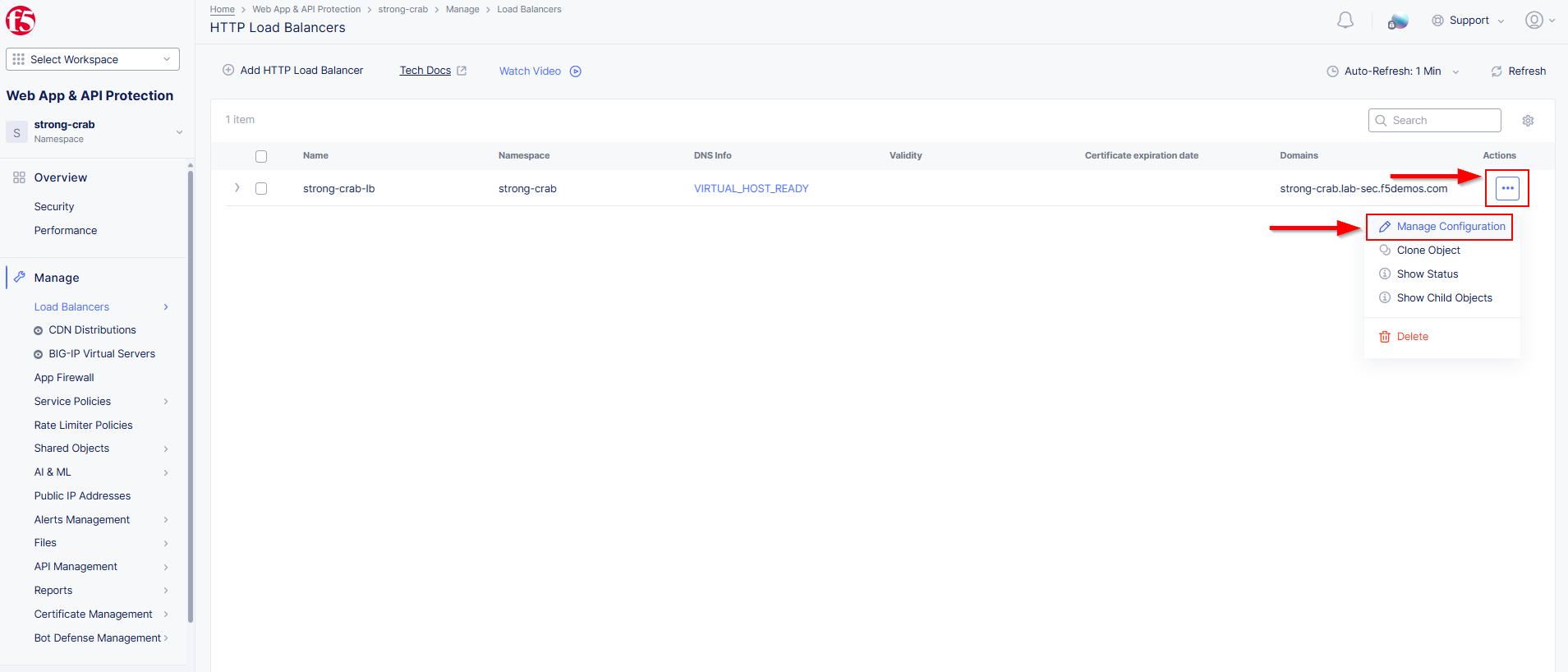
  1. In the Distributed Cloud (XC) Console, go back to *Manage > Load Balancers >* *HTTP Loadbalancers*, click the three dots. under the Action column and select Manage Configuration.

lab1-task2-01

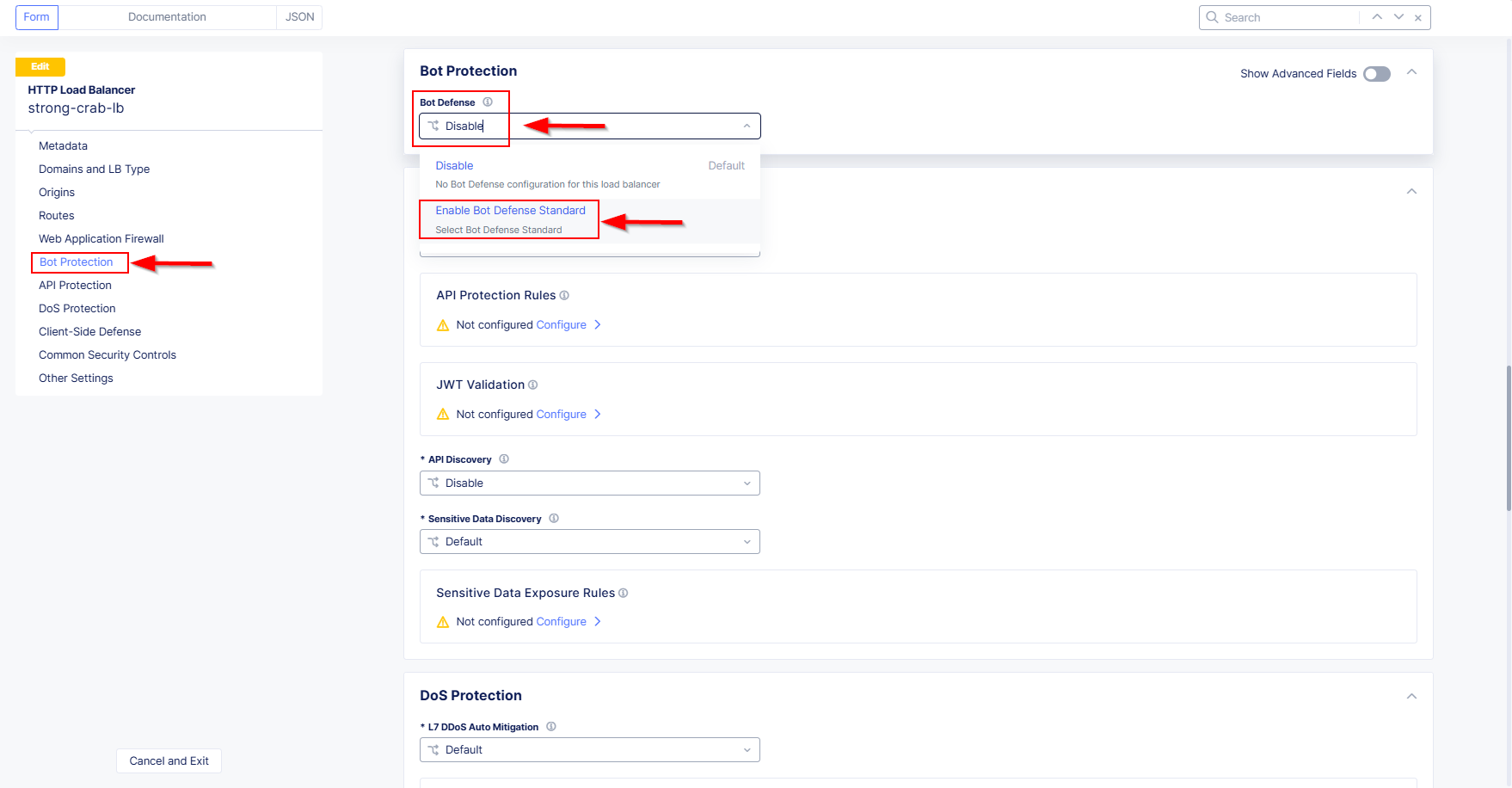
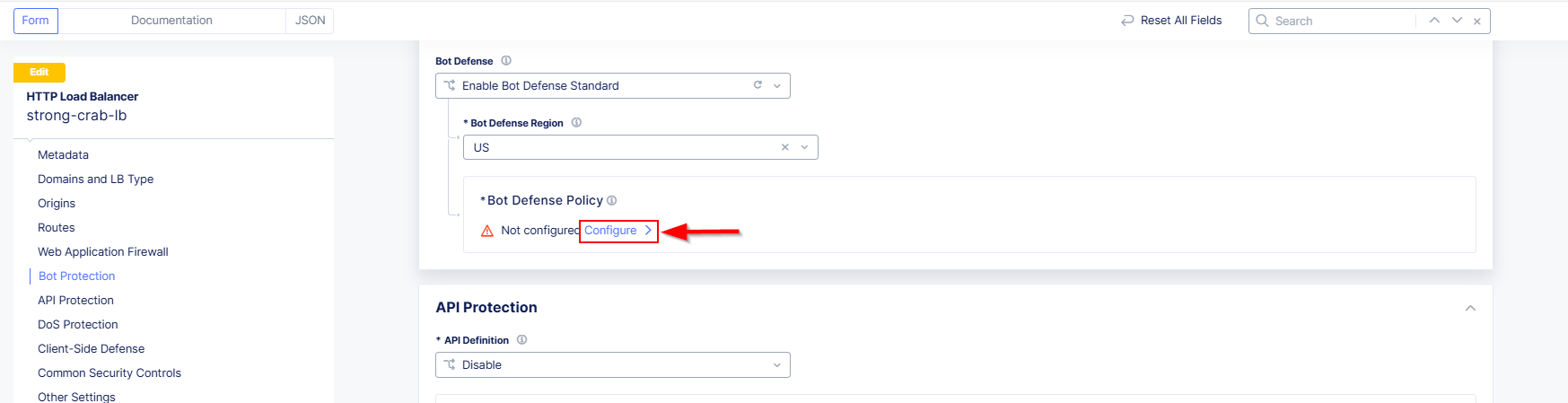
  1. At the top right click Edit Configuration then Click Bot Protection. Now click on Disable and select Enable Bot Defense Standard

lab2-task1-04

  1. In the resulting Bot Defense Policy section, click the Configure link.

lab2-task1-05

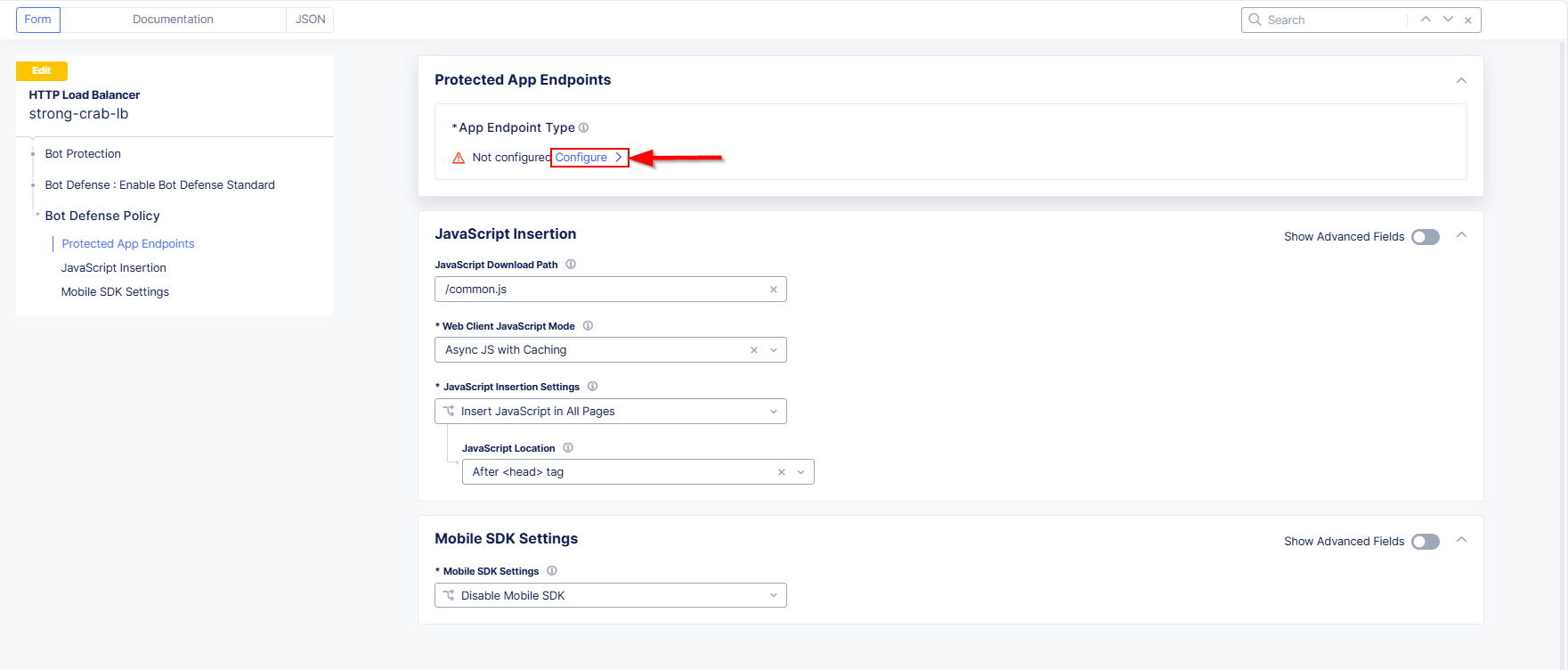
  1. In the Protected App Endpoints window, click the Configure link under App Endpoint Type

lab2-task1-06

  1. In the resulting window, click the Add Item in the App Endpoint Type section.

lab2-task1-07

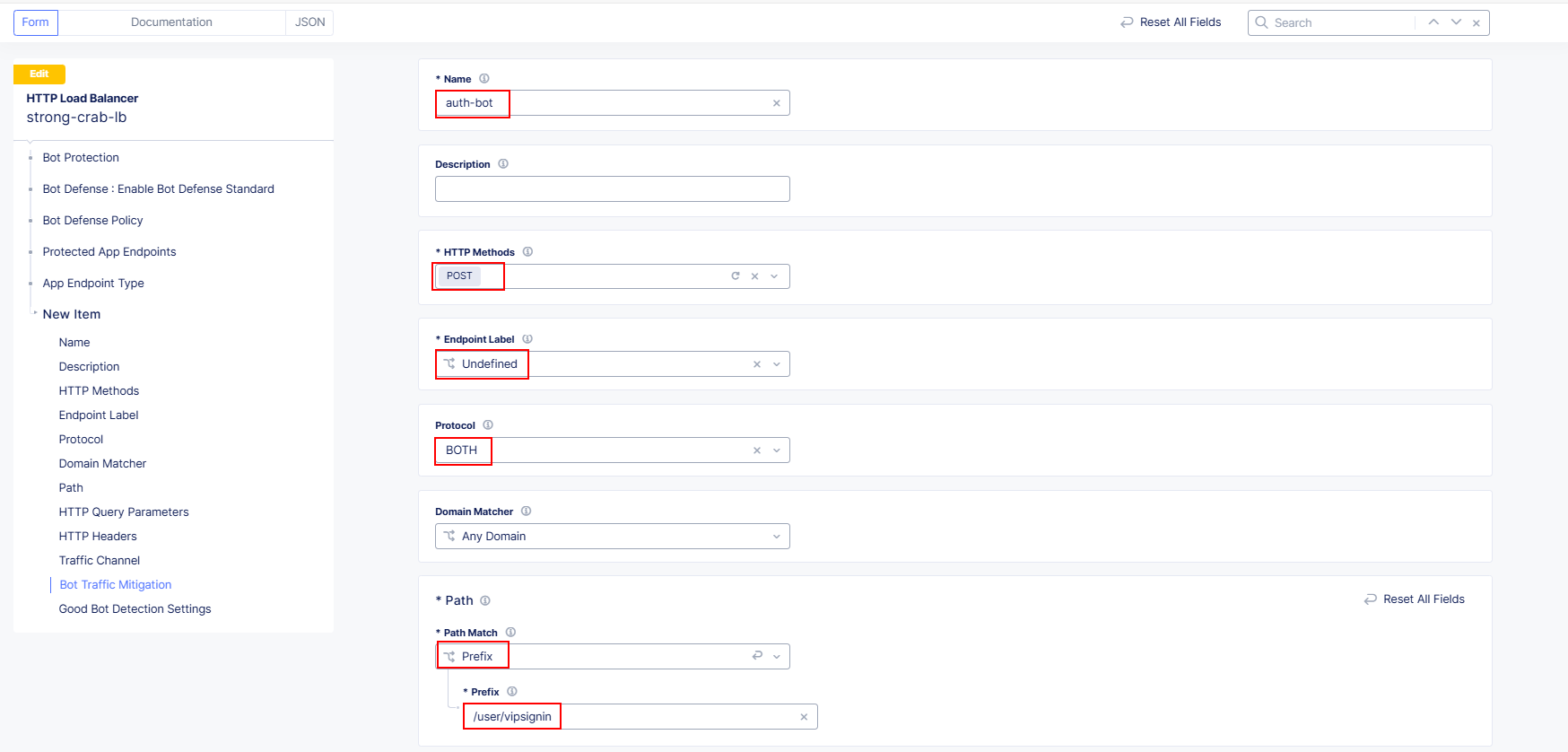
  1. In the resulting App Endpoint Type window, input the following values as shown:

    • Name: auth-bot

    • HTTP Methods: POST

    • Endpoint Label Undefined

    • Protocol: BOTH

    • Path:Path Match: Prefix

    • Prefix: /user/vipsignin

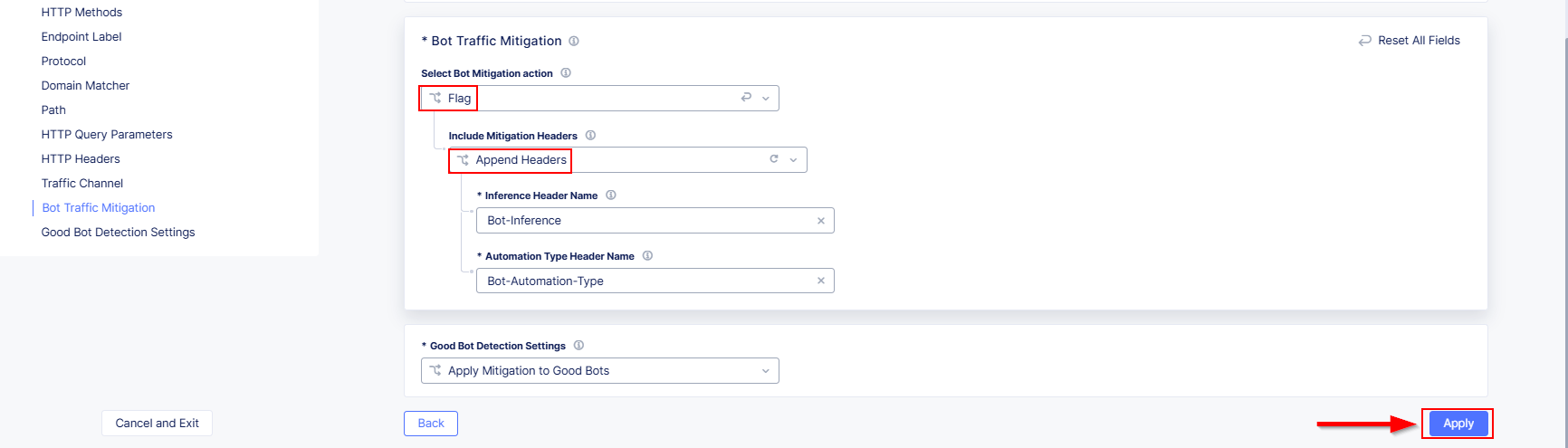
    • Bot Traffic Mitigation:Select Bot Mitigation Action: Flag

    • Bot Traffic Mitigation:Include Mitigation Headers: Append Headers

    • Inference Header Name and Automation Type Header Name As Defaults (unchanged)

    Once all of these settings are configured scroll to the bottom and click Apply

lab2-task1-08

lab2-task1-09

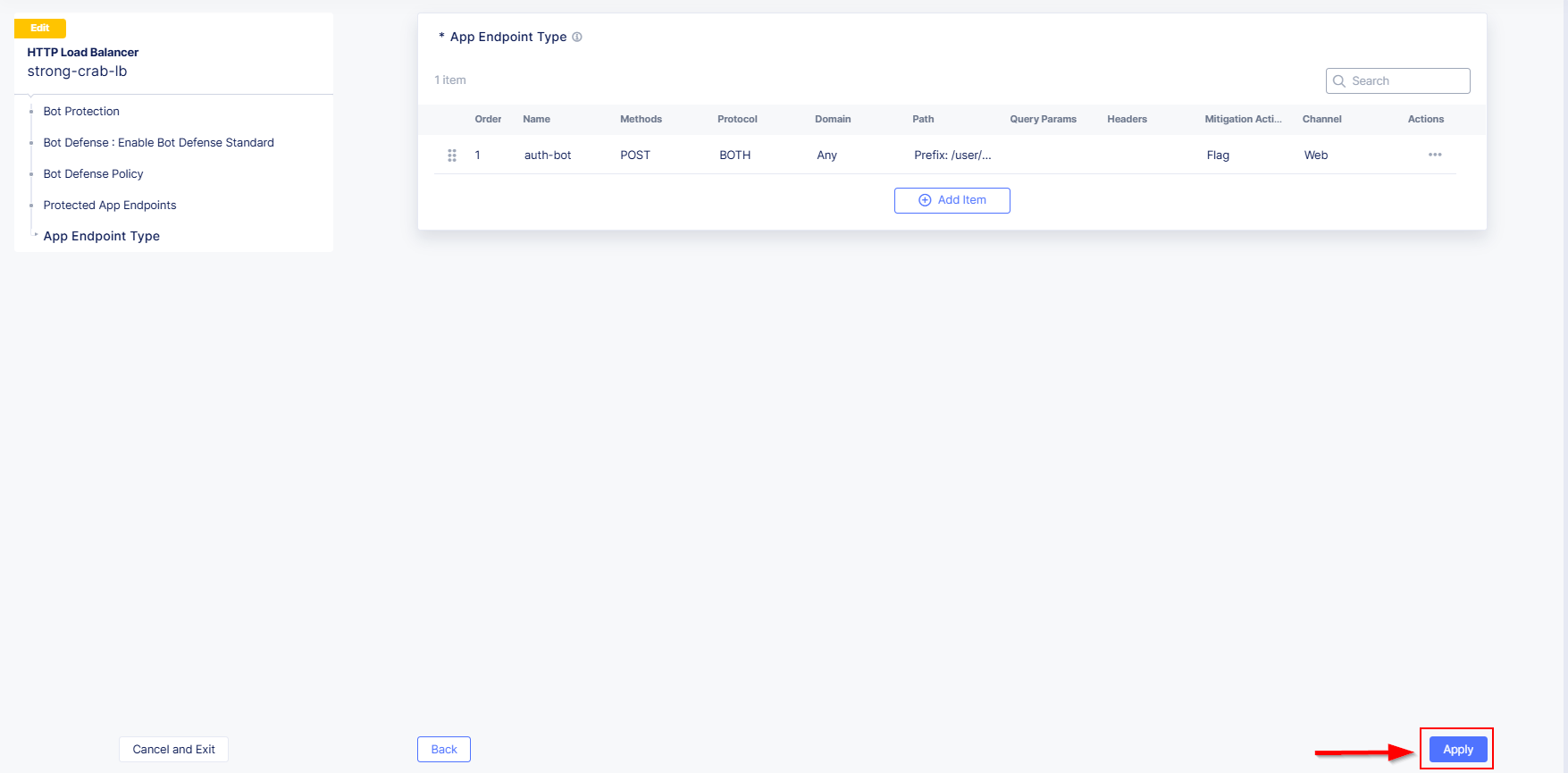
  1. Next, click Apply on the App Endpoint Type screen

lab2-task1-10

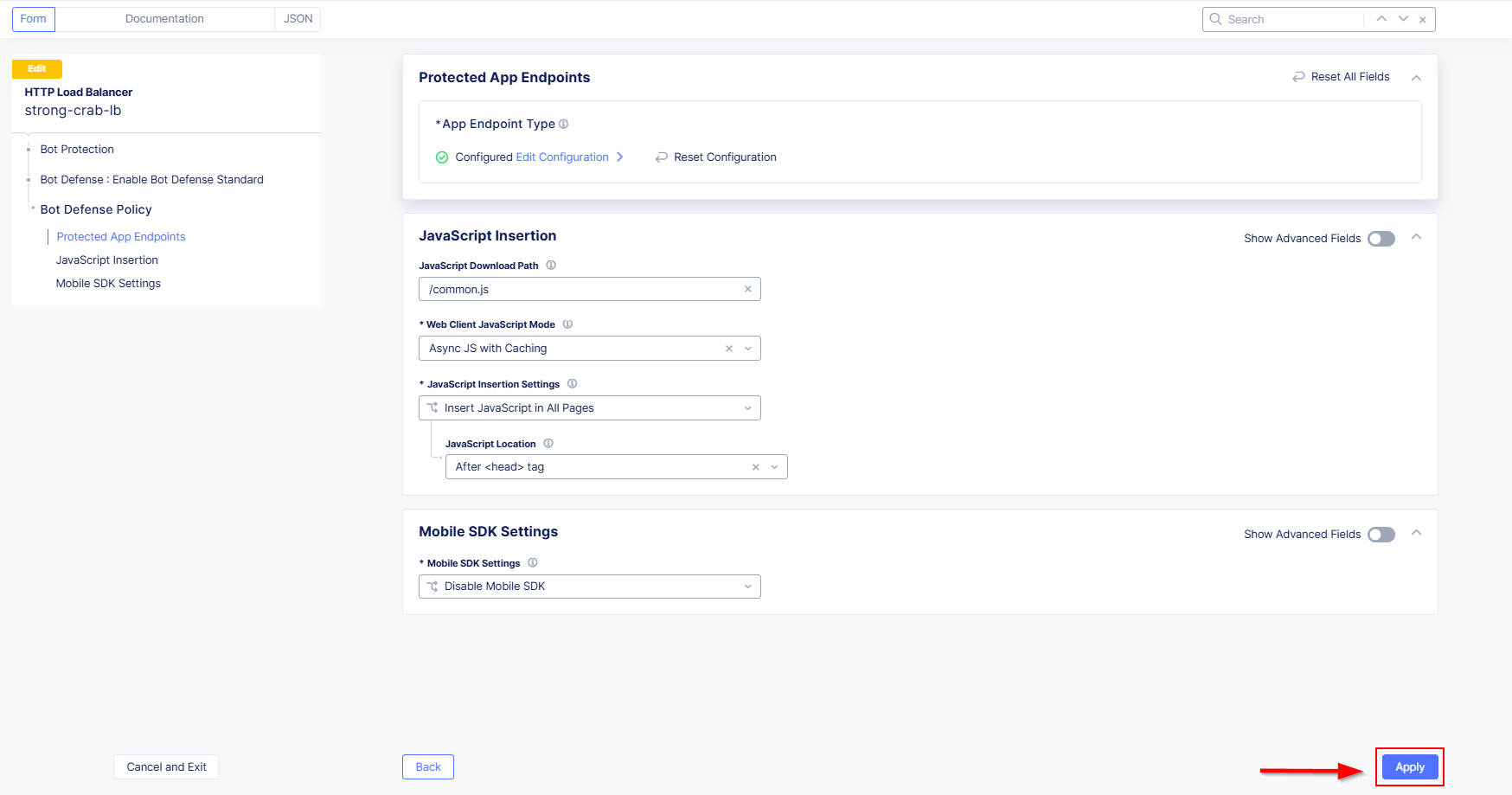
  1. Next, click Apply on the Protected App Endpoints screen

lab2-task1-11

  1. We can now see the Bot Defense Policy is now configured

lab2-task1-12

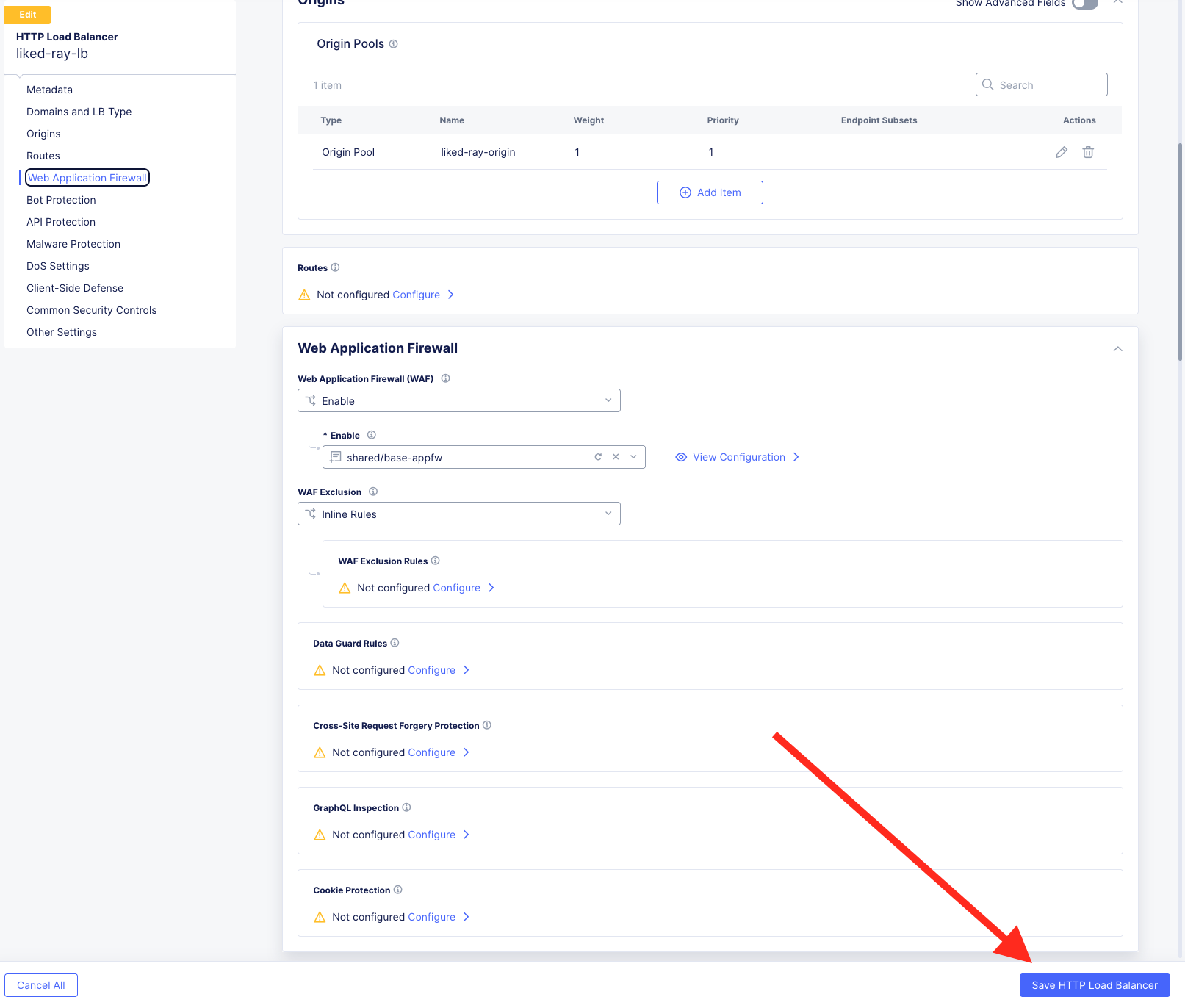
  1. Click Save HTTP Load Balancer at the bottom of the page.

lab2-task1-13

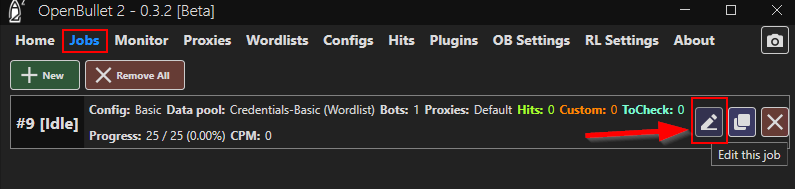
  1. Now that we have a Bot Policy applied lets re-run the Basic Credential stuffing attack. From Windows Jump Host. Click on OpenBullet then Jobs and the pencil/edit icon to the right. We need to edit the Skip* counter by highlighting the current number and type 0 (zero). Click Accept when done and Finally click Start.

lab1-task5-03

  1. Check review the request logs. Was anything flagged as a violation? Why or Why not ?

Hint: Are HTTP requests violating any HTTP protocol definitions/standards?

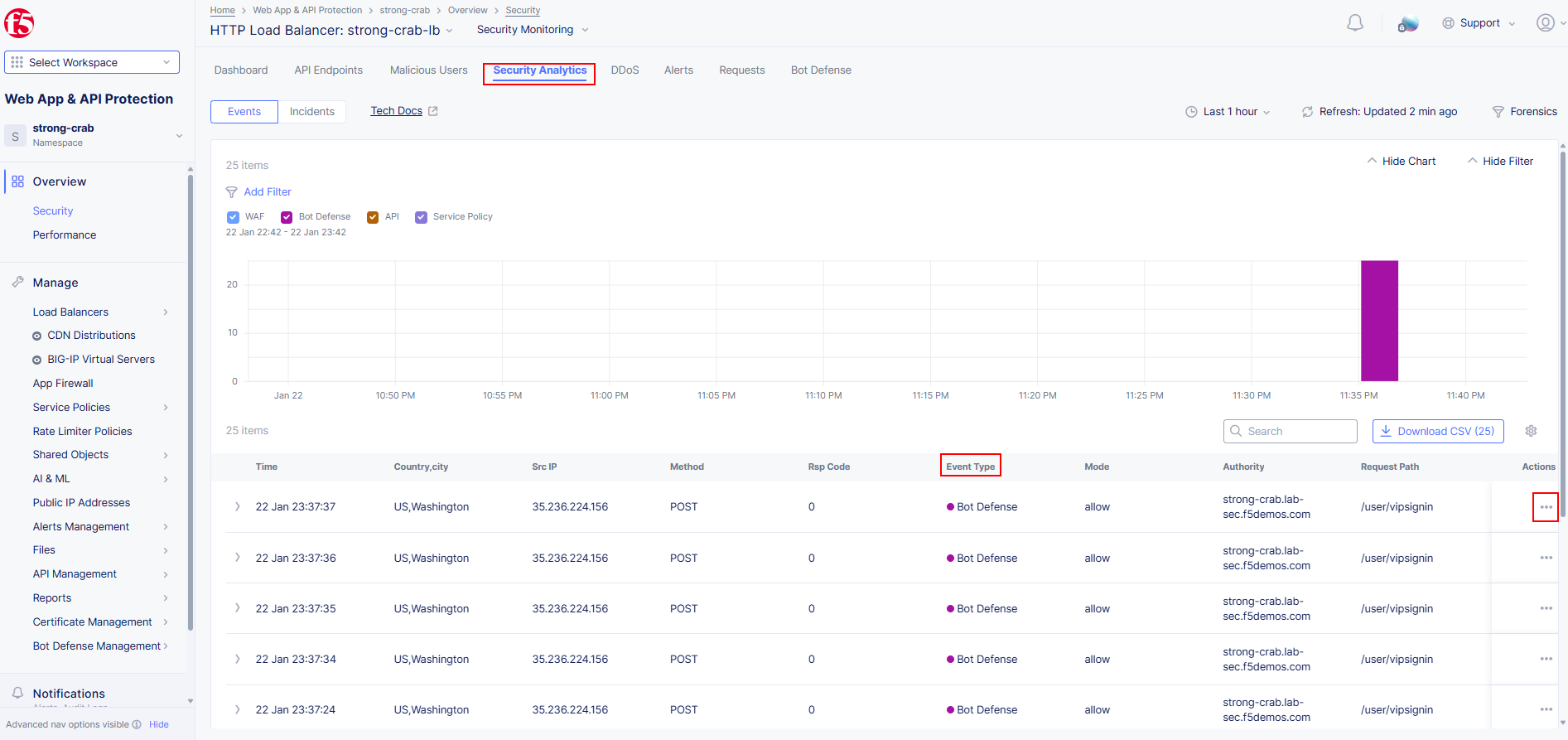
  1. Let’s inspect the Security Analytics dashboard and any captured events.

lab2-task1-14

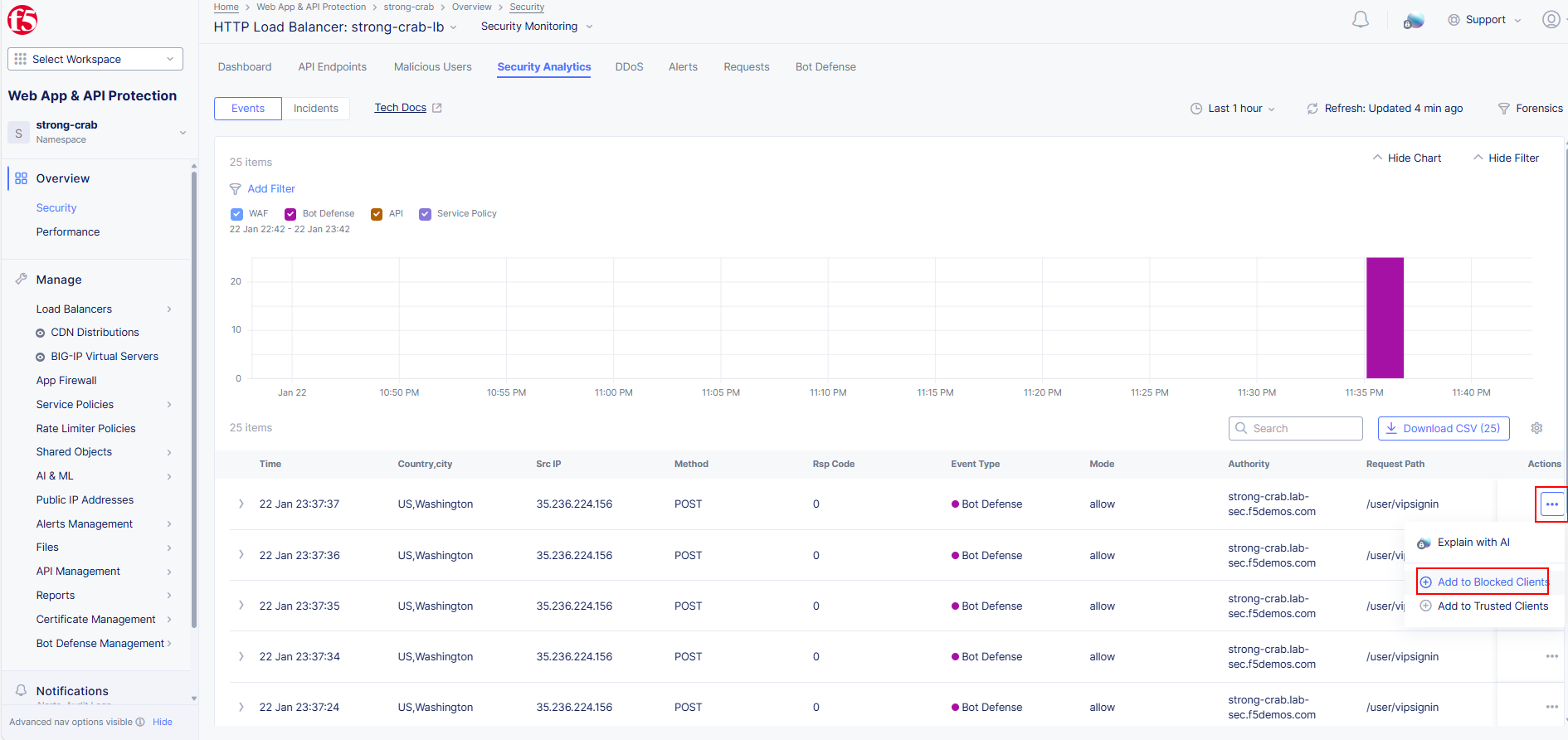
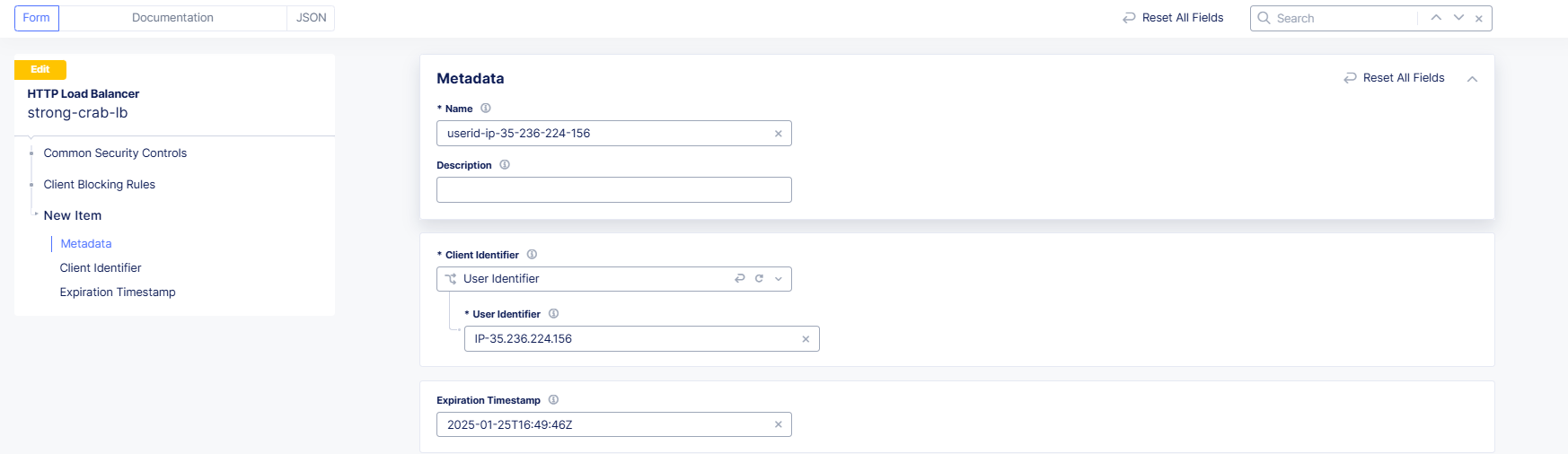
This dashboard provides an easy option to quickly take actions such as adding the source IP address of the bad actor to the Blocked Client List of our WAF policy.

Note: The following images are for example only.

lab2-task1-15 lab2-task1-16

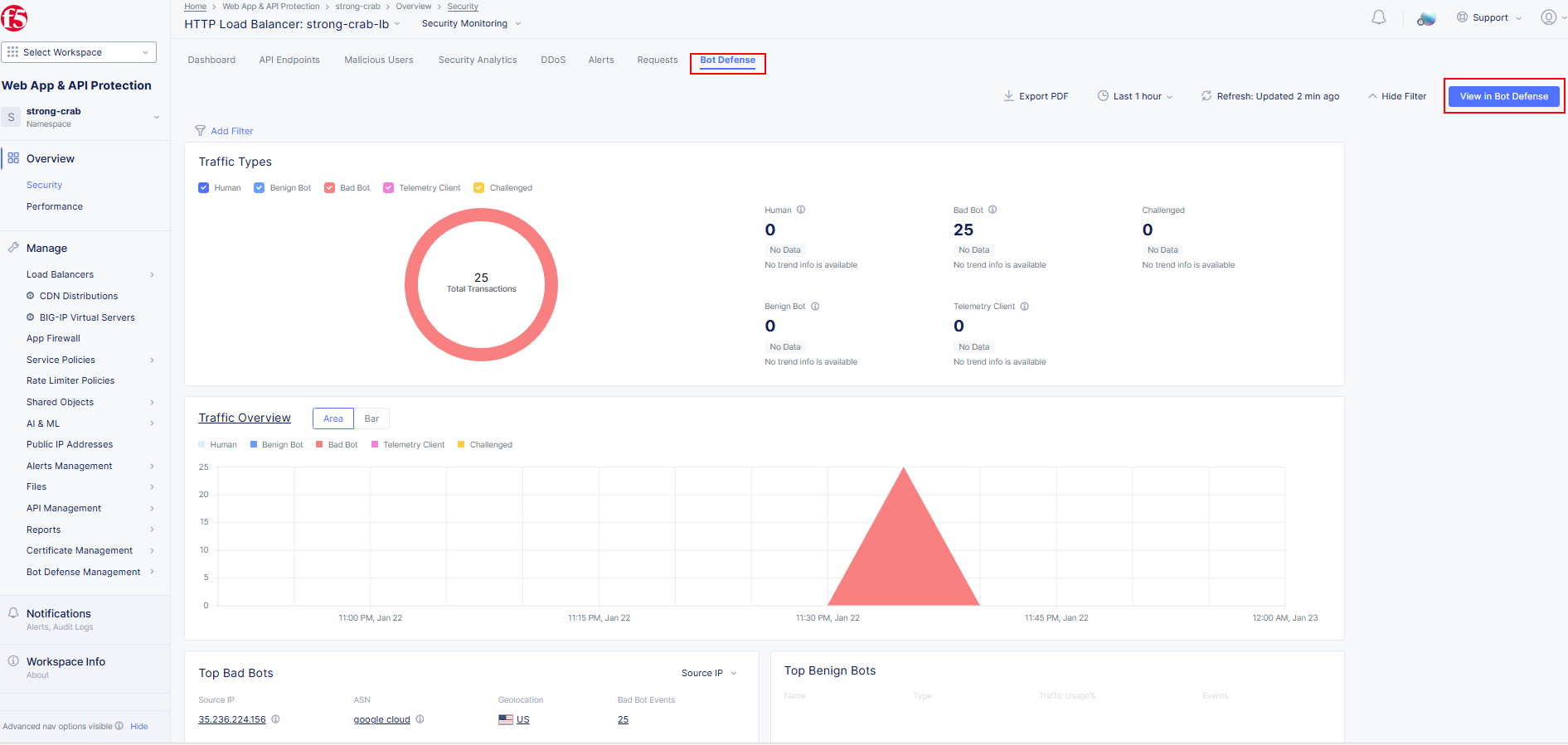
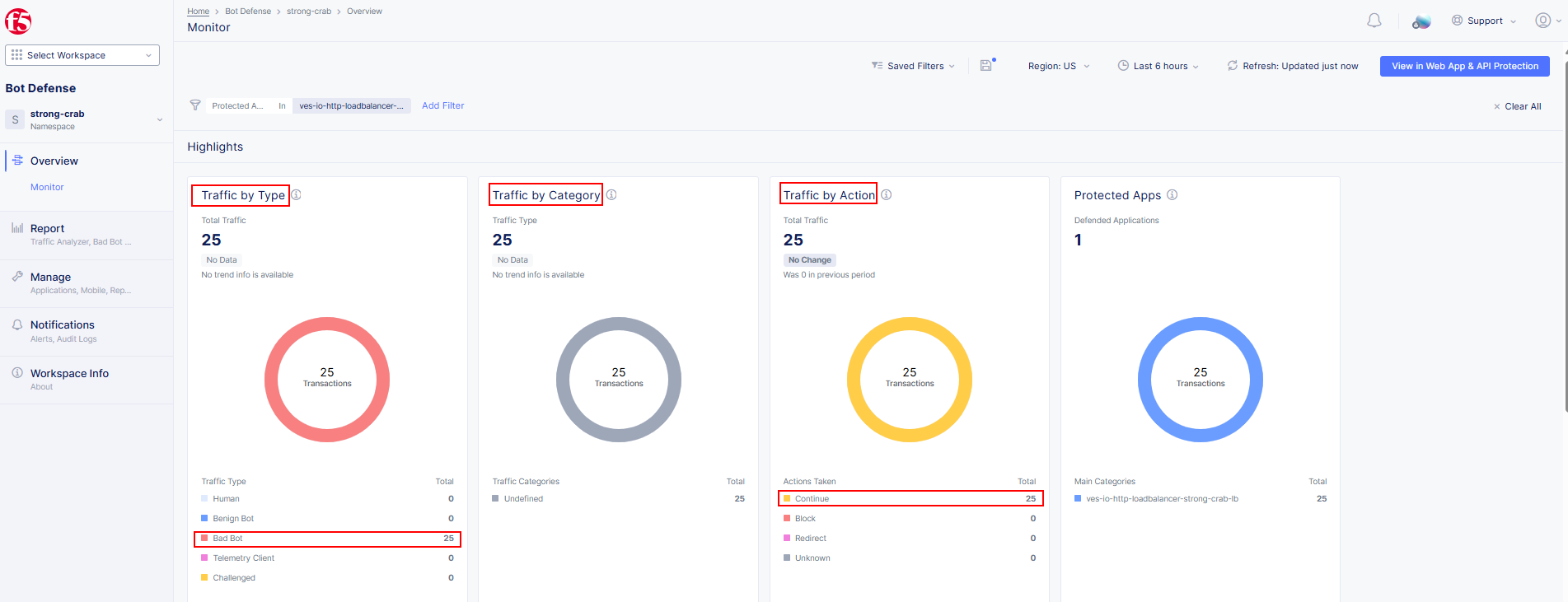
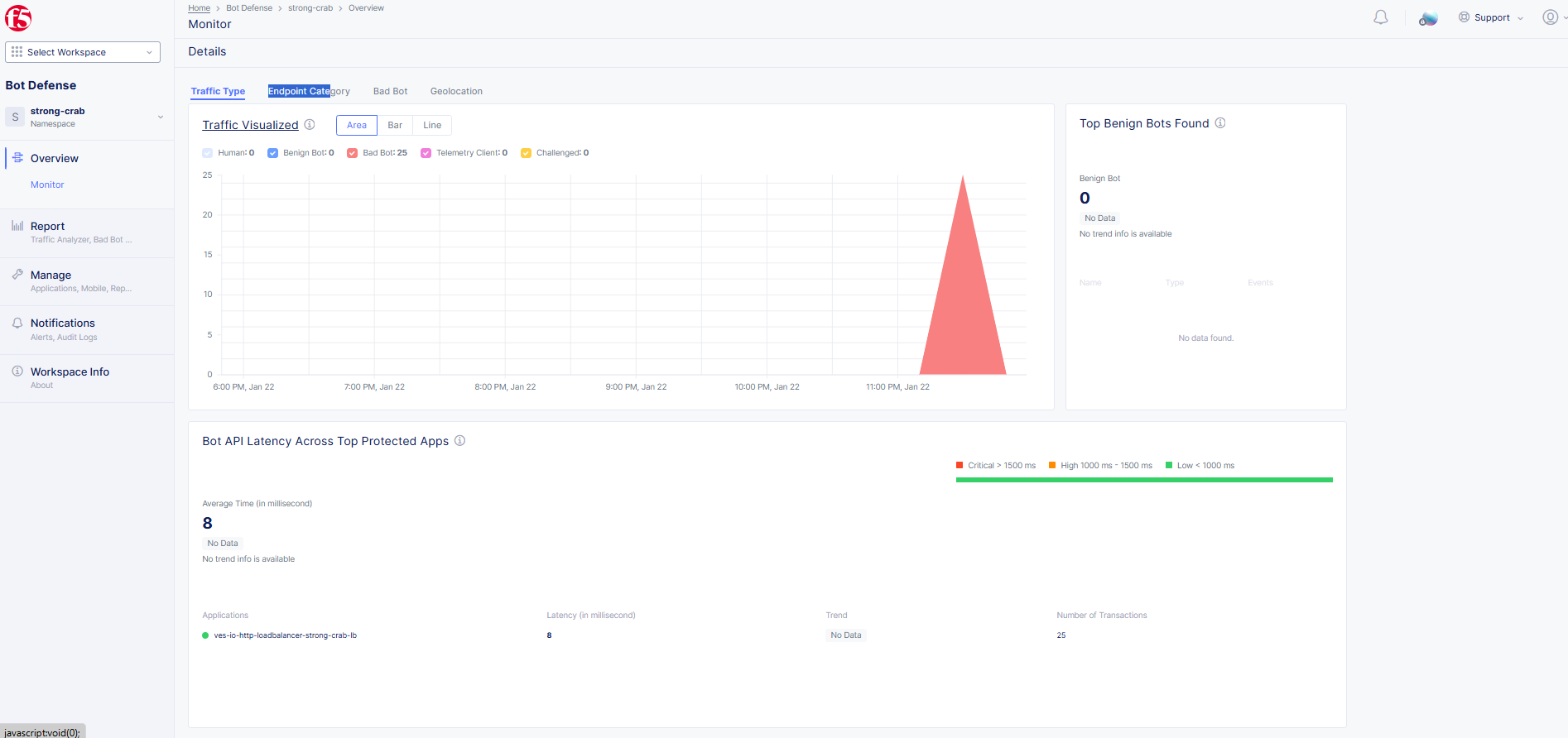
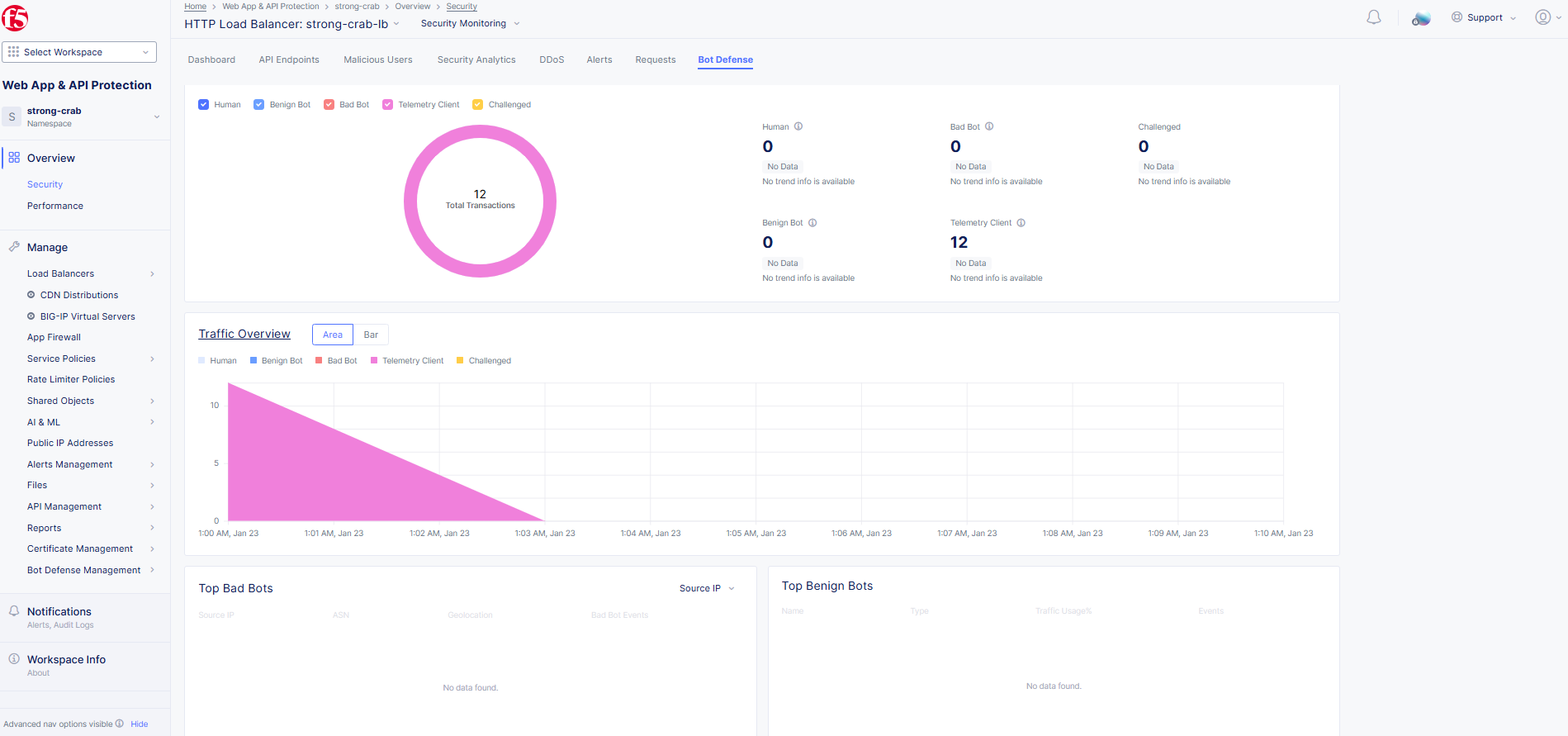
  1. By clicking on Bot Defense then View in Bot Defense we gain greater visibility on the various traffic types. Notice these requests are defined as Bad Bot

lab2-task1-17

lab2-task1-18

lab2-task1-19

Task 2: Compare requests with and without Bot Defense

For this task you will inspect the airline applications signin page all while attempting various failed login attempts. We will learn the telemetry gleaned from this scoping exercise. Please ensure these tasks are run from the Jump Host

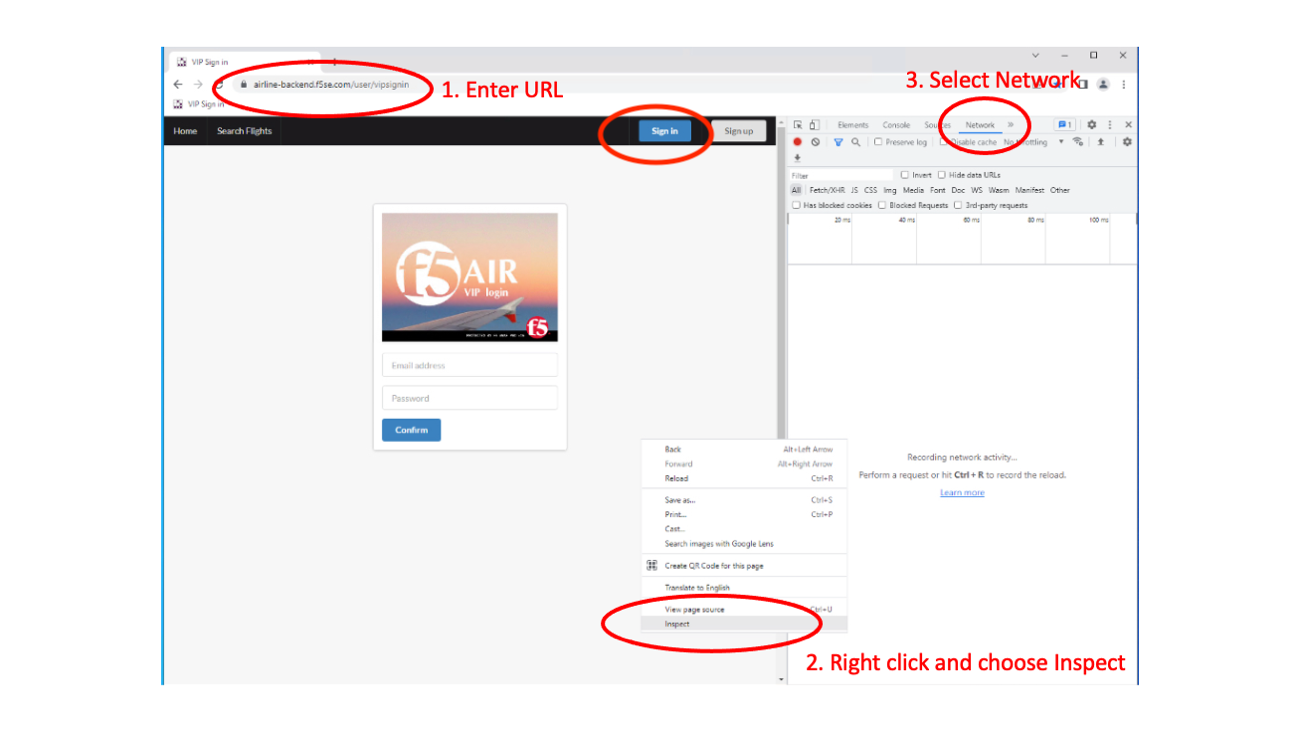
  1. From the JumpHost, launch the Chrome Browser, click on the F5 Airlines bookmark and click on the Sign In button.

    Optionally you can type http://airline-backend.f5se.com/user/vipsignin

  2. Once loaded right click on the page and choose Inspect then navigate to the Network tab on the new right-hand side window. This will allow you to monitor what content is loaded and submitted during the interactions with the airline website.

lab2-task2-01

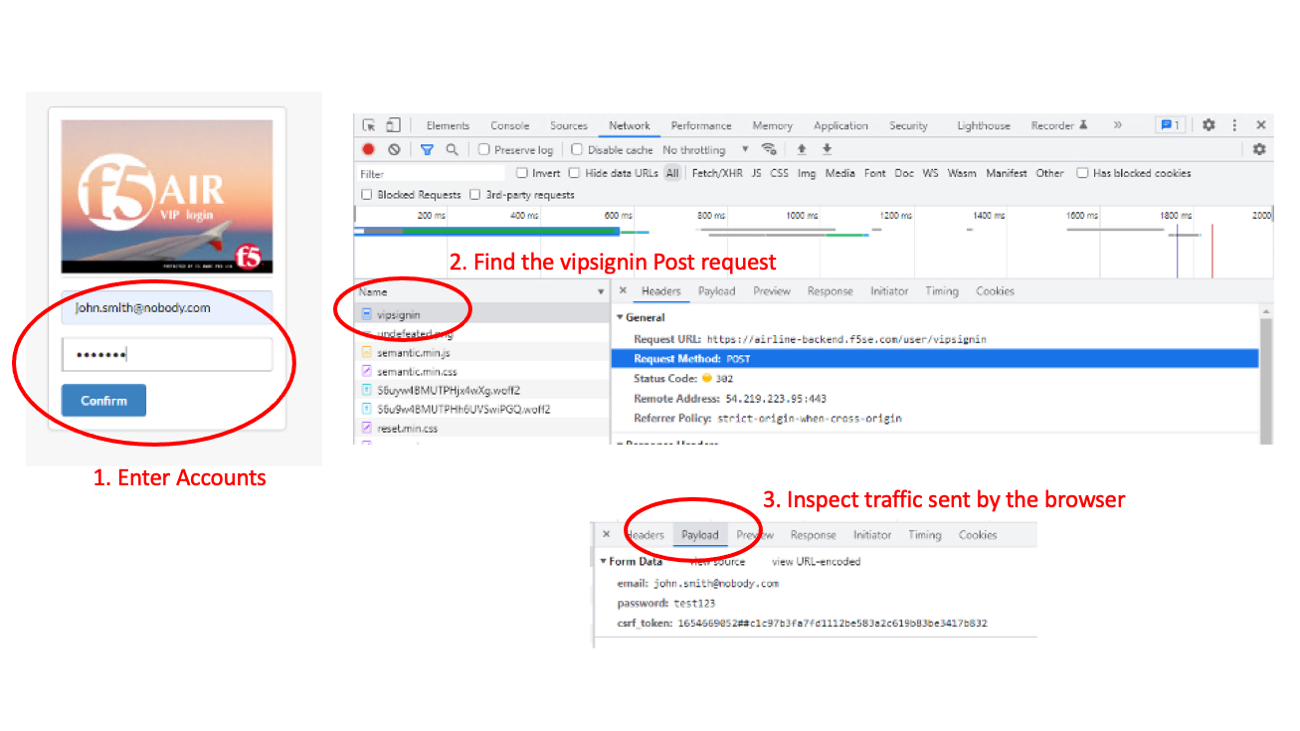
  1. On the login prompt enter the following then click Confirm:

    username: john.smith@nobody.com

    password: test123

  2. This should log you into the account but more important look on the right side panel finding the vipsignin (or signin) POST request. Select this entry and you will see the POST request that was created for your login.

  3. Switch to the Payload tab and we can see the exact data that was submitted.

    The Username and Password are expected but we also see a tracking token (not used here)

lab2-task2-02

  1. Open a new tab in Chrome and navigate to the frontend airline application website ** http://namespace.lab-sec.f5demos.com** and repeat steps 2-5. This time, requests for additional JavaScript code can be seen.

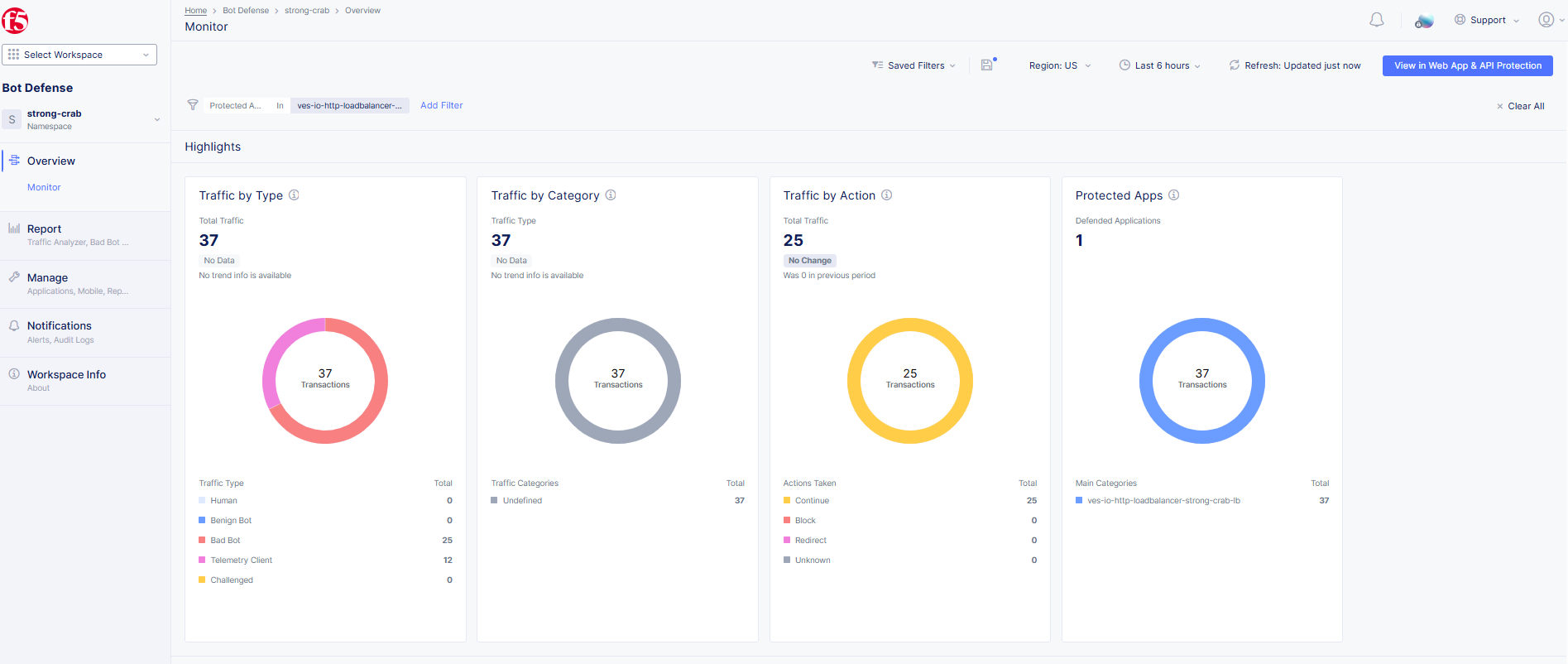
  2. Refresh the Bot Defense dashboard (*Bot Defense > Overview > Monitor***, or *Web App and API Protection > Overview > Security > [YOUR LOAD BALANCER] >* *Bot Defense*) and you will notice additional Telemetry Client details. This is telemetry data about the request that helps to identify human vs bot behavior, among other things. If we see a violation being categorized as “*Bad Bot*” that means the risk engine detected a bot based on signature information. Something about the request was flagged by a matching condition in the signature, no telemetry was required. This was the case with the basic credential stuffing attach. The client for that attack can not render JavaScript, and is making direct HTTP requests, similar to using curl.

lab2-task2-05

lab2-task2-06

End of Lab 2: This concludes Lab 2, feel free to review and test the configuration.

labend